

Every other article here tells you how to read a screen. This one is about not opening TrackIQ at all.
MCP — the Model Context Protocol — lets an AI assistant you already use query your Amazon data directly. You ask Claude Desktop a question in plain English, it calls TrackIQ, and it answers from your real numbers. No export, no copy-paste, no screenshot.
Prefer to watch? Seventy-six seconds on what MCP is and when to reach for it instead of Aria.
The problem it removes
The usual way to get Amazon data into an AI assistant is to export a CSV, open it, paste it into a chat, and hope the assistant reads the columns the way you meant them.
That breaks in three places. The export is a snapshot, so it is stale the moment you take it. It is truncated, because a chat window will not hold a year of daily rows. And the assistant has no idea what the columns mean — it does not know that SP uses a 7-day attribution window and SB uses 14, so it will happily add them together.
MCP fixes all three at once. The assistant queries live, asks for exactly the slice it needs, and TrackIQ tells it what each figure means as part of the answer.
What it looks like in practice
You type a question into Claude Desktop. Behind the scenes it picks a tool, fills in your account, date range and filters, and reads back the result.
“Which of my campaigns lost money last month?”
“Compare my ACoS this quarter against last, by ad type.”
“Which products are running out of stock in the next two weeks?”
“Which search queries do I convert on that I have no keyword for?”
You never name a table, a filter or a date format. That is the whole point — the tools are described well enough that the assistant works out which one to reach for.
Four things worth doing with it
Ask questions the UI has no screen for. The product has a screen for campaigns and a screen for inventory. It does not have a screen for “campaigns advertising products that will be out of stock before the click converts”. An assistant with access to both can answer that in one turn.
Do the analysis where your other work already is. If you write your weekly summary in Claude, pulling the numbers in beats alt-tabbing to fetch them.
Let a non-analyst self-serve. A founder or a client can ask “how did we do last week?” without learning where anything lives. There is no dashboard to teach.
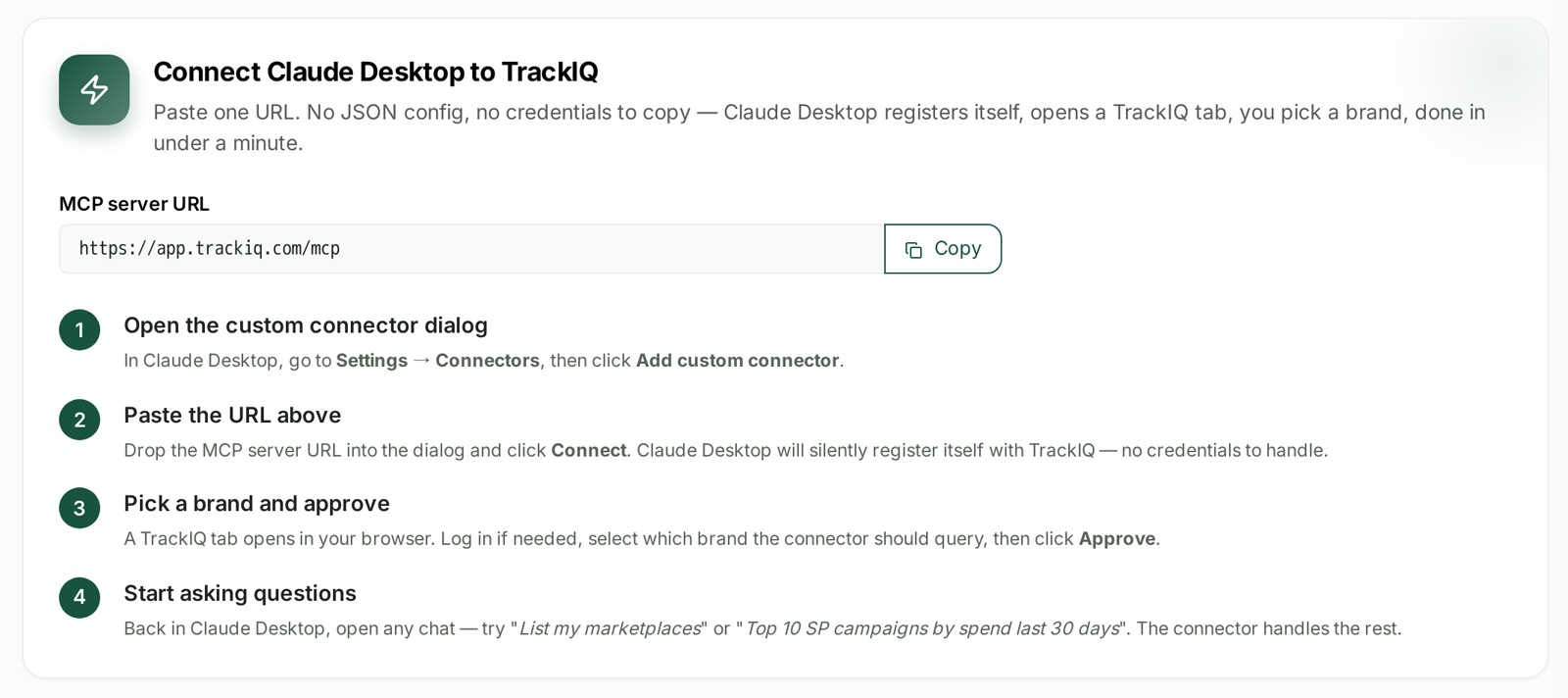
Build something on top. The same access is available as a plain bearer token, so a script, a scheduled job or an internal tool can read the same data. See Installing TrackIQ MCP in Claude Desktop and Cursor.
How this differs from Aria
Both answer questions in English. They are not the same tool, and the difference is where the conversation lives.
| Aria | MCP | |
|---|---|---|
| Lives in | TrackIQ, and Slack | your own AI assistant |
| Knows about | your Amazon data | your Amazon data plus everything else in that chat |
| Can draw | charts, tables, dashboards, Studios | whatever your assistant can render |
| Set-up | none | paste one URL, once |
The practical rule: use Aria when the question is only about Amazon, because it will give you a chart and let you pin it. Use MCP when the Amazon numbers are one input into a bigger piece of work — a plan, a client email, a model that also involves your costs or your other channels.
What it can see, and what it cannot
It reads. It does not write. Nothing an assistant does through MCP can change a bid, pause a campaign or alter your account — those actions live in Rule-Based Optimization, under your control.
Access is scoped to one brand, chosen when you connect. An assistant connected to one brand cannot read another.
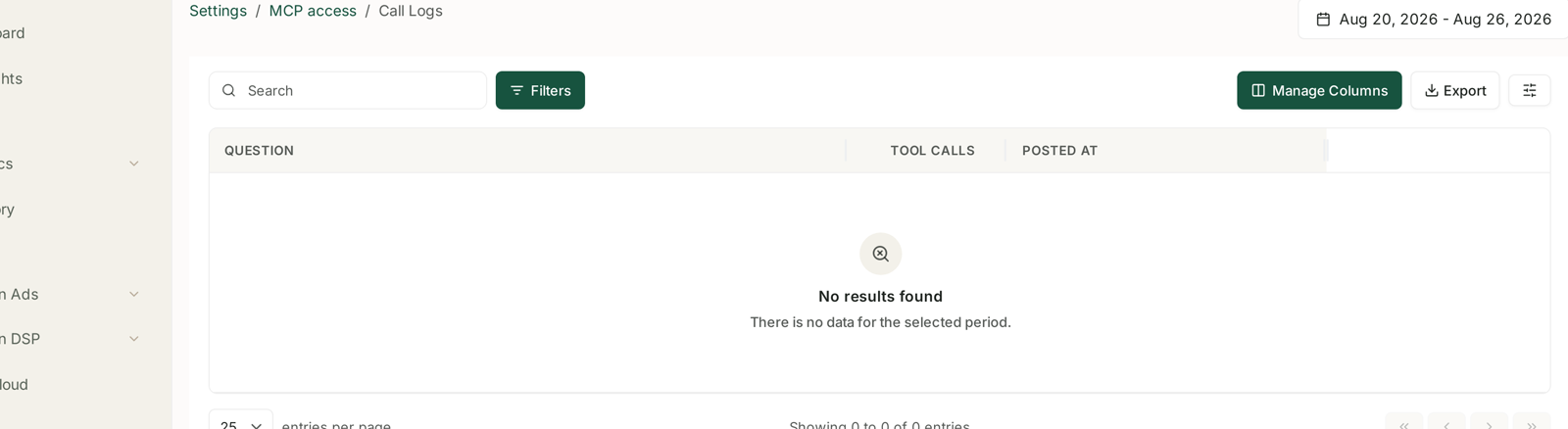
And every request is logged. Settings → MCP & API Keys → Call Logs shows the question that was asked, how many tool calls it took, and when — so you can see exactly which AI tools have been talking to your data.
Where to go next
- Installing TrackIQ MCP in Claude Desktop and Cursor — the one-URL set-up, and the manual path for clients that need it.
- The Full MCP Tool Reference — all 26 tools, what each returns, and the traps in a few of them.
Related
- Exporting Data to CSV and Excel — the non-AI way to get data out.