

Settings is smaller than most people expect, and that is deliberate. Four pages, two scopes, and almost nothing that needs regular attention once it is right.
Prefer to watch? Ninety-three seconds on what follows you between workspaces, and the three things people keep looking for that are not here.
The four pages
The navigation splits into two groups, and the split is the important part:
ACCOUNT
Profile — your name, your email, your password, and your company's invoice details.
WORKSPACE
Connections — the Amazon accounts feeding data in, and the per-brand sync toggles.
MCP & API Keys — connecting AI tools to your data, and the log of what they asked.
Aria in Slack — the Slack workspace link.
Account vs workspace
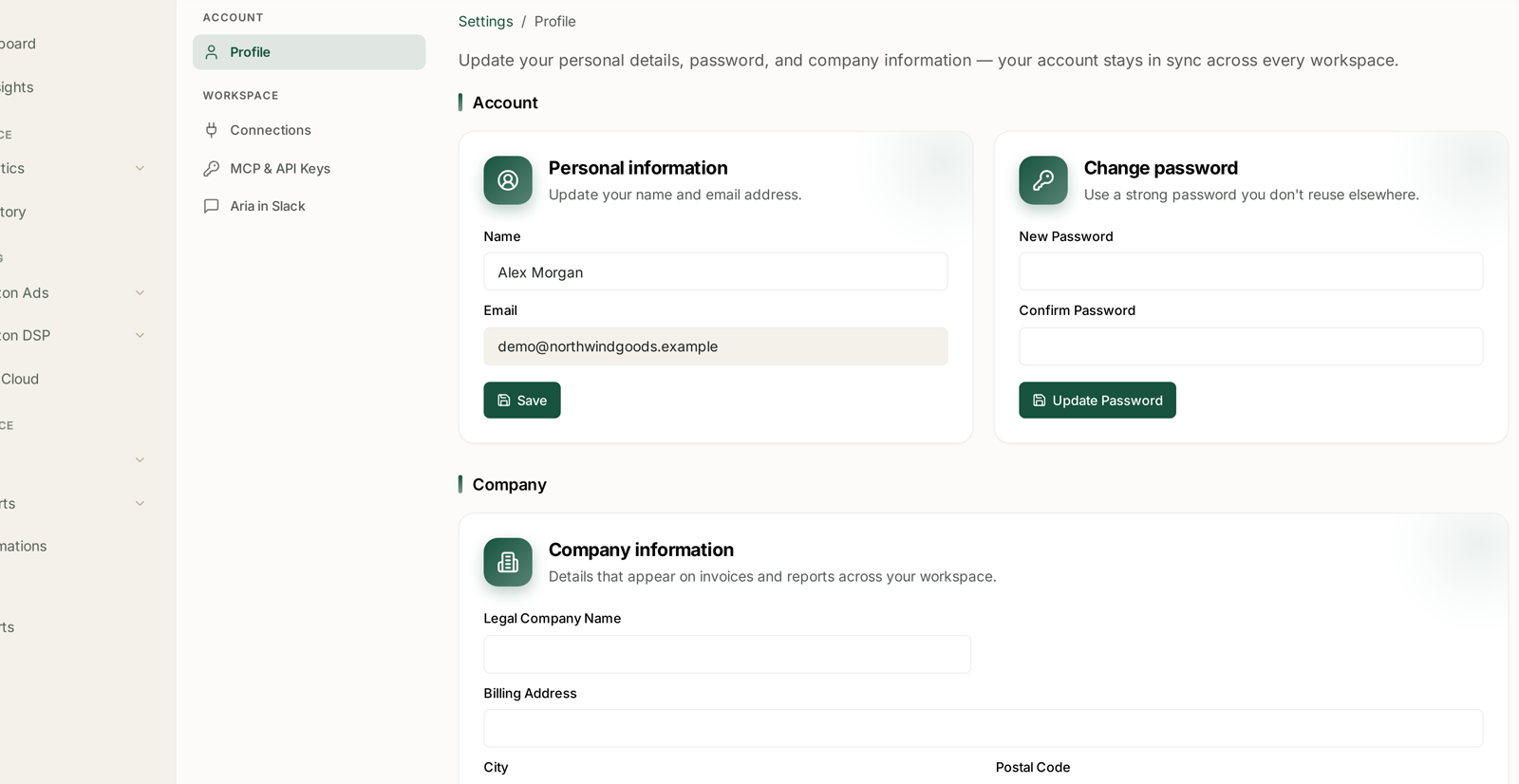
The Profile page states the rule directly:
your account stays in sync across every workspace
Account settings follow you. Your name, email and password are yours, wherever you are working. Change them once.
Workspace settings belong to the workspace. Connections, MCP keys and the Slack link describe this workspace's data and integrations, not you.
That distinction matters the moment you belong to more than one workspace — an agency, or a brand you consult for. Changing your password affects every one; disconnecting a brand affects one.
What each page is actually for
| Page | You go here to |
|---|---|
| Profile | change your name, password, or the details on your invoices |
| Connections | add an Amazon account, fix a broken one, or stop a brand syncing |
| MCP & API Keys | connect Claude or Cursor, issue a key, or audit what an AI asked |
| Aria in Slack | connect or reconnect the Slack workspace |
Connections is the one you will come back to
Everything downstream reads the same data, so Connections is the first place to look when a number is wrong or missing:
Set the filter to All, not Active. A brand switched off is invisible under Active — which is exactly the state you are usually trying to diagnose. See Turning Brand Sync On and Off.
Read the last-synced time per source. SP and ADS sync separately, and a stale timestamp is a connection problem wearing the disguise of a data problem.
Check which sources are connected. SP, ADS, Amazon DSP and AMC are four separate grants; having one does not imply the others. See Managing Your Connected Accounts.
What is not in Settings
Worth knowing so you stop looking:
Users and permissions are not on this role's Settings. If you cannot see a page a colleague can, that is a role difference. See I Can't See a Menu Item Other People Can.
Alert configuration lives with Alerts, not Settings.
Rule configuration lives in Automations.
The brand and marketplace picker is in the top bar on every screen, not in Settings. See Switching Brands and Choosing a Marketplace.
The email field is read-only
On Profile, Name is editable and Email is not. Your email is your identity for signing in, so changing it is not a self-service edit — contact support if it genuinely needs to change. See Getting Help from the TrackIQ Team.
Password changes are self-service: New Password, Confirm Password, Update Password. Use something you do not reuse elsewhere.
A sensible first-run pass
Once, when you set up:
1. Profile — your name, a password you do not reuse.
2. Company information — so invoices carry the right legal entity and tax ID. See Company Profile.
3. Connections — every brand and every source, with the filter on All.
4. Aria in Slack — if your team works there.
5. MCP & API Keys — only if you are connecting an AI tool.
Then leave it alone. Settings is not a screen that rewards fiddling.
Related
- Company Profile — the invoice identity block.
- Managing Your Connected Accounts — the Connections page in full.
- Turning Brand Sync On and Off — the toggle that stops data arriving.
- The MCP Web Console — connecting AI tools.
- Switching Brands and Choosing a Marketplace — the scope control that is not in Settings.
- Company Profile — the invoice identity block on the same page.