

Automations is where TrackIQ stops reporting and starts acting. Everything on this screen either defines a change, groups the campaigns it applies to, or records a change that has already happened.
Three controls do all of it: two tabs, and the Change log button.
Prefer to watch? Sixty-three seconds on the two tabs, the change log, and naming rules properly.
The Rules tab
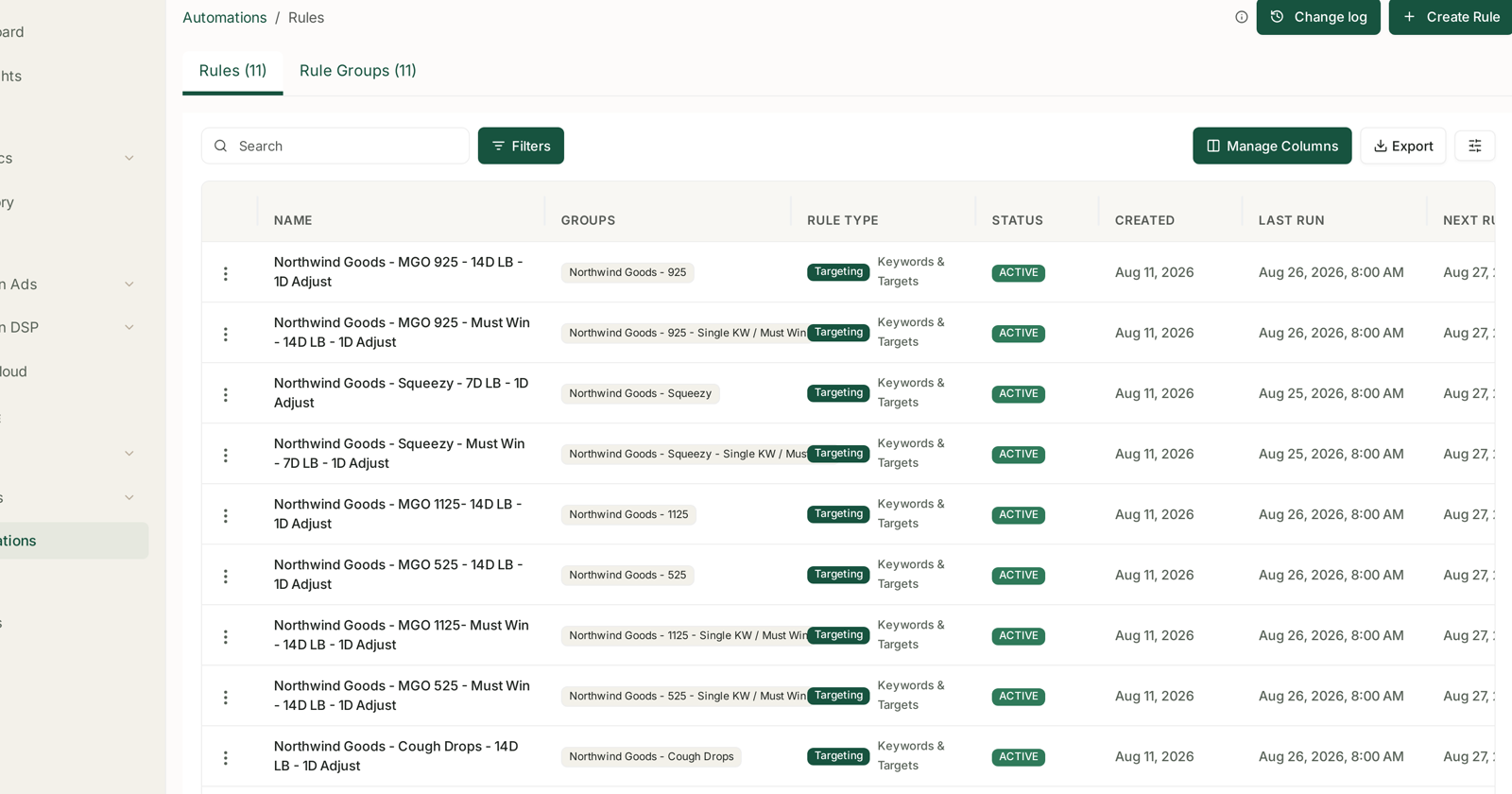
One row per rule, with the columns that answer the questions you actually have:
| Column | Tells you |
|---|---|
| Name | what it does, if you name it well — see below |
| Groups | which rule group it applies to |
| Rule type | Targeting or Campaign, and what it acts on |
| Status | ACTIVE or not |
| Created | when you set it up |
| Last run | when it last executed |
| Next run | when it will execute again |
Last run and Next run are the two worth glancing at. A rule with an old Last run, or a Next run that never arrives, is a rule that is not doing anything — and a silent rule looks exactly like a working one from every other column.
Naming rules so the list stays readable
The convention in a well-run account puts the settings in the name:
Northwind Goods — MGO 925 — 14D LB — 1D Adjust
Brand, the product or group it covers, the look-back window (14 days of data), and the adjustment frequency (acts once a day). Those two settings are what make two otherwise identical rules behave differently, and they are not columns — so putting them in the name is the difference between a list you can read and eleven rows called “Bid rule”.
Do this from the first rule. Renaming later is a chore nobody does.
The Rule Groups tab
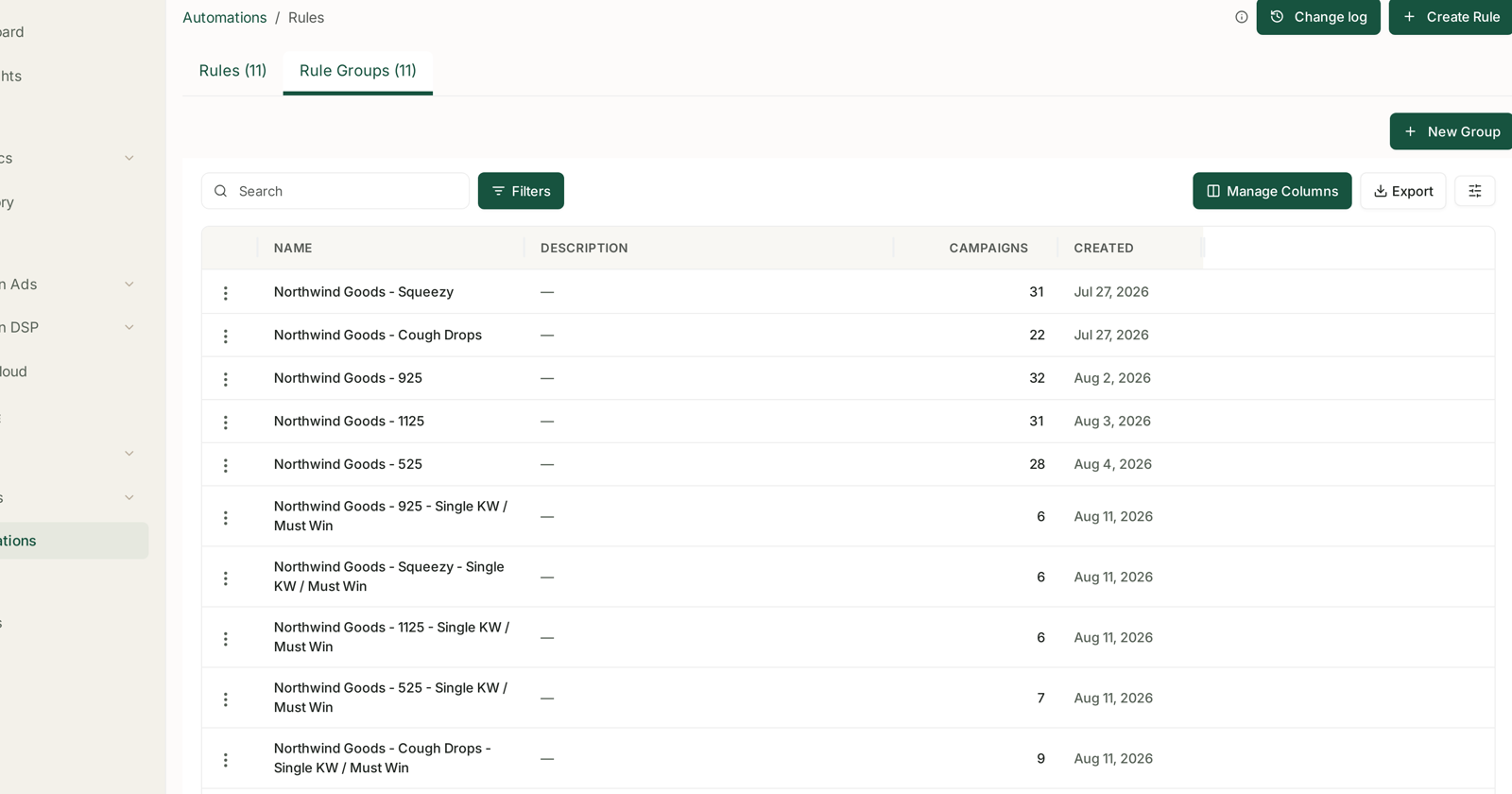
A rule group is a named set of campaigns. Each row shows a name, an optional description, and a campaign count.
Groups exist so a rule targets a set rather than one campaign. One rule pointed at a group of 31 campaigns is one thing to maintain; 31 rules is not.
Use the description field. It is empty by default and it is the only place to record why a group exists — which matters when somebody inherits the account.
+ New Group creates one.
Change log
The button at the top right opens a record of every change automation has made on this account, newest first.
This is the feature that makes the rest safe to use, because it turns automation from something that happens to your account into something you can audit. See The Change Log: Auditing What a Rule Changed.
Create Rule
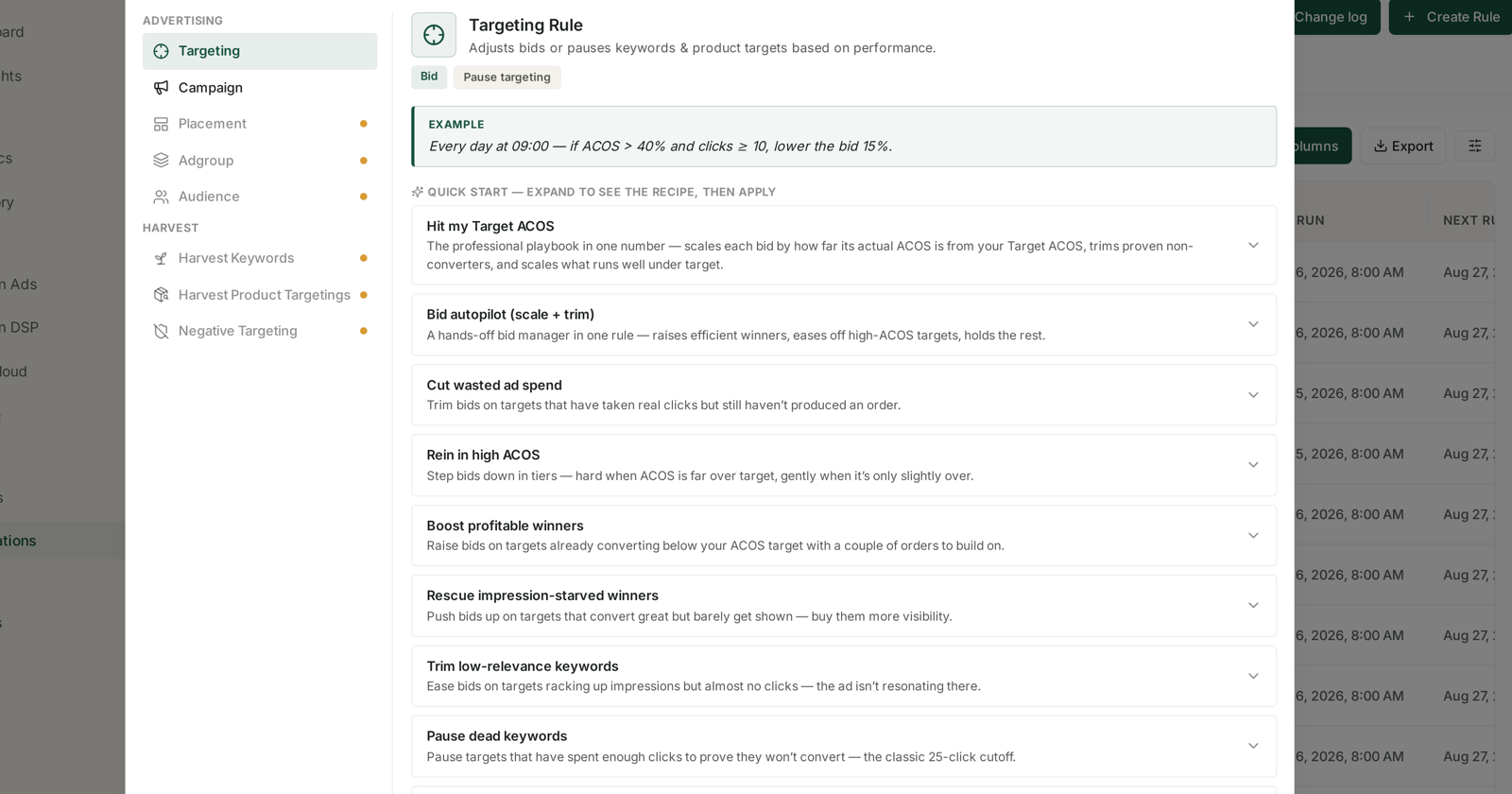
+ Create Rule opens the type chooser. Two types are live today:
- Targeting Rule — adjusts bids or pauses keywords and product targets.
- Campaign Rule — adjusts budgets or pauses whole campaigns.
Others are listed and marked as not yet available: Placement, Adgroup, Audience, and a Harvest family — Harvest Keywords, Harvest Product Targetings and Negative Targeting. They are visible so you can see where this is going, not because you can use them.
Each live type offers a set of Quick Start recipes — pre-built rules you expand, review and apply — or a blank rule if you would rather build the conditions yourself.
What to do first
- Read the Change log before creating anything, if rules already exist. Knowing what is currently happening to your account beats guessing.
- Create a rule group for the campaigns you want to govern together.
- Start from a recipe rather than a blank rule. See Targeting Rules and Campaign Rules.
- Check Last run tomorrow, then check the Change log the day after. Two small checks that turn a rule you hope is working into one you know is.
Before you automate anything, it is worth ten minutes on Guardrails to Set Before You Automate Anything — the mistakes are all avoidable and all annoying.
Related
- Dry-Run Preview: Seeing What a Rule Would Change — the row-menu action worth knowing.
- Scheduling: Last Run, Next Run and Run History — last run, next run, history.