

Every other advertising screen is organised by how you buy — campaigns, ad groups, keywords, targets. Product Ads is organised by what you sell.
One row per advertised ASIN. It is the screen that answers “is advertising this product actually working?”, which no amount of campaign-level reporting will tell you.
Prefer to watch? Seventy-seven seconds on the one screen organised by what you sell.
The screen
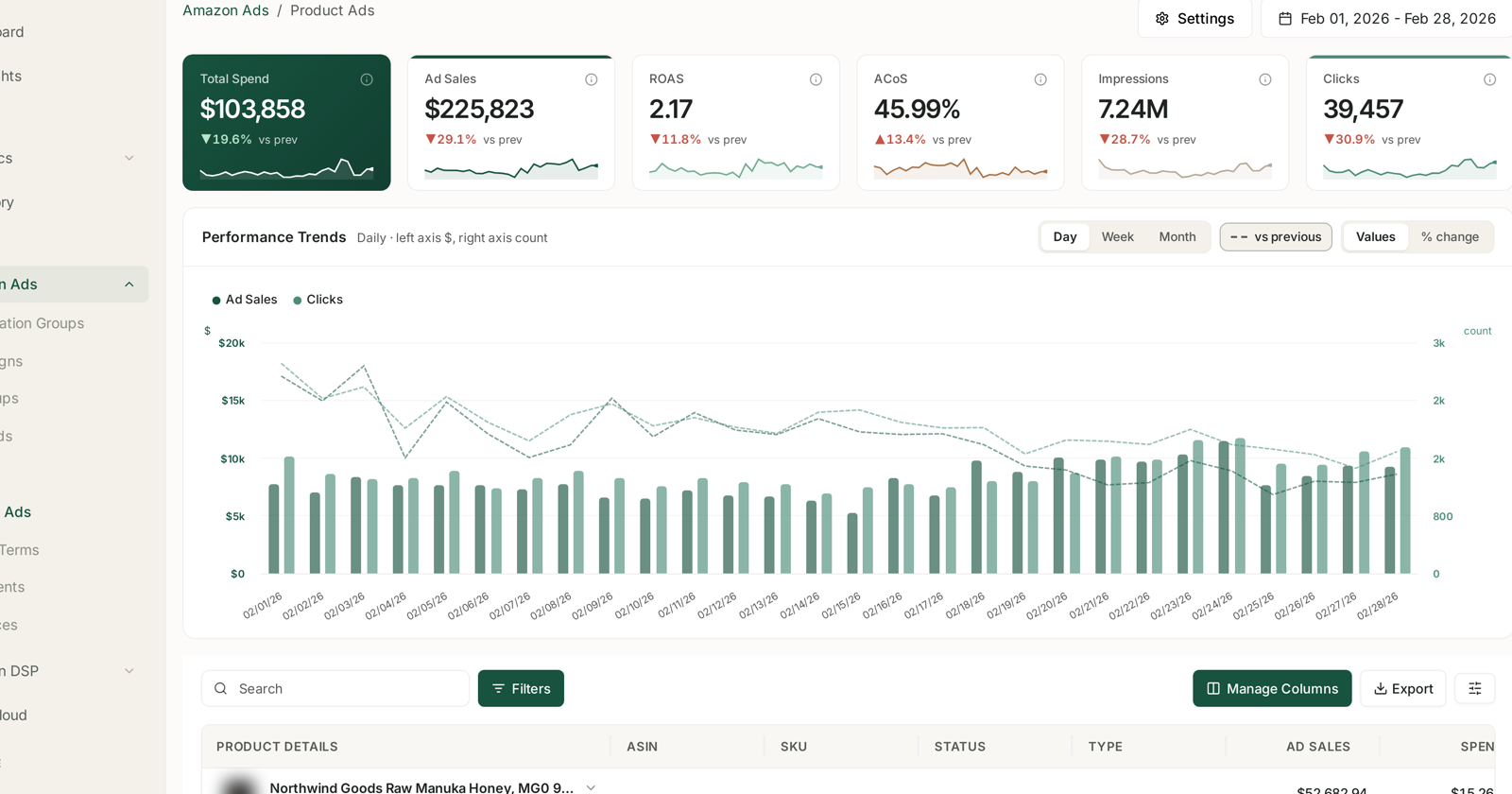
Standard Amazon Ads layout above, and a table identified by product rather than by campaign:
| Column | |
|---|---|
| Product details | thumbnail and title, expandable |
| ASIN | the Amazon identifier |
| SKU | your own identifier |
| Status | enabled, paused, archived |
| Type | the ad type |
| Ad sales, spend and the rest | performance |
Both ASIN and SKU are shown, which matters more than it looks. Sellers think in SKUs and Amazon thinks in ASINs, and the same product can carry several SKUs. Having both on the row is what lets you reconcile an advertising figure against your own systems.
Why product-level is a different question
A campaign can look healthy while one product inside it loses money. Campaign reporting averages across every product it advertises, so a strong seller can carry two weak ones indefinitely.
This screen breaks that average open. The same ASIN usually appears in several campaigns — and its row here is the total across all of them, which is the figure that actually matters when you are deciding whether to keep advertising it.
What to look for
Spend with no sales. The clearest signal on the screen. A product taking real clicks and producing nothing is either mispriced, out of stock, or has a detail page problem — none of which a bid change fixes.
High spend, acceptable ACoS, thin margin. TrackIQ knows your revenue, not your cost of goods. A product at 45% ACoS may be fine or may be underwater, and only you know which. See What Aria Can and Cannot Answer.
Products you did not mean to advertise. Catalogue-wide campaigns pick up products you have stopped caring about. This is the screen where you notice.
Your gateway products. A product with an unremarkable ACoS may be the one bringing in new customers. Check NTB ASINs before cutting it — see What 'New to Brand' Actually Means.
The check nothing else gives you
Cross-reference this against inventory.
A product advertising well and about to run out is the most expensive combination in the account: you pay for clicks, then cannot ship. And a scaling rule will actively make it worse, because a product performing well is exactly what it funds.
No single screen joins these two, which is why it is worth asking Aria directly:
“Which products am I still advertising that will run out this month?”
See Aria Prompt Library and Inventory Forecasting.
Reading it fairly
Sort by spend. As everywhere.
Note the ad type. A product advertised through Sponsored Brands is judged on a 14-day window against Sponsored Products' 7, so its row flatters if you have mixed types.
Check the state filter. Enabled-only by default, so a product you paused last quarter is not shown.
Recent days are still accruing. The usual caveat.
Acting on it
There is no product-level rule type. Automation acts on keywords and targets (Targeting Rules) or campaigns (Campaign Rules).
So a product-level decision usually becomes a campaign or ad group decision:
- Stop advertising it — pause its ads, or the ad group if it is alone in one.
- Advertise it differently — move it to an ad group whose bid suits its price point. See Ad Groups.
- Protect it — if it is a gateway product, keep funding it and watch stock instead.
Related
- Sales Performance: Product-Level Reporting — the same products, total sales rather than ad sales.
- Ad Groups — where a product's bid actually comes from.
- Inventory Forecasting — the other half of the check above.