

An automation you cannot audit is an automation you cannot trust. TrackIQ records every run of every rule — when it fired, what it matched, what it changed, and whether the change was applied — and keeps it as a browsable history.
This is the screen to open when a bid is not what you expected, or when someone asks what the rules have been doing.
Prefer to watch? Eighty-five seconds on matched, changed, applied — and the rule that changes nothing.
Last Run and Next Run, on the rules list
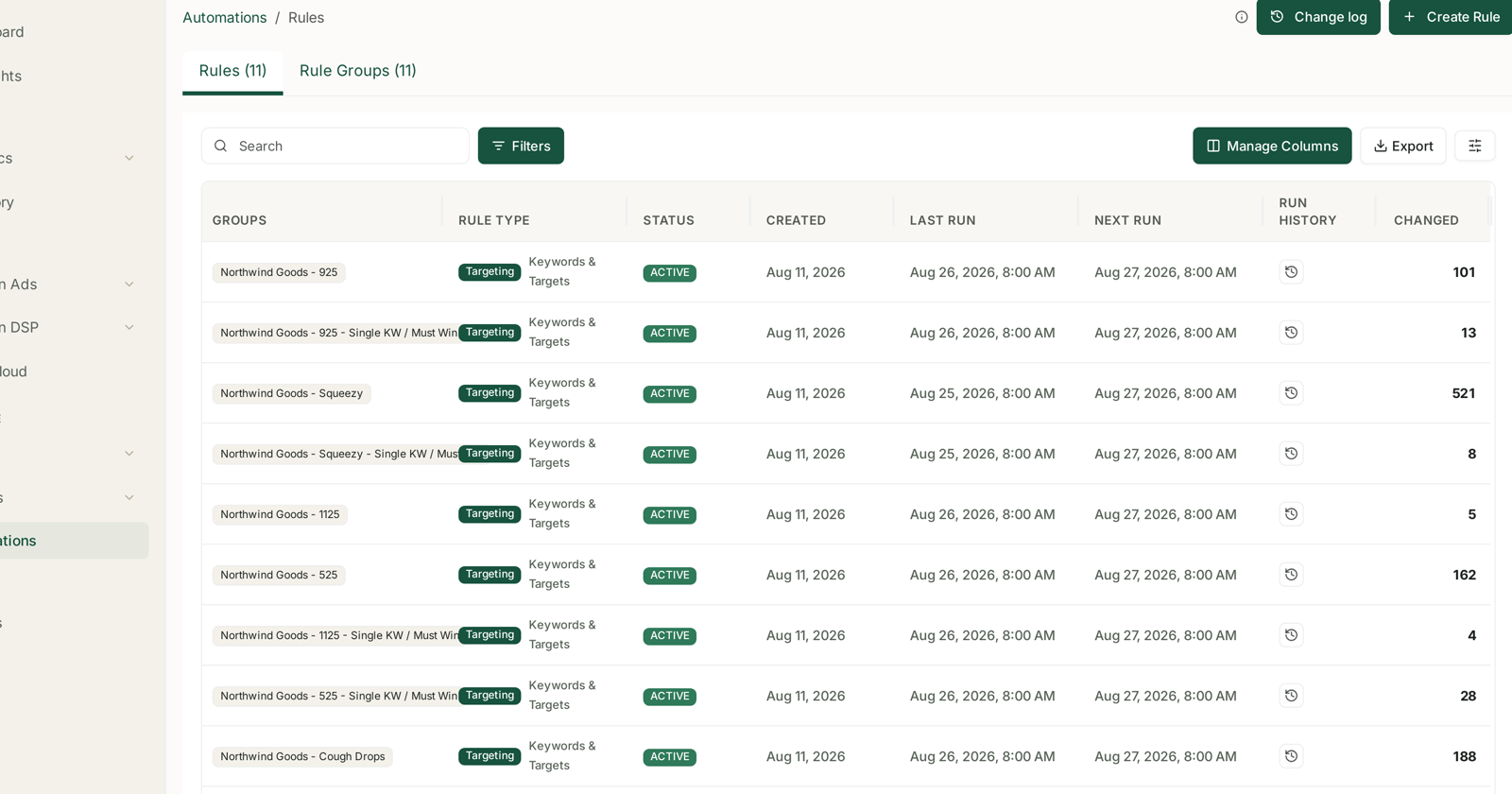
Scroll the Rules table right and four columns answer the day-to-day questions without opening anything:
| Column | Answers |
|---|---|
| Last Run | did it fire, and when? |
| Next Run | when will it fire again? |
| Run History | the icon that opens the full log |
| Changed | how many entities the last run touched |
Changed is the column to scan. Across a set of rules on the same schedule you will see numbers like 101, 13, 521, 8, 5, 162 — and the outliers are the story:
- A rule changing hundreds of entities every day is either managing a very large scope or has thresholds loose enough to catch everything. Check which.
- A rule changing nothing, run after run, is not protecting you. Its conditions never match, and it is giving you false confidence.
- A rule whose Changed count jumps is reacting to something that moved — a price change, a stock-out, a competitor. That jump is a signal about the account, not just the rule.
Last Run not matching Next Run's cadence is the first thing to check when a rule seems inactive. A rule showing a Last Run several days stale on a daily schedule did not run, and that is a different problem from a rule that ran and changed nothing.
The run history
The Run History icon opens every run that rule has ever made.
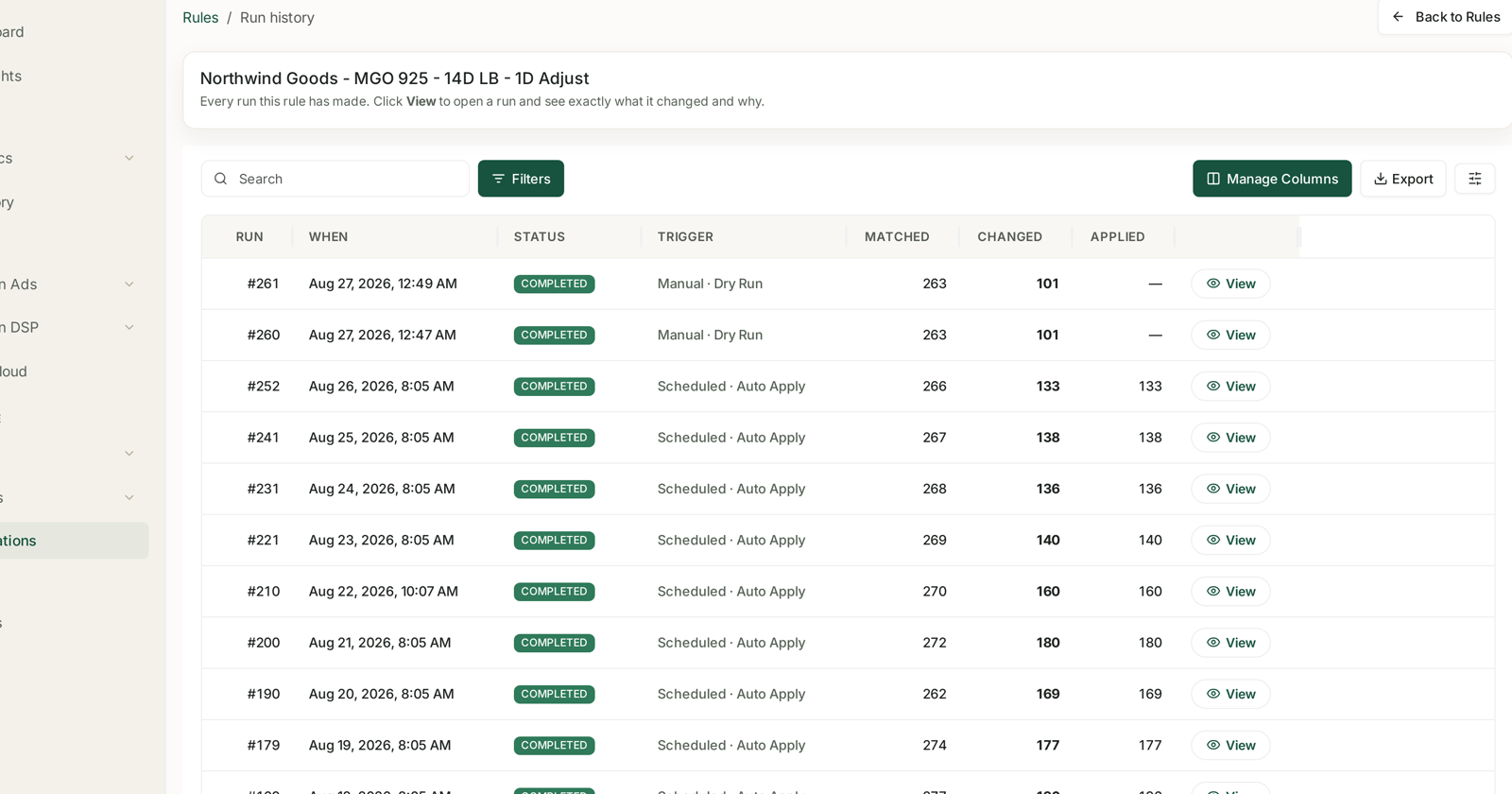
Every run this rule has made. Click View to open a run and see exactly what it changed and why.
| Column | What it tells you |
|---|---|
| Run | the run number, ascending over the rule's life |
| When | date and time it fired |
| Status | Completed, or otherwise |
| Trigger | Scheduled · Auto Apply or Manual · Dry Run |
| Matched | entities in scope that the rule evaluated |
| Changed | entities a branch decided to act on |
| Applied | changes actually written to Amazon |
Reading the three counts
The relationship between Matched, Changed and Applied is where the useful information lives.
Matched is your scope. It should be roughly stable run to run — 266, 267, 268, 269. A drift means campaigns are entering or leaving the rule group. A sharp fall means something in scope was paused or removed.
Changed ÷ Matched is how aggressive the rule is. 133 of 266 means the rule is touching half of everything it looks at, every single day. On a daily schedule that is usually a sign the thresholds are too loose, or that the change cap is doing all the real work of keeping it safe.
Applied should equal Changed on a scheduled run. When it does not, changes were computed but not written — check Status, and check whether the Amazon connection is healthy. See Checking When Your Data Last Synced.
Applied is blank on a dry run, shown as a dash. That is the definition of a dry run rather than a fault.
Trigger tells you who did it
The Trigger column separates the rule's own schedule from human intervention:
- Scheduled · Auto Apply — the rule fired on its cadence and wrote its changes.
- Manual · Dry Run — somebody previewed it. Nothing was written.
A Run Now from the rule's ⋮ menu also appears here, which matters during an incident: if a bid changed at an odd hour, the run history says whether the schedule did it or a person did.
Opening a run
View opens the run and lists every entity it touched — campaign, ad group, target, which branch fired, and the value before and after.
That branch number is the part worth using. It ties the change back to a specific rule of yours, so "why did this bid drop?" resolves to "branch 3 matched, because orders were above 1 and ACoS was over target" rather than a guess. See Building a Rule from Scratch for how branch order decides which one wins.
The audit habit worth having
Weekly: scan the Changed column across all rules. Anything at zero or in the hundreds deserves a look.
After any threshold edit: open the next run and check Changed moved the way you intended. This is the fastest feedback loop the product offers.
When a number looks wrong: open the run covering that date before assuming the rule is broken. Most surprises turn out to be a branch you forgot was there, firing exactly as written.
Before pausing a rule: check what it has been changing. A rule you no longer remember writing may be the only thing holding an account's ACoS down.
Related
- The Change Log: Auditing What a Rule Changed — the account-wide view across every rule.
- Dry-Run Preview — producing a run that changes nothing.
- Look-back Windows and Adjustment Frequency — what sets the cadence you are reading here.
- A Rule Didn't Run — when Last Run is stale.