

Analytics → Category Insights groups your products into categories you define, and reports each one as its own line of business.
One column makes it different from every advertising screen: Total Sales sits beside Ad Sales, so you see the whole category rather than just the advertised part.
Prefer to watch? Sixty-seven seconds on why Total Sales beside Ad Sales changes what you can see.
The screen
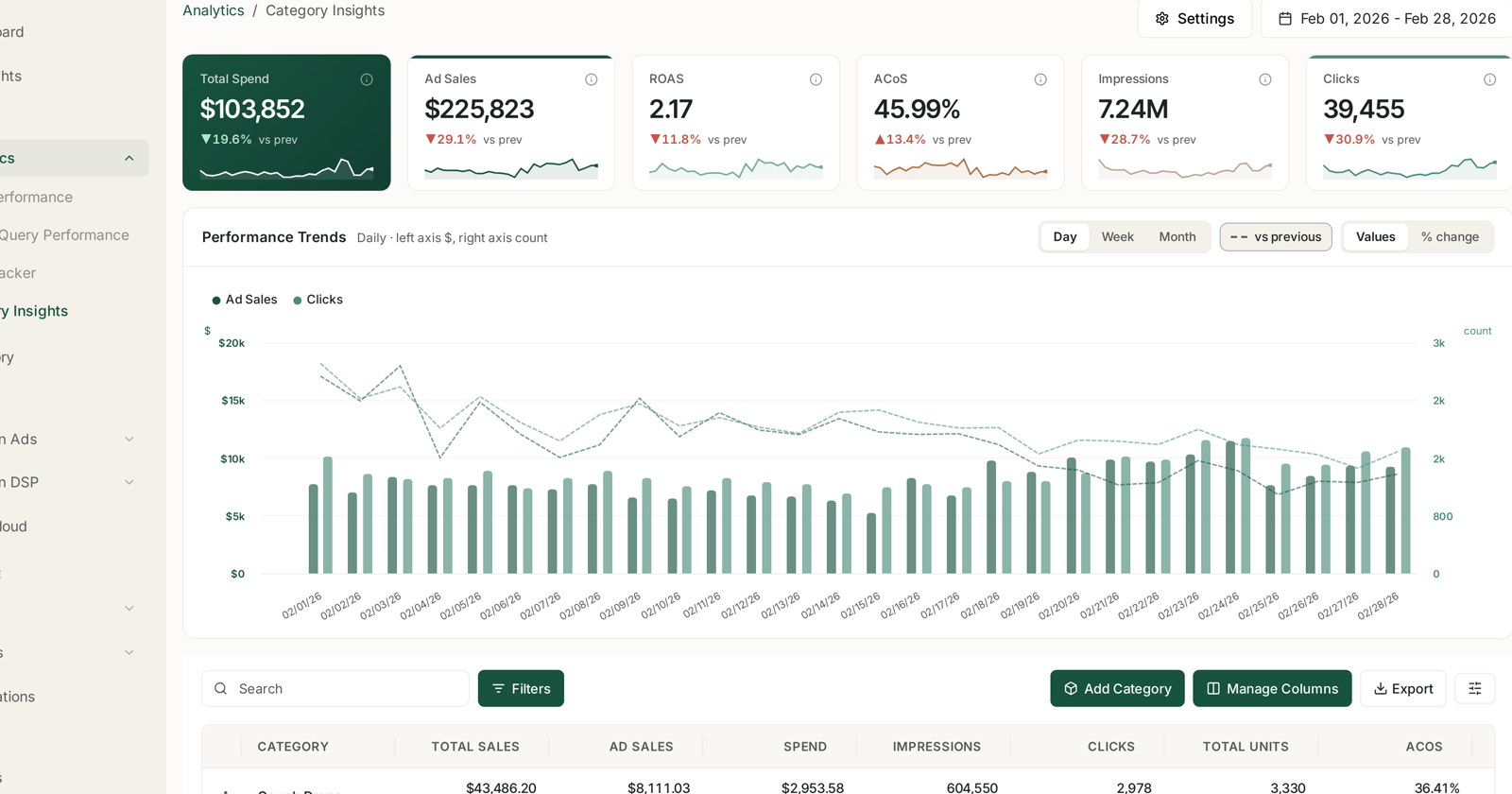
The standard Analytics layout — six headline tiles, Performance Trends with Day/Week/Month and the Values / % change toggles — plus + Add Category.
The table gives you, per category:
Total Sales · Ad Sales · Spend · Impressions · Clicks · Total Units · ACoS
Total Sales is the column that matters
Every Amazon Ads screen reports ad sales — what advertising was credited with. This screen reports total sales as well, which lets you compute the thing advertising reporting cannot show you: how much of a category is paid.
That is TACoS at category level, and it answers a question ACoS never does:
| Pattern | Reading |
|---|---|
| Ad sales rising, total sales flat | advertising is replacing organic, not adding to it |
| Both rising together | advertising is genuinely growing the category |
| Total sales strong, ad sales small | a healthy organic category — do not over-invest |
| Total sales falling, ad sales holding | organic erosion hidden behind steady ad performance |
The first and last rows are the ones worth catching, and neither is visible on any advertising screen. See Understanding ROAS and Key Amazon Advertising Metrics.
Categories are yours to define
+ Add Category creates one. These are your groupings, not Amazon's browse nodes — which means they are only as useful as the thinking behind them.
Group by something you would make a budget decision about:
- A product line you fund as a unit.
- A price tier, where the margin maths is similar.
- A use case, if that is how your customers shop.
Grouping by something you would never act on separately produces numbers you will never use. And a category that mixes a hero product with a long tail averages the hero away.
Reading it
Compare categories against each other, not against a single target. A launch category should look worse than a mature one.
Watch Total Units beside Total Sales. Units rising while sales fall is a pricing or mix change, not a demand change.
Use vs previous. A category whose ACoS moved while spend did not is the one to open.
Read categories before products. Six category rows tell you where to look faster than two hundred product rows — the same argument as Optimization Groups, applied to what you sell rather than how you buy it.
How this differs from Optimization Groups
Both group things and report per group. They group different things:
| Category Insights | Optimization Groups | |
|---|---|---|
| Groups | products | campaigns |
| Lives under | Analytics | Amazon Ads |
| Shows | total and ad sales | ad performance |
| Answers | how is this part of the business? | how is this part of the advertising? |
Most accounts want both, and they will not line up perfectly — one campaign often advertises products from several categories. That mismatch is normal, and it is why the two screens answer different questions.
Availability
Category Insights starts at PRO. On Starter the section is not in the sidebar at all. See What's Included in Each Plan.
Related
- Sales Performance: Product-Level Reporting — the level below this one.
- Optimization Groups — the advertising-side equivalent.
- Benchmark yourself against your own category — the playbook.
- Before You Add a Product — reading category traction as a product-research signal.