

Export appears on every table screen in TrackIQ, next to Manage Columns. It is available on every plan, MCP Only included.
The one thing worth knowing before you click it: an export takes what you are looking at, not the whole table.
Prefer to watch? Sixty-nine seconds on what an export actually contains, and when not to run one.
Exports respect the view
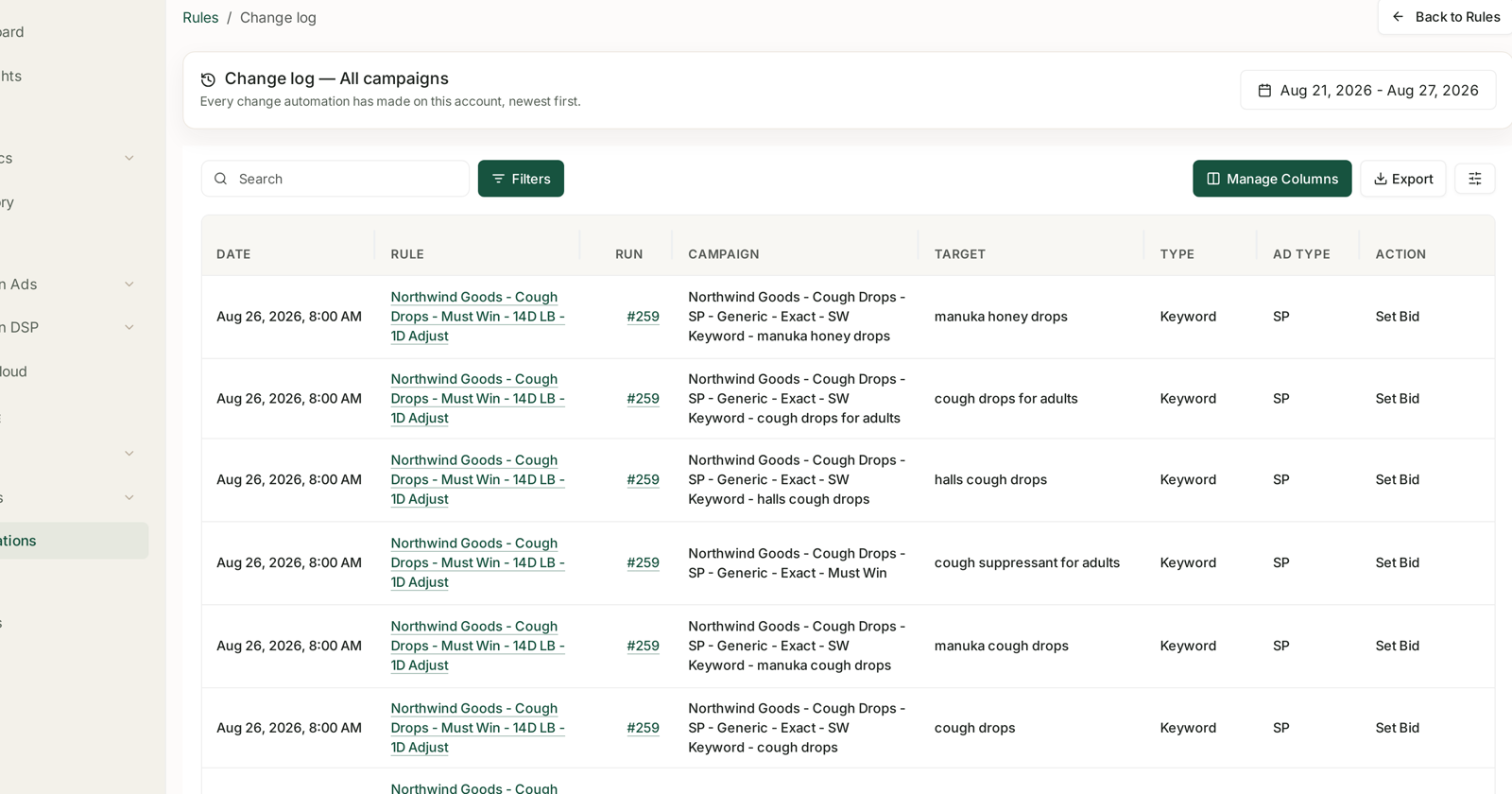
Your filters, your column choices, your date range and your sort all carry into the file.
That cuts both ways, and it is the source of nearly every export surprise:
The good half. Set the view up properly and the file arrives ready to use — no deleting columns, no filtering in the spreadsheet.
The half that catches people. A filter you set last week is still applied, because filters persist between sessions. Active filters show as chips above the table. If there are chips and you did not put them there deliberately, your export is already narrower than you think.
Check the row count before exporting. If the table says it is showing 40 of 2,000 entries, that is what you are about to get.
Getting a full export
- Clear the filter chips.
- Set the date range you actually want.
- Open Manage Columns and switch on anything missing — a column that is off is a column that will not be in the file.
- Then export.
Step 3 is the one people skip. Manage Columns is also how you get a narrower file — turning columns off before exporting is quicker than deleting them afterwards.
The Exports queue
Exports are prepared in the background, so nothing blocks while a large one builds. Exports in the sidebar lists them.
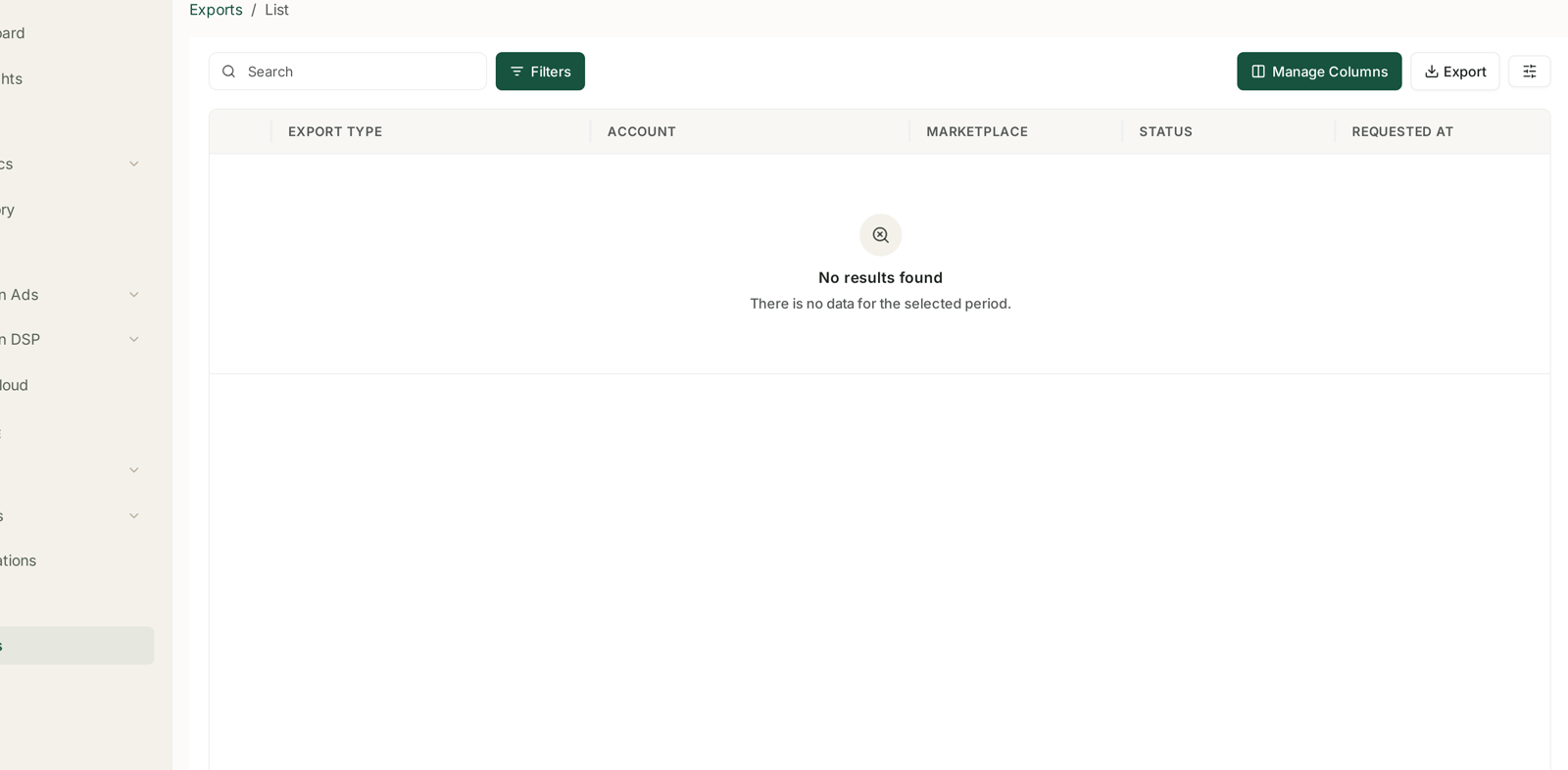
| Column | What it tells you |
|---|---|
| Export type | which screen it came from |
| Account | which connected account |
| Marketplace | which marketplace |
| Status | whether it is ready |
| Requested at | when you asked for it |
The queue is empty until you run an export, so a blank list on a new account is expected rather than broken.
Account and Marketplace are the useful columns if you manage several. Two exports of the same screen taken minutes apart are indistinguishable by name — those two columns are what tell them apart.
The queue has its own Search, Filters, Manage Columns and Export.
When not to export
Exporting is a habit worth questioning, because three things often do the job better.
For a figure or a list — ask Aria with Tables selected. Faster than a round trip through a spreadsheet, and there is no usage cost to asking.
For something you check regularly — a Studio or a scheduled Business Report. An export is a snapshot that starts going stale immediately; both of those stay current.
For feeding another tool — MCP. A script or an AI assistant reading live data beats a CSV that has to be regenerated every time. See What Is MCP, and Why It Matters.
The strong case for an export is a one-off — a reconciliation, an audit, or handing figures to someone who does not use TrackIQ.
Two things exports cannot fix
They do not extend your plan. An export contains what your plan includes. Search Query Performance is not on Starter, so it is not in a Starter export either.
They do not settle attribution. Exporting today's advertising figures captures a period that is still filling in — Sponsored Products is credited over 7 days, Brands and Display over 14. Export a closed period if the numbers need to be final. See Why SP, SB and SD Numbers Don't Add Up.
Related
- Filters, Manage Columns and Exporting — the controls every table shares.
- The Change Log — exportable, and the one export worth keeping before a big change.
- What Is MCP, and Why It Matters — the live alternative.