

For Claude Desktop this takes under a minute and involves pasting one URL. There is no JSON file to edit and no credential to copy, because the connector registers itself.
Everything else on the page exists for clients that cannot do that. Most people never need it.
Prefer to watch? Sixty-eight seconds from copying the URL to your first question.
Find the screen
Settings → MCP & API Keys. It sits under Workspace, below Connections.
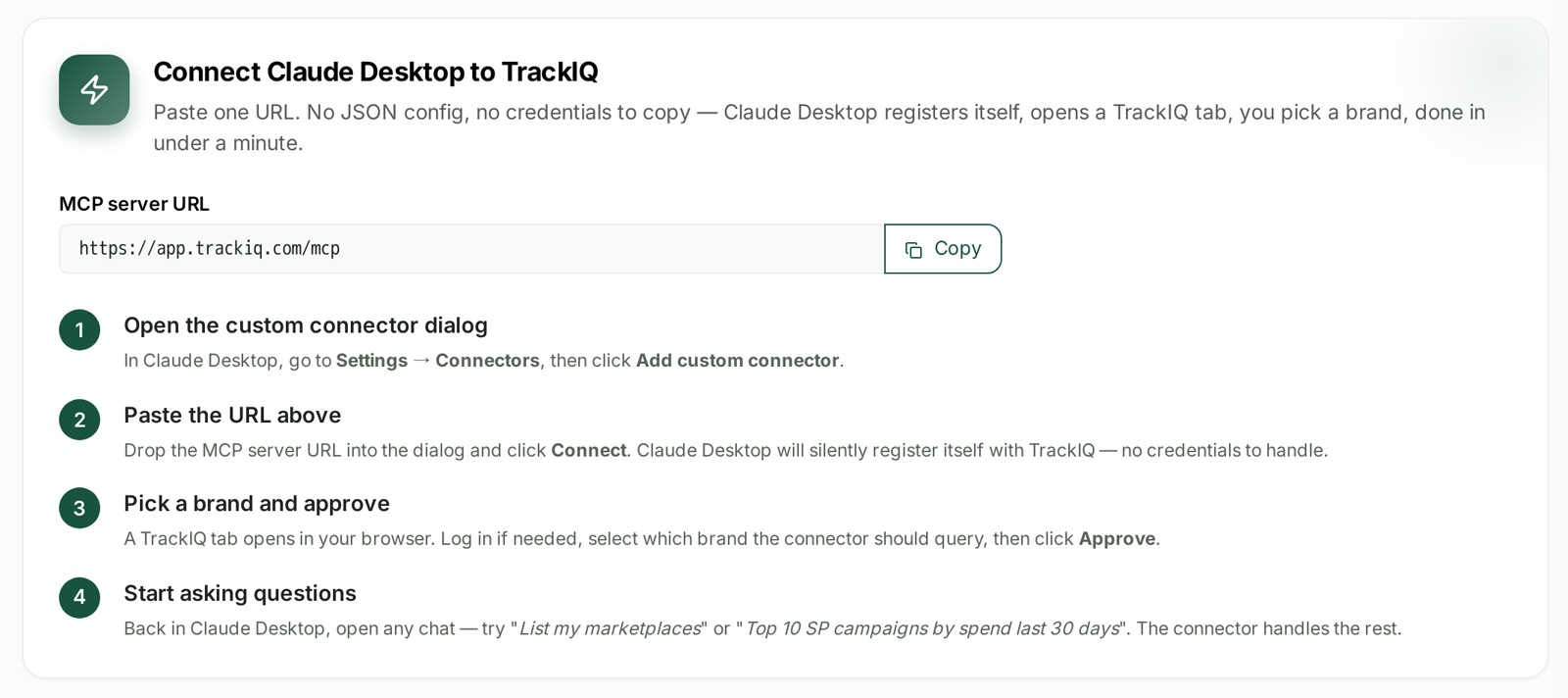
The MCP server URL is the same for everyone:
https://app.trackiq.com/mcp
Use the Copy button rather than retyping it.
Claude Desktop: the one-URL path
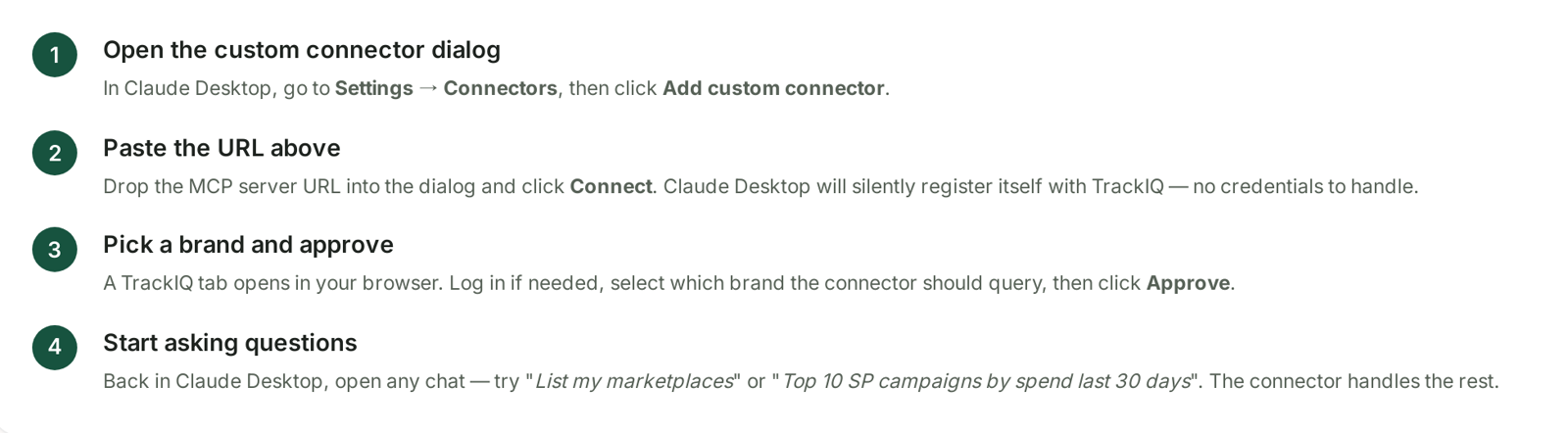
- Open the custom connector dialog. In Claude Desktop, Settings → Connectors, then Add custom connector.
- Paste the URL and click Connect.
- Pick a brand and approve. A TrackIQ tab opens in your browser. Log in if you are not already, choose which brand the connector should be able to query, and click Approve.
- Ask something. Back in Claude Desktop, try “List my marketplaces” as a smoke test, then something real like “Top 10 SP campaigns by spend last 30 days”.
Step 3 is the one that matters for security. The brand you pick is the only brand that connector can ever read. If you manage several and want an assistant that can see all of them, you connect once per brand.
Cursor, scripts and everything else
Claude Desktop supports OAuth Dynamic Client Registration, which is why it can register itself. Clients that do not yet support it need credentials issued in advance, and that is what the Advanced section is for.
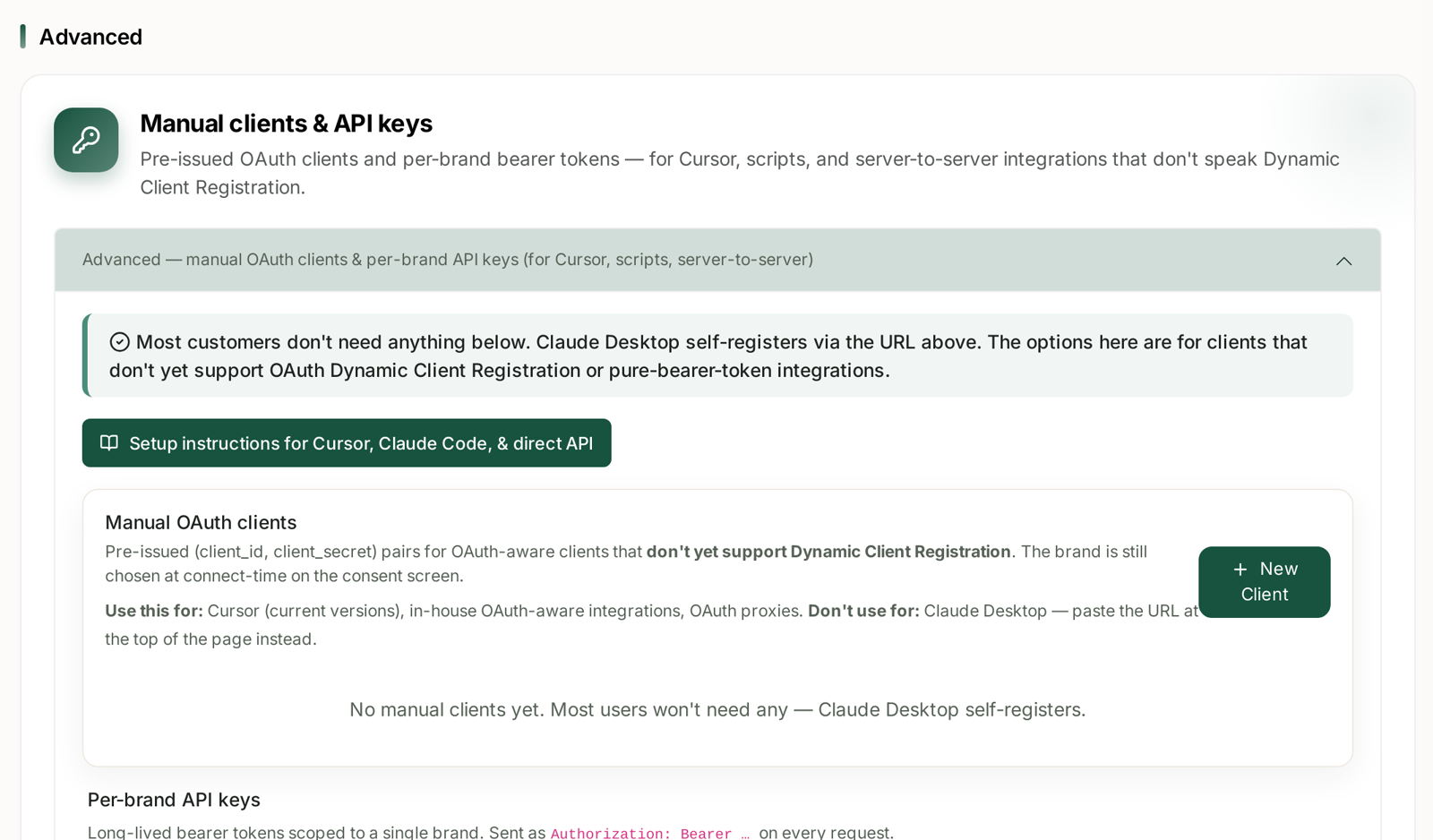
The screen says it plainly: most customers do not need anything below. Open it only if the one-URL path does not apply to your client.
Manual OAuth clients issue a pre-made client_id / client_secret pair. The brand is still chosen at connect time on the consent screen, exactly as above.
| Use it for | Do not use it for |
|---|---|
| Cursor (current versions) | Claude Desktop — paste the URL instead |
| In-house OAuth-aware integrations | anything that already self-registers |
| OAuth proxies |
Per-brand API keys are long-lived bearer tokens locked to a single brand, sent as an Authorization: Bearer header on every request.
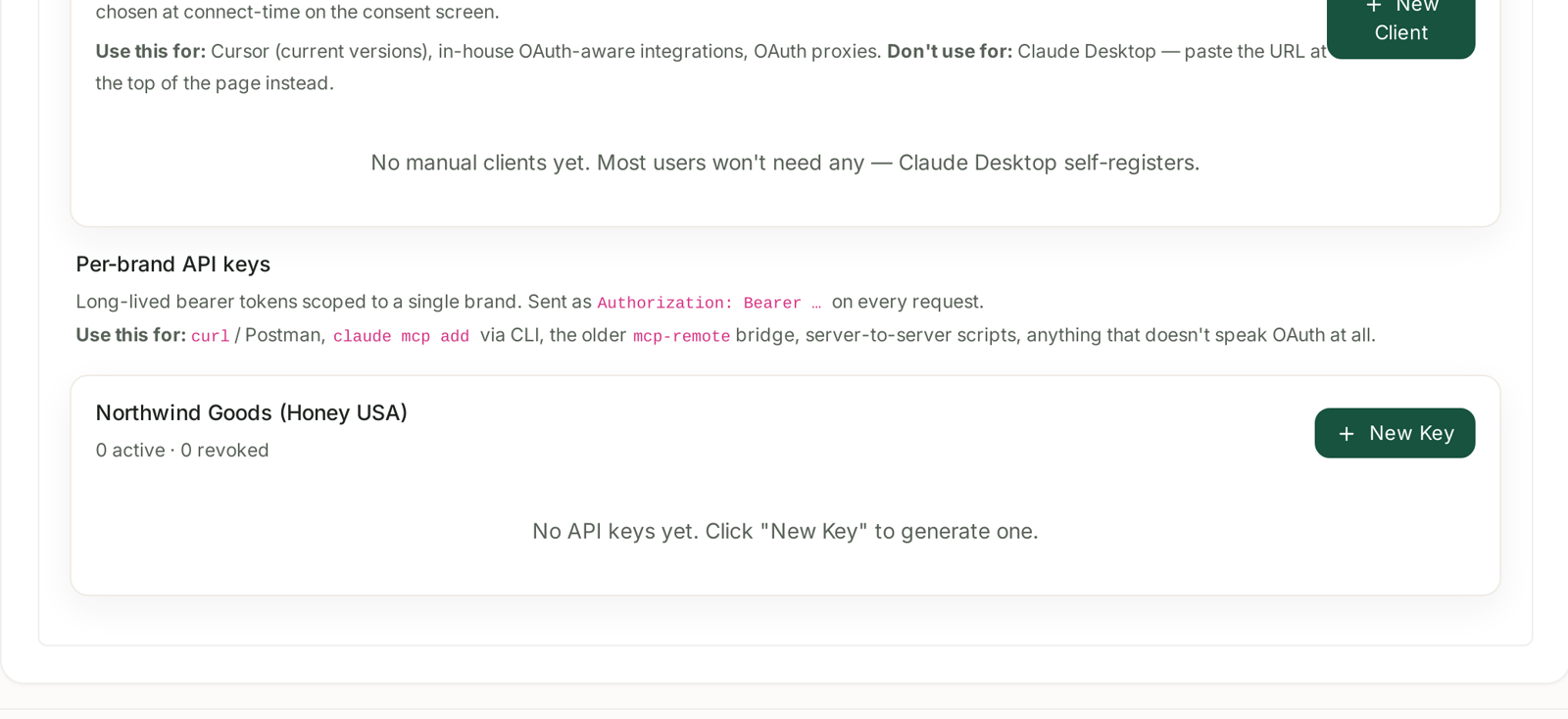
Reach for a key when the thing calling TrackIQ does not speak OAuth at all: curl or Postman, claude mcp add from the command line, the older mcp-remote bridge, or a server-to-server script on a schedule.
Each connected brand gets its own block showing active and revoked counts, with New Key to issue one.
The Setup instructions for Cursor, Claude Code, & direct API button on the same panel opens step-by-step instructions for those clients specifically.
Treat a key like a password
An API key is a standing credential. Anyone holding it can read that brand's data until it is revoked.
- Issue one key per thing that uses it, not one shared key. Revoking a shared key breaks everything at once; revoking a named one breaks only what you meant to break.
- Never paste a key into a chat, a ticket or a shared doc. Environment variables and secret stores exist for this.
- Revoke rather than delete-and-forget. The revoked count on each brand is your audit trail.
If you only need Claude Desktop, you never issue a key at all — which is the safest state to be in.
Checking it worked
Two independent confirmations:
In your assistant, ask “List my marketplaces”. It should come back with your connected marketplaces and account types.
In TrackIQ, open Call Logs from the top of the MCP screen. Every request appears with the question that prompted it, the number of tool calls it took, and when it was posted.
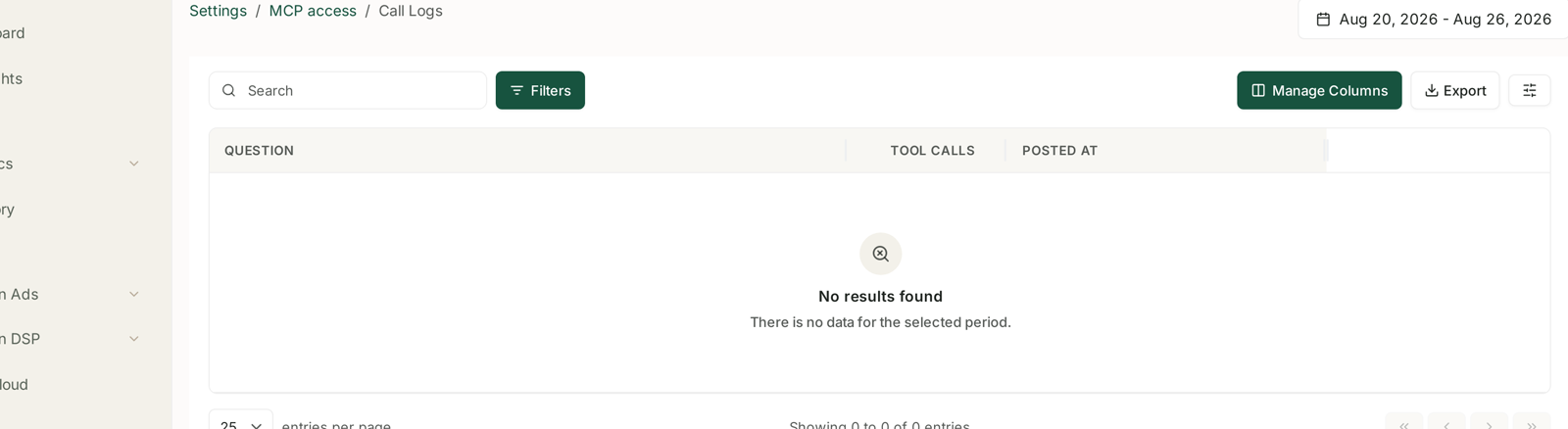
An empty log after a successful-looking connection means the assistant registered but has not actually asked anything yet — connecting and querying are separate events.
If it does not connect
| Symptom | Cause |
|---|---|
| Browser tab opens but never returns | you were not logged into TrackIQ — log in, then retry |
| No brand appears on the consent screen | that brand is not connected yet — see How to Connect Your Amazon Accounts |
| Assistant sees the connector but every tool errors | the brand's Amazon connection has expired — see Fixing a Broken or Expired Amazon Connection |
| Some tools work, others say unavailable | those tools need a higher plan tier |
That last row is expected rather than broken. See MCP Tiers: What Each Plan Unlocks.
Related
- The MCP Web Console — the page you install from.
- MCP Call Logs: Seeing What Your AI Tools Asked — checking what your client asked.
- The Full MCP Tool Reference — what it can query.