

The Dashboard is the first screen you land on, and the only one built to be read in half a minute. This is what each part is telling you, and the two numbers worth checking every morning.
Prefer to watch? Ninety seconds on what each panel is telling you.
The headline tiles
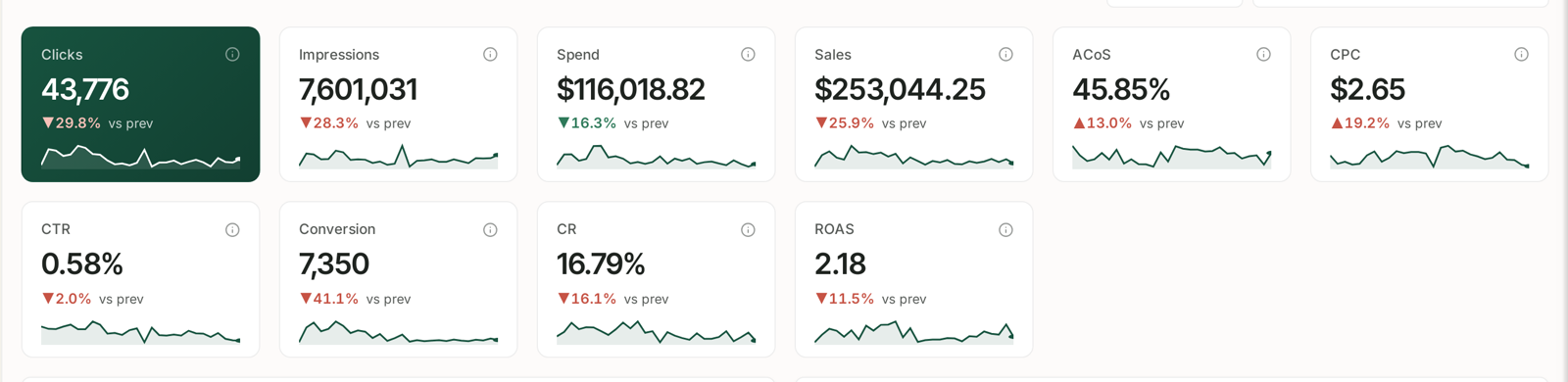
Ten metrics across the top: Clicks, Impressions, Spend, Sales, ACoS, CPC, CTR, Conversion, CR and ROAS. Each tile carries three things — the figure for your selected period, a sparkline showing its shape, and the change against the previous period.
Read the arrows as better or worse, not up or down. A falling ACoS shows as an improvement even though the number went down, because lower ACoS is better. The colour is doing the interpreting for you.
The sparkline is more useful than it looks. A number that is flat overall but spiky underneath is a different business problem from one that declined steadily, and the tile tells you which without opening a report.
Advertising: the budget pacing check
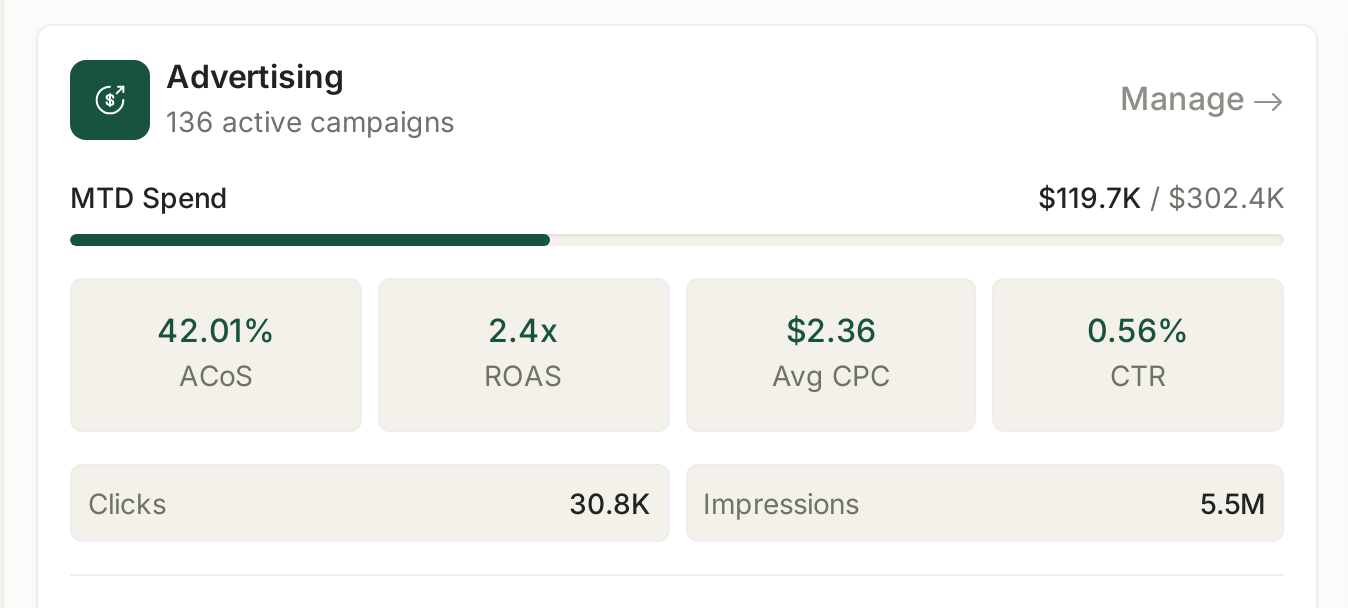
This panel is the fastest budget check in the product. It shows your active campaign count, then MTD Spend against your monthly budget as a progress bar, with ACoS, ROAS, Avg CPC and CTR beneath.
How to use it: compare the bar against where you are in the month. Two-thirds through the month with the bar past three-quarters means you will overspend unless something changes. That is a decision you can make in one glance, and it is the single most valuable thing on this screen.
Manage → takes you into the campaigns themselves.
Optimization opportunities
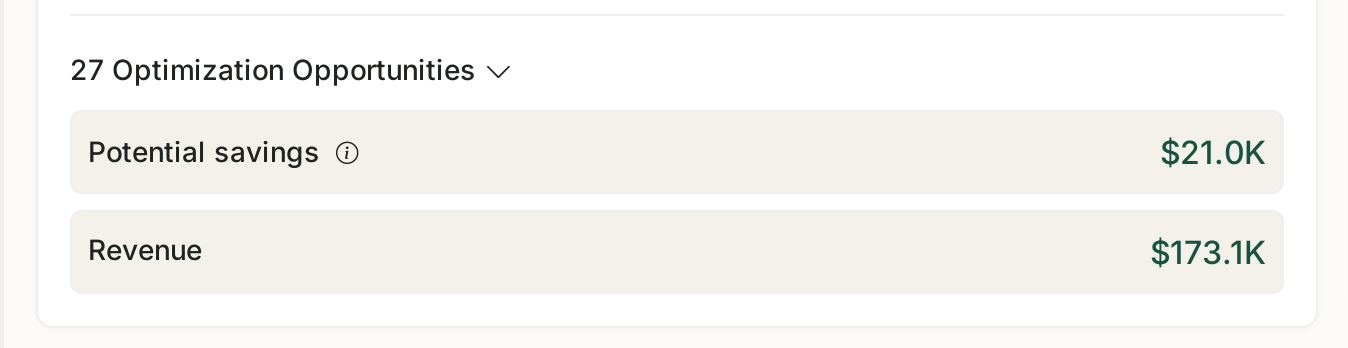
A count of the improvements TrackIQ has found, with Potential savings and the Revenue at stake attached.
These are not vague suggestions — each has a figure behind it. Expand the panel to work through them. Treat the savings number as an estimate of what is currently being wasted, not a guarantee, but a large one is always worth twenty minutes.
Performance over time
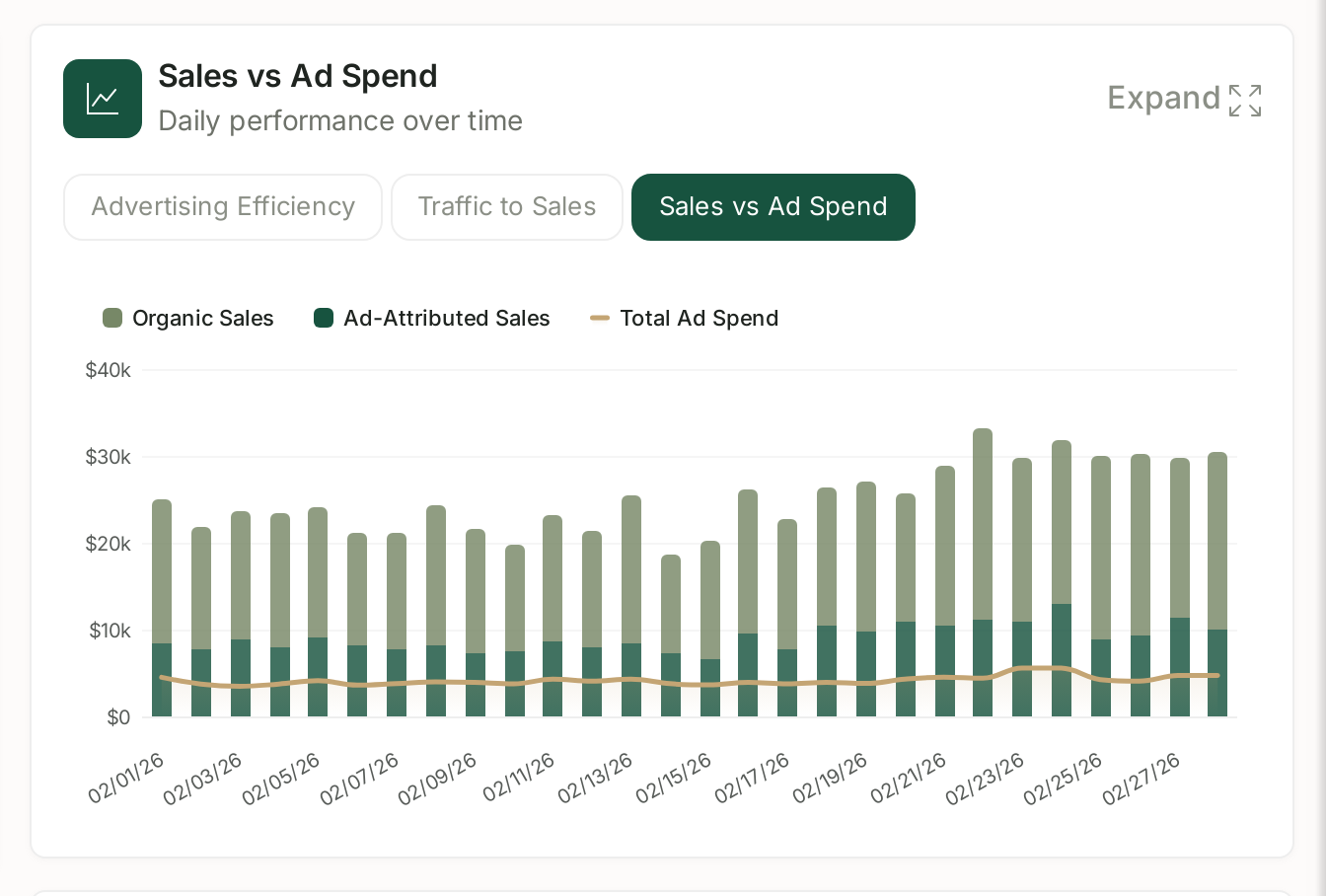
One chart, three lenses:
| Lens | Shows |
|---|---|
| Advertising Efficiency | how hard your ad spend is working |
| Traffic to Sales | whether visits are turning into orders |
| Sales vs Ad Spend | organic and ad-attributed sales against total spend |
Sales vs Ad Spend is the one to look at most often. If ad spend climbs while total sales stay flat, you are buying sales you were already getting — and that shows up here before it shows up in ACoS.
Expand opens it full width.
Catalogue health
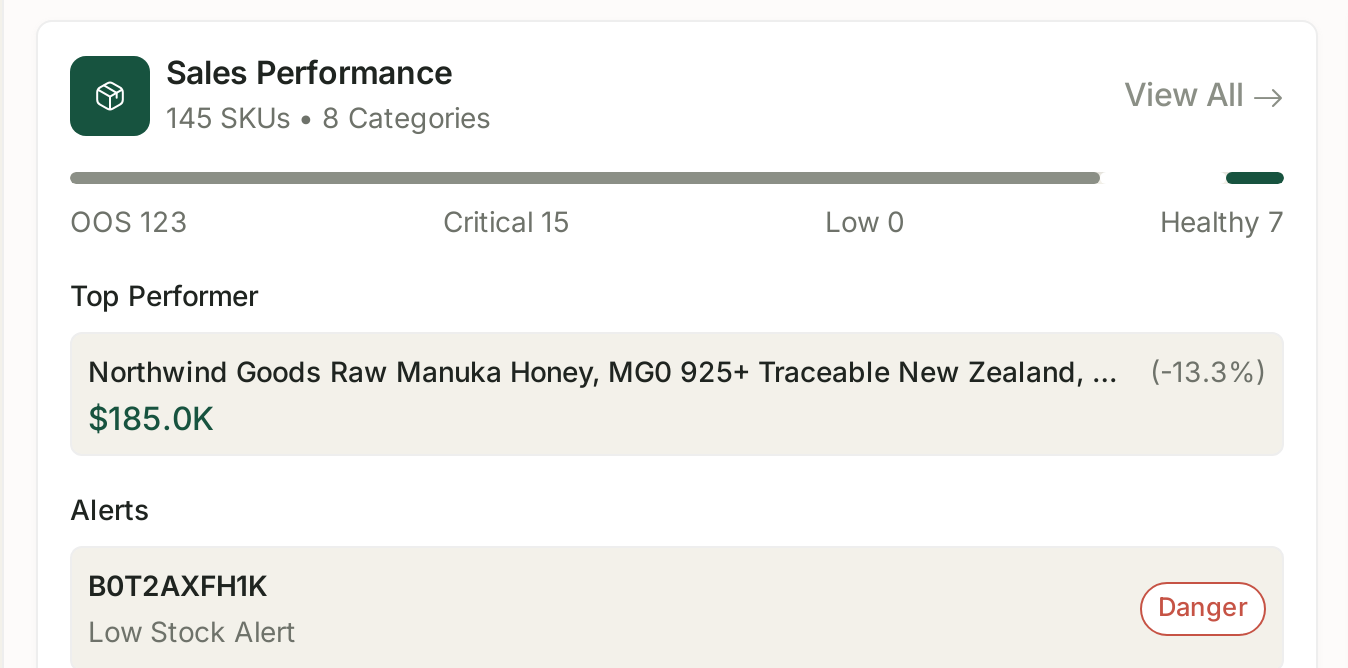
How many SKUs and categories you have, then a health bar splitting your catalogue into out of stock, critical, low and healthy, plus your top performer and any product-level alerts.
The out-of-stock count is the second number to check daily. A stockout does not just cost the sales you would have made — it costs rank, and rank takes far longer to win back than a week of orders.
Quick reports
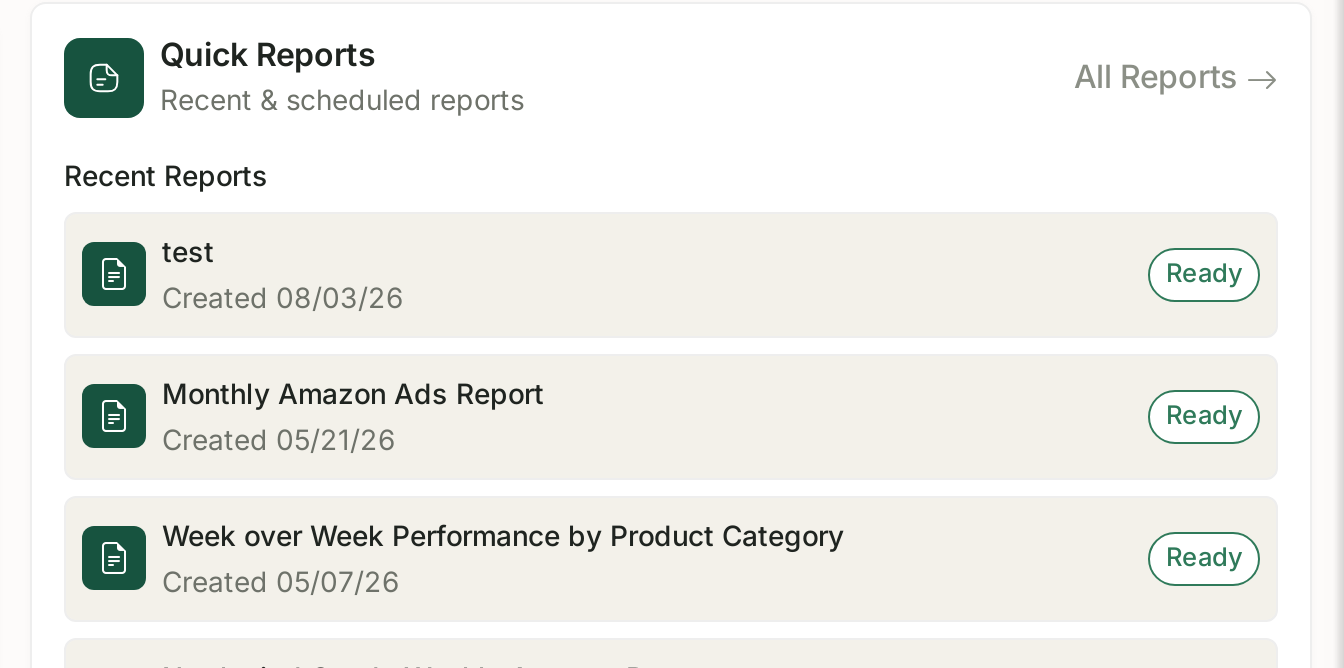
Your recently generated and scheduled reports, each marked Ready when it can be opened. All Reports → takes you to the full list.
The thirty-second routine
If that is all the time you have:
- MTD spend against budget — will you overspend this month?
- The out-of-stock count — are you about to lose rank on anything?
Everything else can wait for a morning when you have longer. Those two have deadlines attached.
The date range at the top right drives the whole screen. See Date Ranges, Granularity and Comparing Against the Previous Period for how the comparison works.
Related
- Reading the Optimization Opportunities Panel — TrackIQ's own shortlist of what to fix.
- Advertising Efficiency, Traffic to Sales and Sales vs Ad Spend — Advertising Efficiency, Traffic to Sales, Sales vs Ad Spend.
- Values vs % Change: The Comparison Toggle — the comparison toggle.
- My Dashboard Is Empty — if nothing is showing.