

Amazon Ads has nine screens in TrackIQ, and they all share the same layout: six headline tiles, a trend chart, a table. Learn it once here and every other screen — keywords, targets, placements, audiences — reads the same way.
Prefer to watch? Seventy-six seconds on the layout every Ads screen shares.
The six tiles

Total Spend, Ad Sales, ROAS, ACoS, Impressions and Clicks for your selected period. Each carries a sparkline and the change against the previous period.
Colour means better or worse, not up or down. A falling ACoS shows green because lower ACoS is better. Do not read the arrow direction on its own.
The pairing worth watching is Spend and Ad Sales. If spend is up more than ad sales, your ROAS tile will already be red — but the two tiles tell you by how much and whether it is a volume change or an efficiency change.
Performance trends
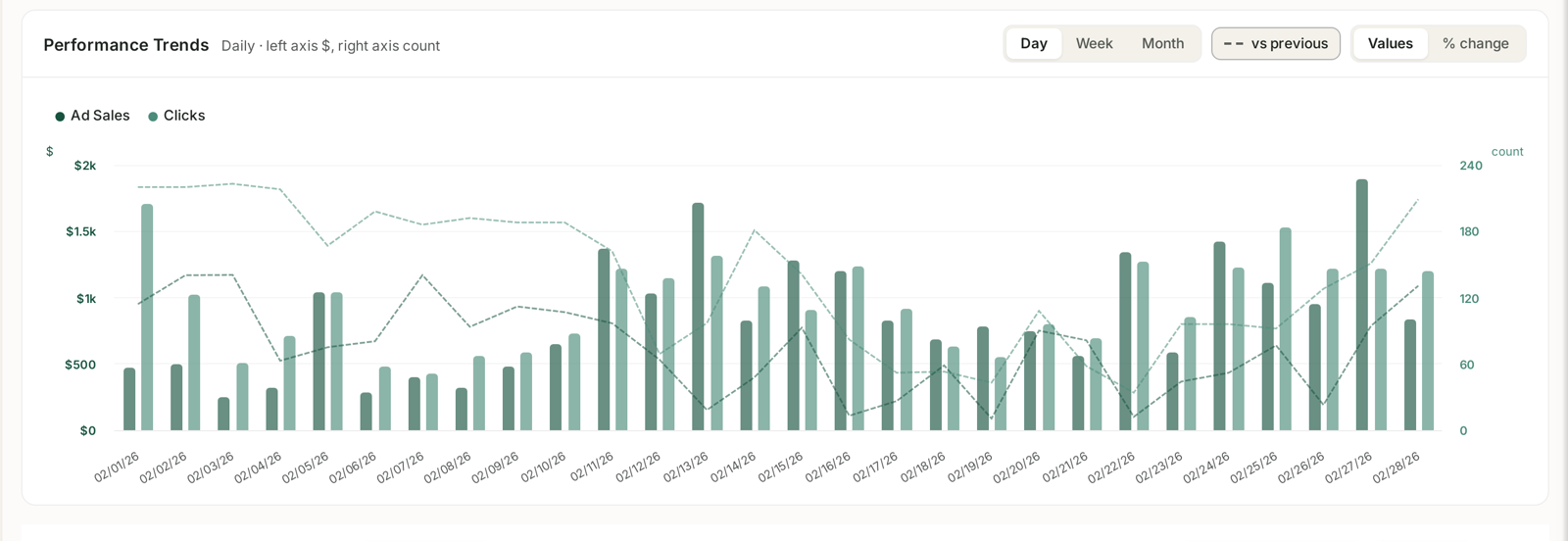
Two series on two axes: money on the left, counts on the right, so ad sales and clicks can share one chart without one flattening the other.
Three controls worth using deliberately:
- Day / Week / Month — Day to find the exact date something changed, Week to see a trend without weekend noise.
- vs previous — overlays the preceding period of the same length.
- Values / % change — the fastest way to answer “what moved?” rather than “what is biggest?”
That last toggle is under-used. A big campaign that moved 2% matters less than a small one that moved 60%, and % change surfaces the second one instantly.
The table
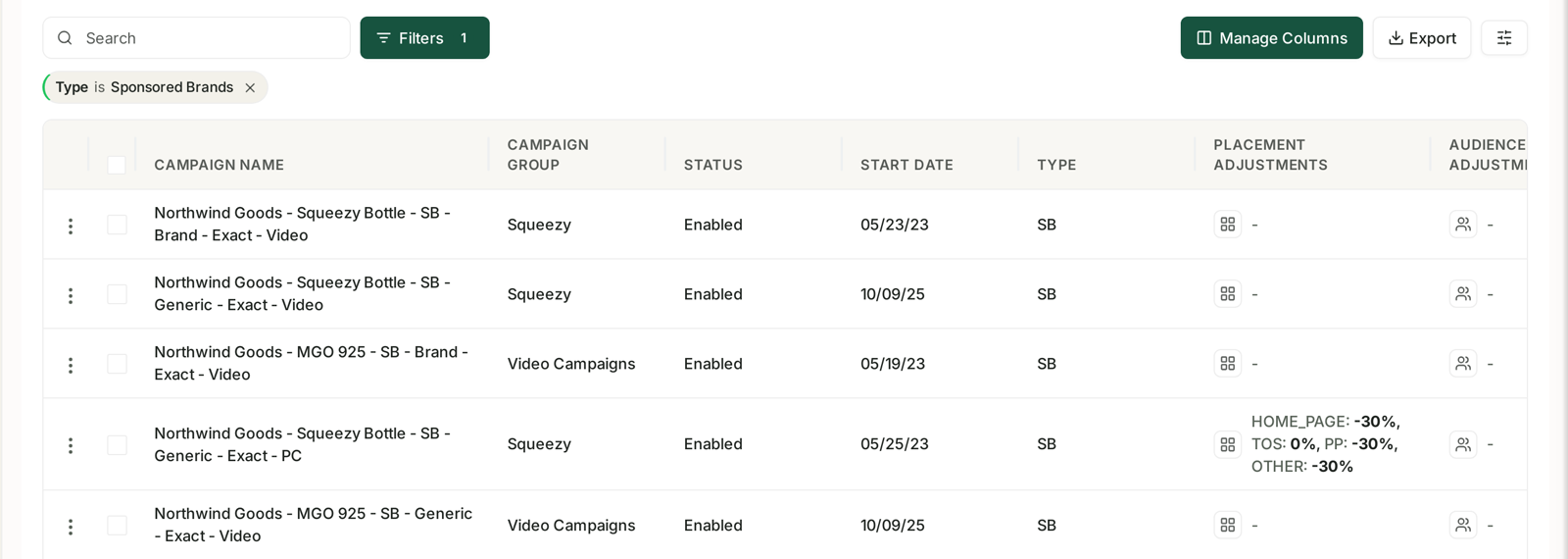
Note the filter chip above the table — here, Type is Sponsored Brands. Active filters are always shown as removable chips, so you can never be misled by a filter you forgot was on. If a total looks wrong, check the chips first.
Columns include Campaign Group, Status, Start Date, Type, and the Placement and Audience Adjustments applied to each campaign — the bid multipliers that explain why two similar campaigns perform differently.
Campaign views default to enabled campaigns only. If spend looks lower than you expect for a month where you paused things, that is why.
The nine screens
| Screen | Answers |
|---|---|
| Optimization Groups | how are my portfolios doing? |
| Campaigns | which campaigns are working? |
| Ad Groups | where inside a campaign? |
| Keywords | which search terms am I bidding on, and how do they perform? |
| Targets | product and category targeting |
| Product Ads | which ASINs are being advertised? |
| Search Terms | what people actually typed |
| Placements | top of search versus rest of search |
| Audiences | which segments respond? |
How to actually use this
When a number moves, work downward — the layout makes it the same three steps every time:
- Campaigns — sort by % change to find the campaign that moved.
- Keywords or Targets — filter to that campaign, find the target inside it responsible.
- Search Terms — see what people actually typed to trigger it.
That third step is where wasted spend usually hides: a broad-match keyword performing fine on average while one expensive search term inside it converts nothing.
When you find one, Rule-Based Optimization can stop it happening again without you checking daily.
A note on comparing channels
Sponsored Products, Brands and Display use different attribution windows, so their efficiency figures are not directly comparable. See Why Sponsored Products, Brands and Display Numbers Do Not Simply Add Up.
Related
- Campaigns: Budgets, Placement and Audience Adjustments — budgets, placement and audience adjustments.
- Optimization Groups: Organising Campaigns for Automation — organising campaigns for automation.
- Ad Groups — the layer beneath campaigns.
- Keywords and Match Types — what you bid on.
- Targets: Product and Category Targeting — targeting products rather than phrases.
- Product Ads: ASIN-Level Ad Performance — ASIN-level ad performance.
- Search Terms and Aggregated Search Terms — what shoppers actually typed.
- Placements: Top of Search vs Rest of Search — where the ad appeared, and what that costs.
- Audiences: Segment Performance — Sponsored Display, which targets people.
- Amazon PPC: Core Terms and Metrics — the vocabulary this screen assumes.
- Create a Sponsored Products Campaign — building a Sponsored Products campaign from scratch.
- Score Your PPC Performance — scoring the account before you change it.