

TrackIQ handles several brands in one workspace, and the model is simple once you see it: brands are separate everywhere except your login and your bill.
Prefer to watch? Ninety seconds on what is shared, what is not, and the partial-sync trap that looks like healthy data.
Where brands live
Settings → Connections → Brands & marketplaces.
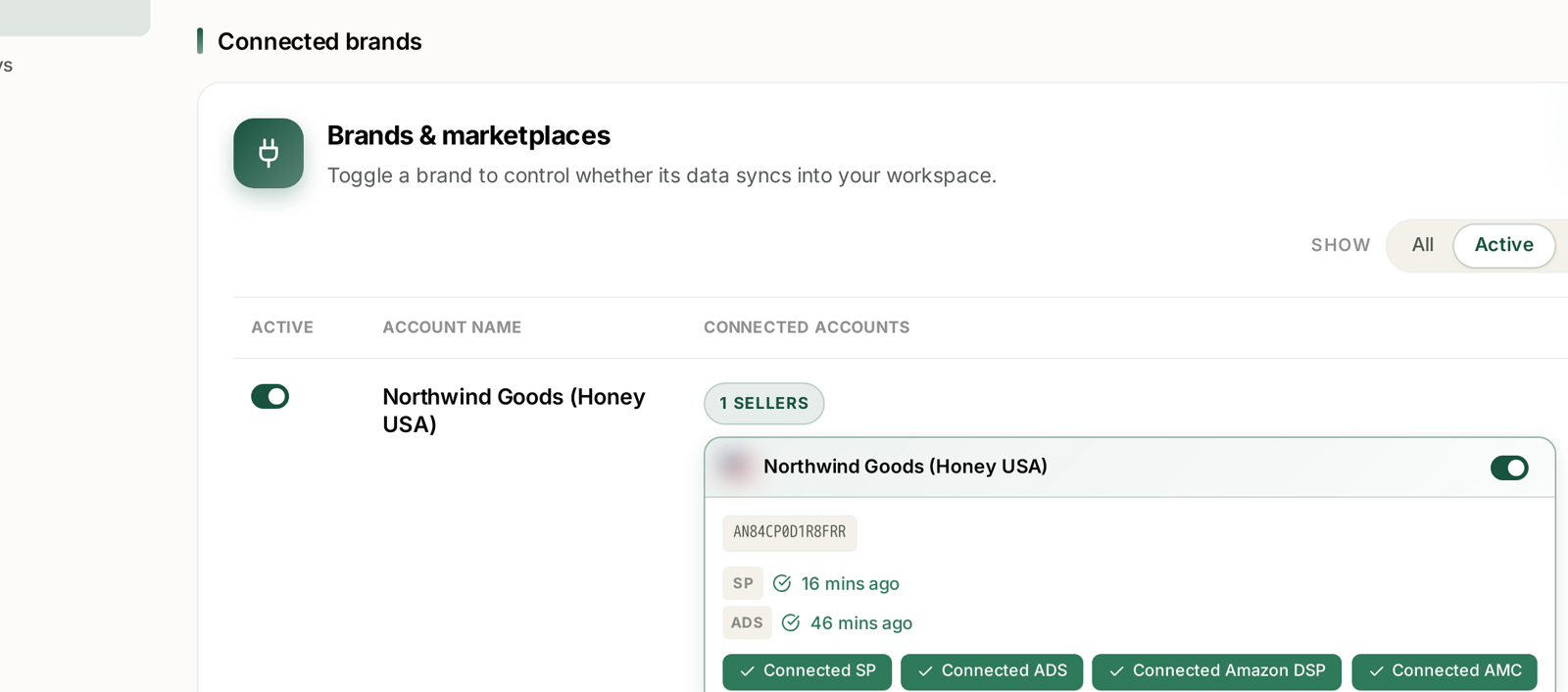
Each brand is a row with:
An Active toggle — whether its data syncs at all.
Account name — the brand as TrackIQ knows it.
Connected accounts — a count chip (1 SELLERS) that expands to the individual Amazon accounts beneath it.
Each account underneath carries its own toggle, its seller ID, a last-synced time per source, and chips showing which grants are live — Connected SP, Connected ADS, Connected Amazon DSP, Connected AMC.
Set the filter to All
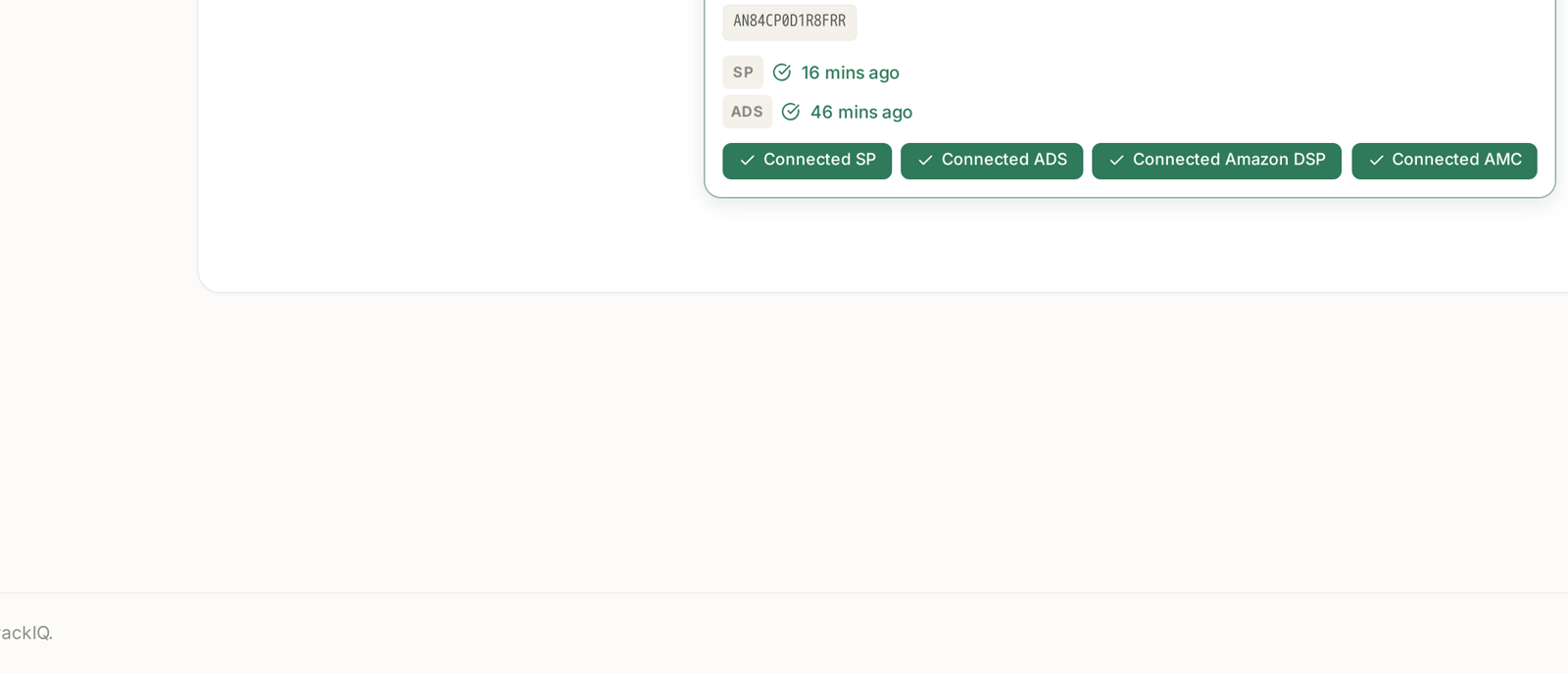
The SHOW control has three settings — All, Active, Inactive — and it defaults to Active, which hides the brands that are switched off.
That is the wrong default for diagnosis, because a switched-off brand is precisely what you are usually looking for. Set it to All before concluding a brand is missing.
Inactive is the quickest audit of the three: it lists only the brands currently not syncing, which is the answer to "what have we turned off and forgotten about".
What is per-brand, and what is not
| Scoped to a brand | Shared across the workspace |
|---|---|
| all reporting and analytics | your login and password |
| campaigns, targets, keywords | your plan and invoice |
| rank projects | company information |
| alerts | the Slack workspace link |
| automation rules | |
| SQP tracked queries |
Two consequences worth internalising.
A rule you built for Brand A does not touch Brand B. Multi-brand automation means building the rule per brand.
And there is no cross-brand view. No combined dashboard, no "all brands" total.
The two-level toggle
The trap in this screen.
Brand off — nothing for that brand syncs. Unambiguous.
Brand on, one account off — partial data, which is far more confusing than none. The brand looks healthy at the top level while a whole seller account is silently absent from every number underneath.
If a brand's figures look plausible but too low, expand it and check every account beneath it, not just the brand row. See Turning Brand Sync On and Off.
Adding a brand
Each brand is a separate Amazon authorisation, and each marketplace within it is separate again.
Connect the Seller Partner account first, then Ads, then DSP and AMC if you have them. Four grants, not one. See How to Connect Your Amazon Accounts.
Expect a first-sync delay. History arrives over the following hours, and rank tracking has no backfill at all — it starts the day you create a project. See Rank Data Shows Blank.
Working across several brands
Practical habits from the shape of the model:
Name the scope in every report. Two people comparing figures read at different brands is the most common false alarm there is.
Build rules brand by brand, and label them. A rule name that includes the brand saves confusion in the Change Log.
Pin a Slack channel per brand. Aria in Slack keeps a brand pin per channel — Brand A in #marketing, Brand B in #ops — which is the cleanest way to keep two brands' numbers from being read as one. See Turning Brand Sync On and Off and Chatting With Aria in Slack.
Scope MCP keys to one brand. A per-brand API key cannot read a brand it was not issued for, which is both tidier and safer than one key that can see everything. See The MCP Web Console.
What this does not cover
Users and permissions per brand. Whether a colleague can be given one brand and not another is a role question, and Users & Access is not available on every role. See I Can't See a Menu Item Other People Can.
Billing per brand. The plan and invoice belong to the workspace, not the brand. See How Revenue-Based Pricing Works.
Related
- Switching Brands and Choosing a Marketplace — the picker.
- Marketplaces and Currency — the level below brand.
- Turning Brand Sync On and Off — the toggle in detail.
- Managing Your Connected Accounts — the Connections page.