

Amazon's Bulk Services programme exists to accelerate multipack sales, and to get sellers to use it Amazon offers up to a 25% reduction on the referral fee.
That is a permanent margin gain on products you already sell, requiring nothing but a catalogue change.
It launched for seller-fulfilled orders — but it works on FBA orders too.
Prefer to watch? One hundred and forty-seven seconds on what the discount is worth in margin points, the package level setup, and verifying it on a real order.
What it is worth
On $1,000/month of referral fees for one product:
| Units in pack | Monthly saving | Extra margin at a 15% referral fee |
|---|---|---|
| 2–9 | $150 | +2.25% |
| 10–23 | $200 | +3.0% |
| 24+ | $250 | +3.75% |
Three and a bit points of margin, straight to the bottom line, forever. Very little else on Amazon pays that much for an afternoon of catalogue work.
Run the arithmetic on your own products first — see Where Your Margin Actually Goes.
Does your product qualify?
Price must be at least $20 / £20 / €20.
And at least one of:
10 or more units in the pack, or
2+ units and total volume at least 1,400 cu in / cm³, or
2+ units and total weight at least 35 lb / 35 kg.
Where it works
US — live and running.
UK and Germany — enrolment works, though Amazon's help documentation is thin. Assume the US thresholds apply until told otherwise.
Canada — does not work.
Clothing and supplements are generally excluded in every marketplace.
The process
Four steps.
1. Make sure a single-unit listing exists.
2. Create the CASE relationship on the multipack.
3. Upload it.
4. Verify on a live order.
Step 1: the single-unit variant
The programme needs a UNIT listing for the multipack to point at. If you do not have one, create it.
Inventory → Manage All Inventory → Copy Listing from the nearest existing product.
Then correct everything so it is a genuine single-unit version — you will probably need a fresh UPC.
List it properly, with real images and dimensions. Amazon does not currently require it to be buyable, but a half-built listing is a liability if that changes.
Step 2: set the package levels
Reports → Inventory Reports → Category Listings Report.
If that report is not offered, open a case asking Amazon to enable it.
Delete every row except the products you are handling — do one product type at a time.
On the single-unit row:
| Field | Value |
|---|---|
package_level |
UNIT |
On the multipack row:
| Field | Value |
|---|---|
package_level |
CASE |
Package Contains Quantity |
units per case |
Package Contains Identifier |
the single-unit SKU |
Relationship Type |
package_contains |
If Relationship Type is not present in your sheet, skip it.
Step 3: upload
Catalog → Add Products Via Upload, and upload the edited file as a Partial Update.
Partial Update matters. A full upload will overwrite fields you did not intend to touch.
Step 4: verify on a real order
Wait 24 hours, then find a recent order showing Payment Complete and open its transaction details. The referral fee line shows whether the discount applied.
Do not assume the upload worked. Silent failures here are common, and you will not notice from the catalogue side.
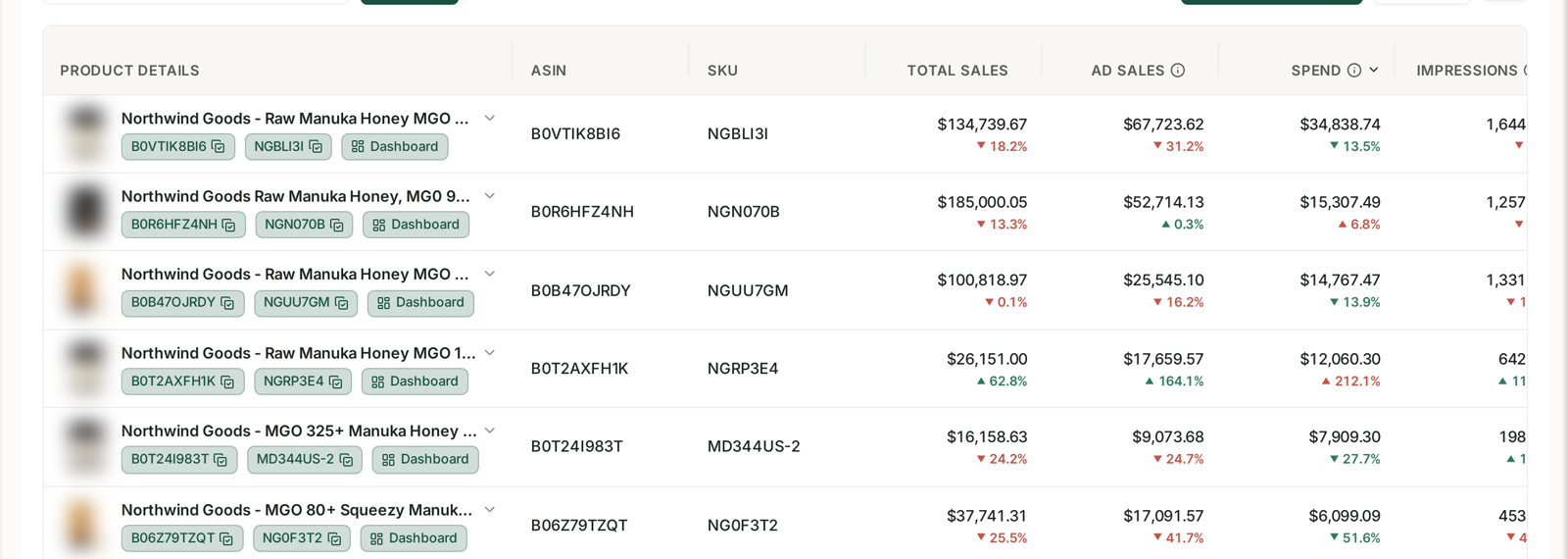
A referral fee that quietly stops being discounted looks exactly like a normal fee until you compare it against what it was — see Understanding Business Reports. Catching that from monthly settlement statements takes a quarter.
Keeping it working
Set every SKU up the same way. Inconsistency across SKUs on the same ASIN breaks it.
Do not reuse a SKU that is already acting as a unit SKU elsewhere.
Product types must match between the unit and the case.
A business price must be set — see Business Pricing and Quantity Discounts.
Set a List Price in the catalogue — see Adding a List Price Strike-Through.
Review it weekly, using the selling economics report, the fee preview report and the category listings report. Discounts drop off silently.
Refresh with a full update periodically if it lapses.
One serious warning
Back up your listing data before you touch any of this.
Deleting either listing — the unit or the case pack — deletes the data for both. They are linked, and the deletion is not confined to the one you deleted.
Common mistakes
Assuming it is seller-fulfilled only. It works on FBA.
Uploading as a full update instead of a partial one.
Setting it on some SKUs but not all on the same ASIN.
Skipping verification, and believing a discount that never applied.
Never re-checking, and losing the discount without noticing.
Deleting a linked listing, and losing both.
Related
- Reducing FBA and Referral Fees — the wider fee-reduction work.
- B2B Fee Discounts and Certifications — the other referral fee discount worth claiming.
- Where Your Margin Actually Goes — sizing what three points of margin is worth.