

Under the question box is a row labelled VISUALS, with seven options. It controls what shape Aria's answer takes — and two of the seven do something more interesting than formatting.
Most of the time Auto is right. It is worth knowing the other six for the times it is not.
Prefer to watch? Sixty-six seconds on the seven options and when to override Auto.
The row
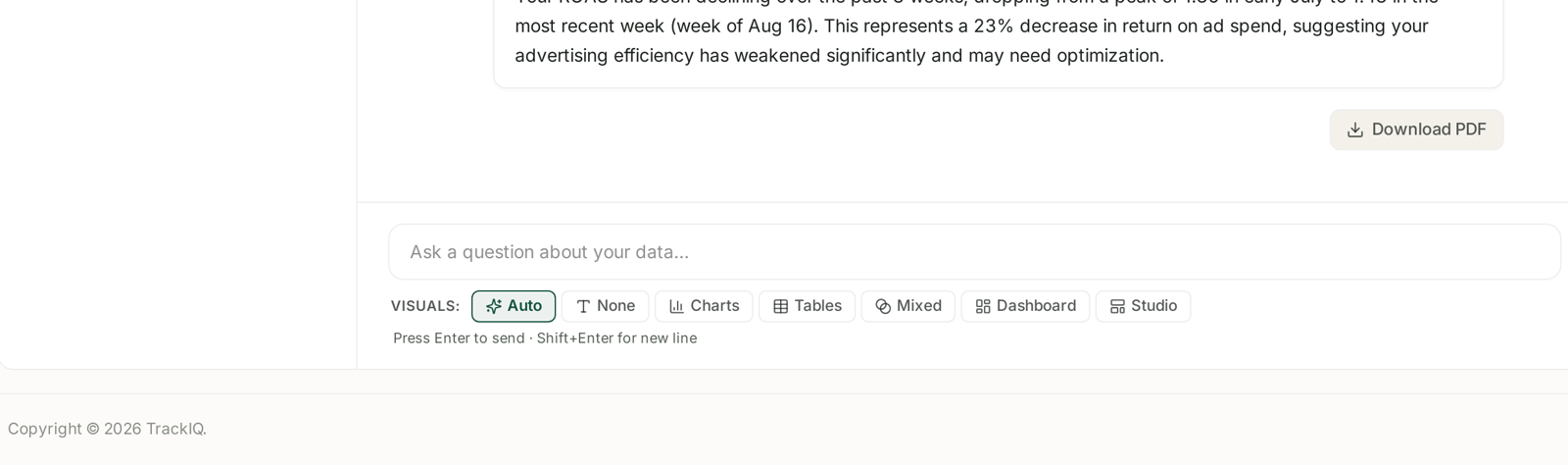
| Option | You get |
|---|---|
| Auto | Aria picks — the default |
| None | prose only, no visual |
| Charts | the answer as a chart |
| Tables | the answer as a table |
| Mixed | chart and table together |
| Dashboard | several panels in one answer |
| Studio | a saved, reusable dashboard |
The setting applies to the question you are about to ask, so change it before pressing Enter.
When to override Auto
None — when you want a number or a sentence, not a picture. Good for quick checks and for anything you are going to paste into a message.
Tables — when you intend to copy the figures, scan a list, or compare rows precisely. A chart is worse than a table for “which twelve campaigns and what did each spend?”
Charts — when the shape matters more than the values. Trends, comparisons over time, anything where you are looking for a direction rather than a number.
Mixed — when you want both, which is more often than people expect. The chart shows you the pattern; the table lets you check it.
Dashboard — when one question genuinely has several parts. “How did last month go?” is not one chart.
Studio is different
The first six change how an answer is drawn. Studio saves it.
Ask with Studio selected and you get a dashboard that persists — titled, described, and listed under Aria → Studios, where you can pin it. It is the difference between an answer you read once and a view you return to.
Use it the moment you notice you have asked the same question twice. See Studios: Building a Dashboard by Asking for It.
Every answer can be a PDF
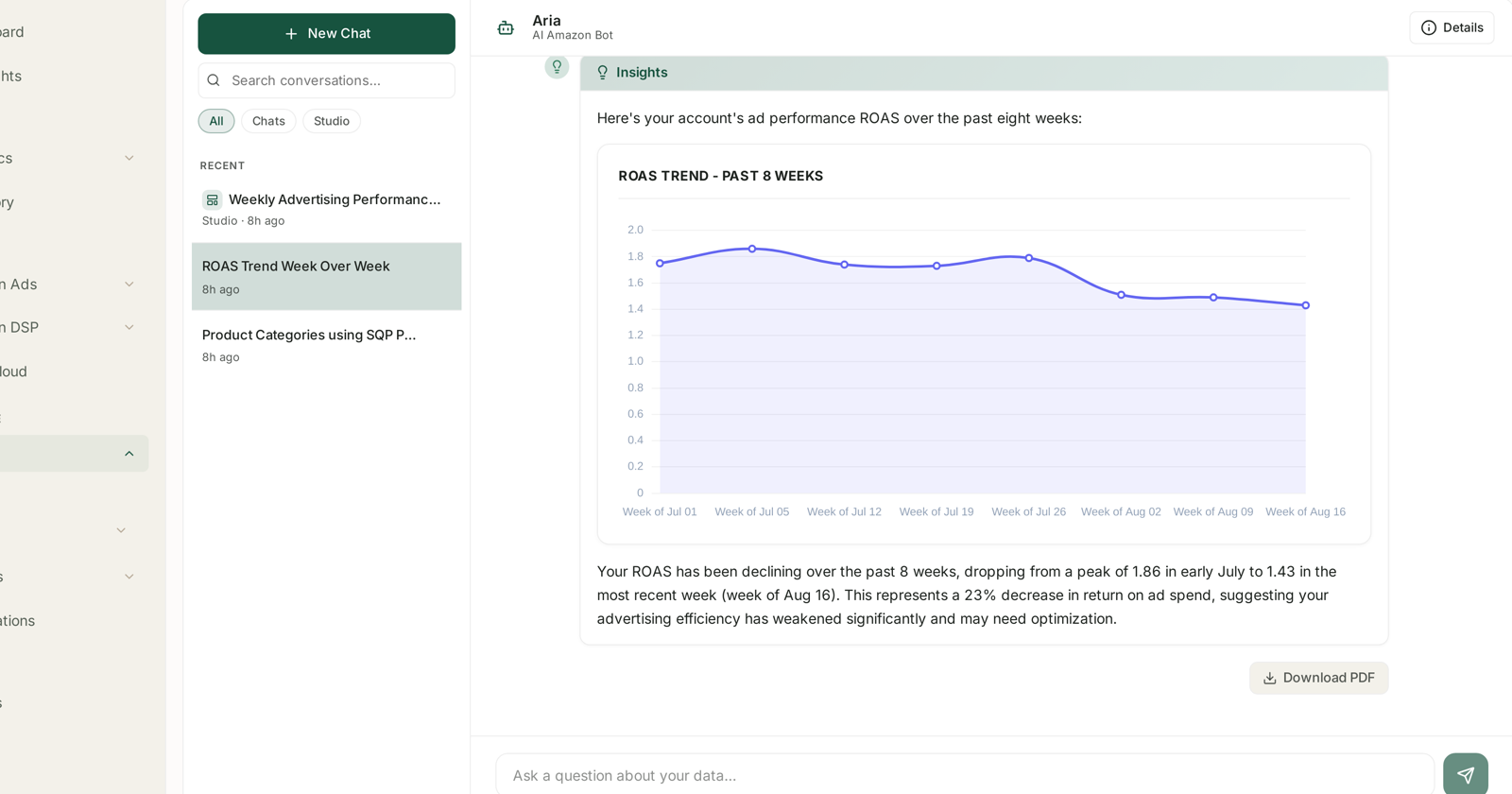
Under any answer is a Download PDF button. It captures the answer as rendered — chart, table and the written interpretation together.
This is the fastest route from “I need to explain this to someone” to something you can send, and it works regardless of which visual you chose. Worth knowing before you start screenshotting.
The interpretation is the point
Whatever visual you pick, Aria writes the sentence underneath it:
Your ROAS has been declining over the past 8 weeks, dropping from a peak of 1.86 in early July to 1.43 in the most recent week. This represents a 23% decrease…
Anyone can read a chart. The value is the reading, and that arrives with every visual option except None — which is a reason to leave None for the cases where you genuinely only want the number.
Two things that catch people
Charts do not always suit the question. Ask for a ranked list of thirty campaigns as a chart and you get thirty bars nobody can read. Tables win on lists; charts win on trends.
The visual does not change the data. Switching from Charts to Tables re-renders the same answer — it does not re-query or reveal anything hidden. If a figure looks wrong, changing the visual will not fix it. See What Aria Can and Cannot Answer.
A sensible default habit
Leave it on Auto. Override when you already know the shape you want:
- Pasting into Slack or an email → None
- Checking specific figures → Tables
- Looking for a trend → Charts
- Presenting to someone → Mixed, then Download PDF
- Asked it twice already → Studio
Related
- Asking Aria a Good Question — phrasing that gets the visual you wanted.
- Managing Chats: Recent, Search and the All/Chats/Studio Filter — keeping the good answers findable.