

Almost every reporting screen in TrackIQ carries the same set of controls in the same place. Learn them once and every screen becomes readable.
Prefer to watch? Forty-eight seconds on the four controls and the two exceptions.

The date range
Top right of the screen, showing something like Feb 01, 2026 - Feb 28, 2026. Everything below it — the summary cards, the charts, the table — is calculated for that range and nothing else.
Two screens do not follow this rule, because their underlying data does not:
- AMC Cloud reports by calendar month, so it has a month selector instead of a range.
- Search Query Performance reports by week, and shows a span of weeks (for example Last 6 weeks) rather than arbitrary dates.
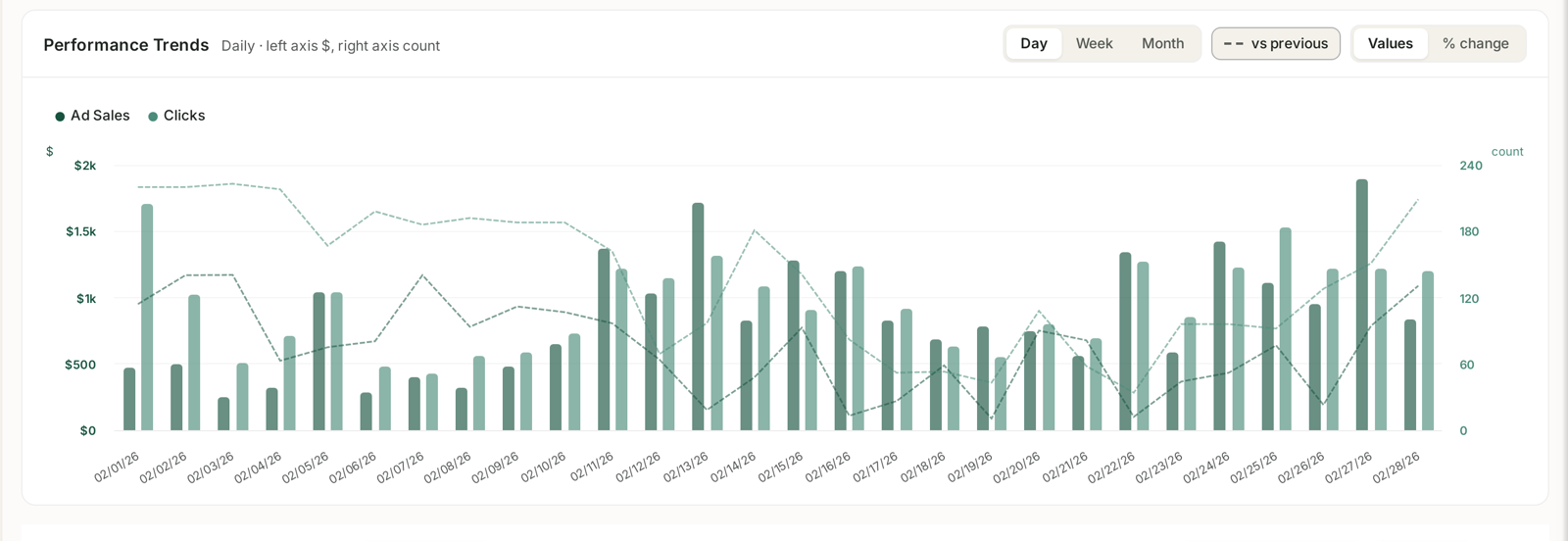
Day, Week, Month
Sitting with the chart, this toggle changes how the trend line is bucketed. It does not change the totals above it — the same period is being summed either way, just drawn at a different resolution.
Use Day to find the exact date something changed. Use Week to see a trend without weekend noise. Use Month for anything seasonal.
vs previous
Every summary card carries a second line like ▼16.8% vs prev. That compares your selected range against the immediately preceding range of the same length. Choose 28 days and it compares against the 28 days before; choose a single week and it compares against the week before.
This is worth being deliberate about. If you pick an arbitrary 17-day window, the comparison is against the previous 17 days, which may straddle a weekend differently and move the figure for reasons that have nothing to do with your advertising.
Arrow colour follows the metric, not the direction. A falling ACoS is shown as an improvement even though the number went down, because lower ACoS is better. Do not read red as “down” and green as “up” — read them as worse and better.
Values vs % change
Beside the comparison control, this switches the table between showing raw figures and showing the change against the previous period. It is the fastest way to answer “what moved?” across a long table: switch to % change and sort.
A note on very recent data
Amazon delivers data on its own schedule, and different data sets arrive at different speeds. The last day or two of any range can look artificially low simply because not everything has landed yet. If yesterday looks like a collapse, check it again tomorrow before acting on it.
Related
- Values vs % Change: The Comparison Toggle — the toggle that sits beside it.
- Search Query Performance Is Weekly: Reading Week Cohorts Correctly — the one report that ignores your range.
- Time to Conversion: Checking Your Attribution Window — why recent days under-report.