

The AI Insights screen is TrackIQ telling you what it noticed without being asked. Nothing on it is vague: every alert states the rule that produced it.
Prefer to watch? Eighty seconds on how to read the screen and which alerts to do first.
The headline counts

Four figures across the top: Total Alerts, then a split into Critical, Warning and Informational.
Critical is the number worth reacting to. It is the one that decides whether you keep reading the screen or go and fix something.
Where the alerts are coming from
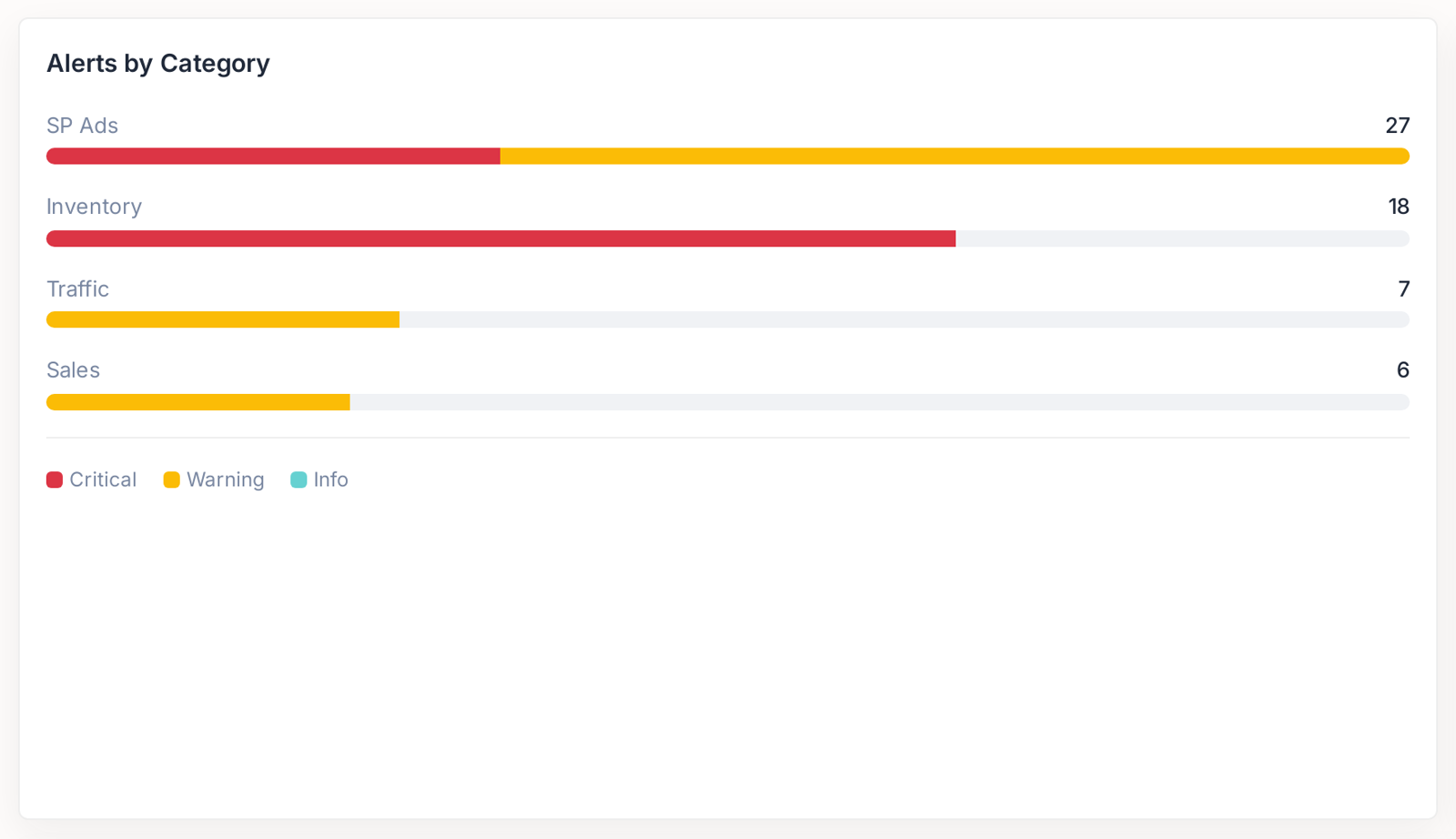
Alerts by Category splits everything four ways.
| Category | Watches | Typical volume |
|---|---|---|
| SP Ads | campaigns, keywords and spend efficiency | usually the largest — advertising has the most moving parts |
| Inventory | stock cover, stockout risk | usually the most urgent |
| Traffic | impressions and sessions moving out of pattern | smaller |
| Sales | revenue shifts by product or category | smaller |
Inventory alerts outrank advertising alerts even when there are fewer of them. An advertising problem costs you money, and money can be won back. A stockout costs you rank as well, and rank has to be earned again.
The alerts themselves
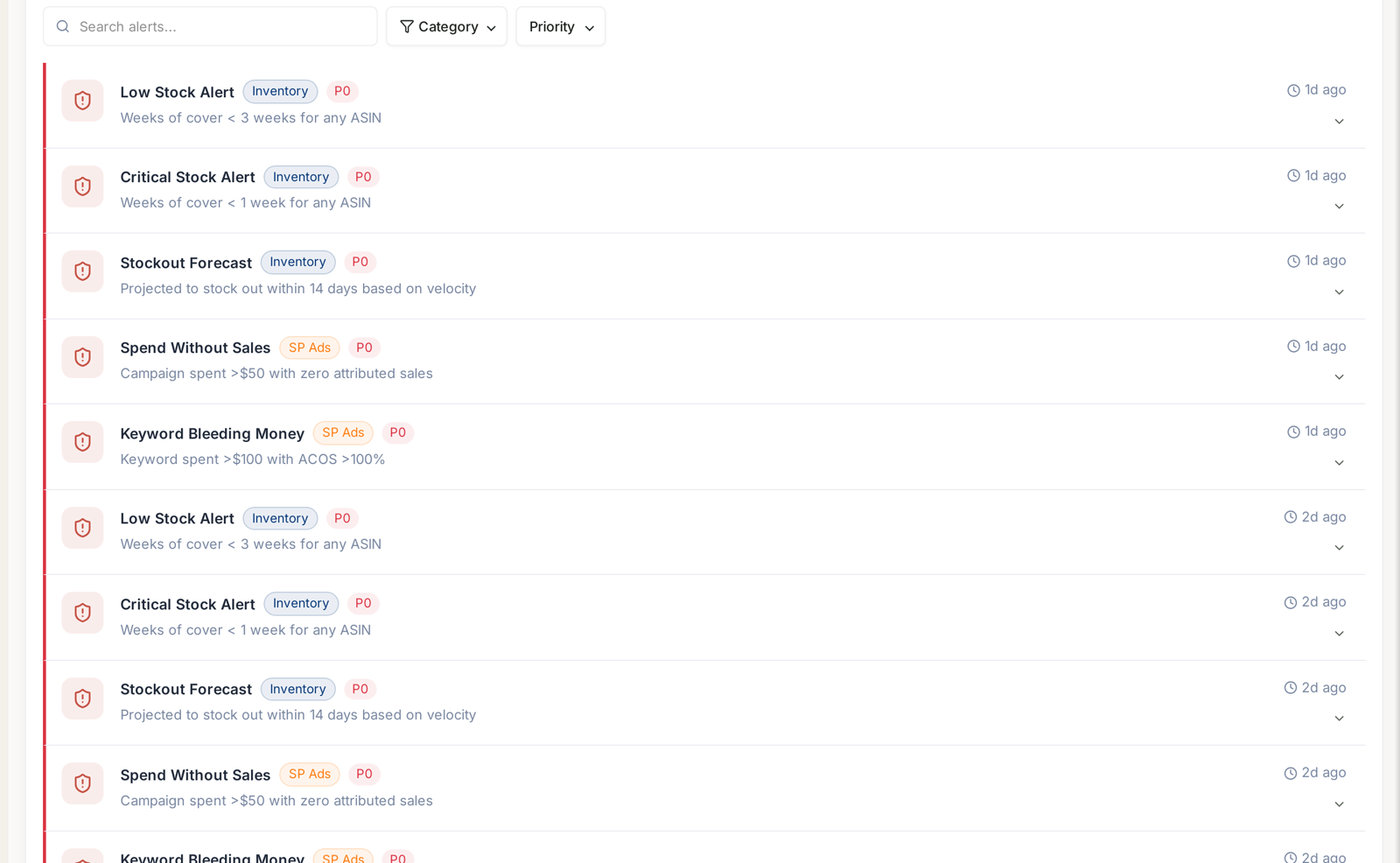
Each row carries the alert name, its category, its priority and — underneath — the exact condition that fired it. These are the ones you will meet most:
| Alert | Category | Fires when |
|---|---|---|
| Low Stock Alert | Inventory | weeks of cover drops below 3 weeks for any ASIN |
| Critical Stock Alert | Inventory | weeks of cover drops below 1 week for any ASIN |
| Stockout Forecast | Inventory | an ASIN is projected to stock out within 14 days at current velocity |
| Spend Without Sales | SP Ads | a campaign spent over $50 with zero attributed sales |
| Keyword Bleeding Money | SP Ads | a keyword spent over $100 at an ACoS above 100% |
| Campaign Daily Budget Capped | SP Ads | a campaign hits its daily budget before the end of the day |
| Ad Spend Spike | SP Ads | daily spend runs more than 35% above budget/average |
| ACOS Spike Alert | SP Ads | ACoS increases more than 25% vs the trailing 7-day average |
| Sales Drop Alert | Sales | daily sales fall more than 30% below the trailing 7-day average |
| Conversion Rate Drop | Traffic | CVR drops more than 20% vs the trailing 7-day average |
The last four compare against a trailing 7-day average, which is worth knowing before you act on one. The threshold moves with your own recent trading: a quiet week raises the bar, a busy week lowers it, and the same absolute drop can fire one week and stay silent the next. It is also why alerts cluster in the days after a promotion ends.
The three inventory rules are the only absolute ones — they measure weeks of cover against stock, not against last week — which makes them the ones to trust without context.
Because the rule is written on the alert, you are never guessing why it appeared — and you can tell immediately whether it matters for your account. A Spend Without Sales alert on a brand-new campaign is expected. The same alert on a campaign that has run for a month is not.
Priority
Alerts carry a priority chip. P0 is the top band, and it is what the Critical count on the summary cards is counting.
Priority reflects both how far something has moved and how much depends on it. Work top down — the ordering is the point of the screen.
Finding things
Three controls sit above the list: a search box, a Category filter and a Priority filter.
The most useful habit is to filter to Inventory first thing in the morning. Those are the alerts with a deadline attached. Advertising alerts can wait an hour; a stockout forecast cannot.
Each row expands for the detail behind it, and carries an age — 1d ago, 2d ago. An alert that has been sitting there for a week is either not important or not being dealt with, and both are worth knowing.
Dashboard and Alert History
The screen has two views.
Dashboard is what needs attention now.
Alert History is everything that has fired before. This is more useful than it sounds: when you are trying to work out when something started going wrong, the history gives you a dated trail. An alert that recurs for the same product every few weeks is describing a structural problem, not a bad week.
An alert is a starting point, not a diagnosis
An alert tells you a rule was met. It does not tell you why the number moved.
The usual next step is to open the relevant screen with the same date range and use Values vs % change to see what moved alongside it.
If you would rather these reached you outside the product, alerts can be delivered to Slack — see Aria in Slack under Settings.
For the dated trail, the affected ASINs behind each alert, and how to tell five alerts apart from one unresolved problem, see Alert History and Priority.
Related
- Understanding Your AI Insights & Alerts — the overview these sit under.