

Analytics → Rank Tracker watches where your products actually appear in Amazon search — organic rank, sponsored rank and Best Seller Rank — and records it every day.
Nothing is tracked until you create a project. A project is a set of products plus the keywords you want to watch them for, and that pairing is the unit everything else in Rank Tracker reports on.
Prefer to watch? Seventy-five seconds on the form, the two limits, and why history starts today.
The limits, up front
Two numbers shape how you should organise this, and they are printed on the screen itself:
| Limit | Value |
|---|---|
| Projects per account | 50 |
| Keywords per project | 25 |
Twenty-five keywords is a real constraint. It is not enough for "every term we care about", and it is not meant to be — it is enough for one coherent question. Projects are cheap; vague projects are not.
Creating one
+ Add project opens the full-page form.
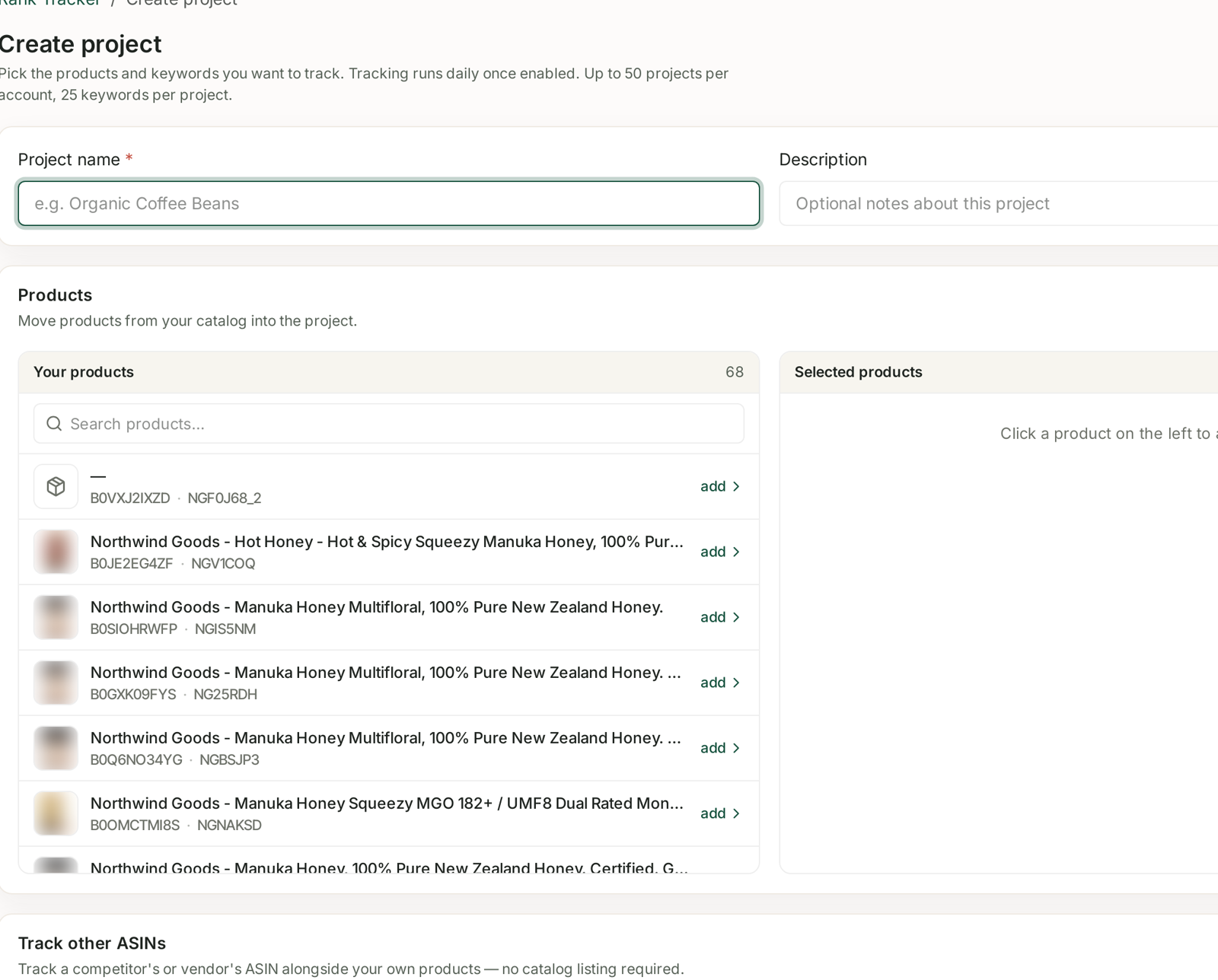
Project name is the only required field. Description is optional and worth using — in six months, "launch terms we're defending after the Q3 price change" is the difference between a project you trust and one you delete.
Products
The Products panel moves items from your catalog into the project. Search on the left, add to move them across, and they appear under Selected products on the right.
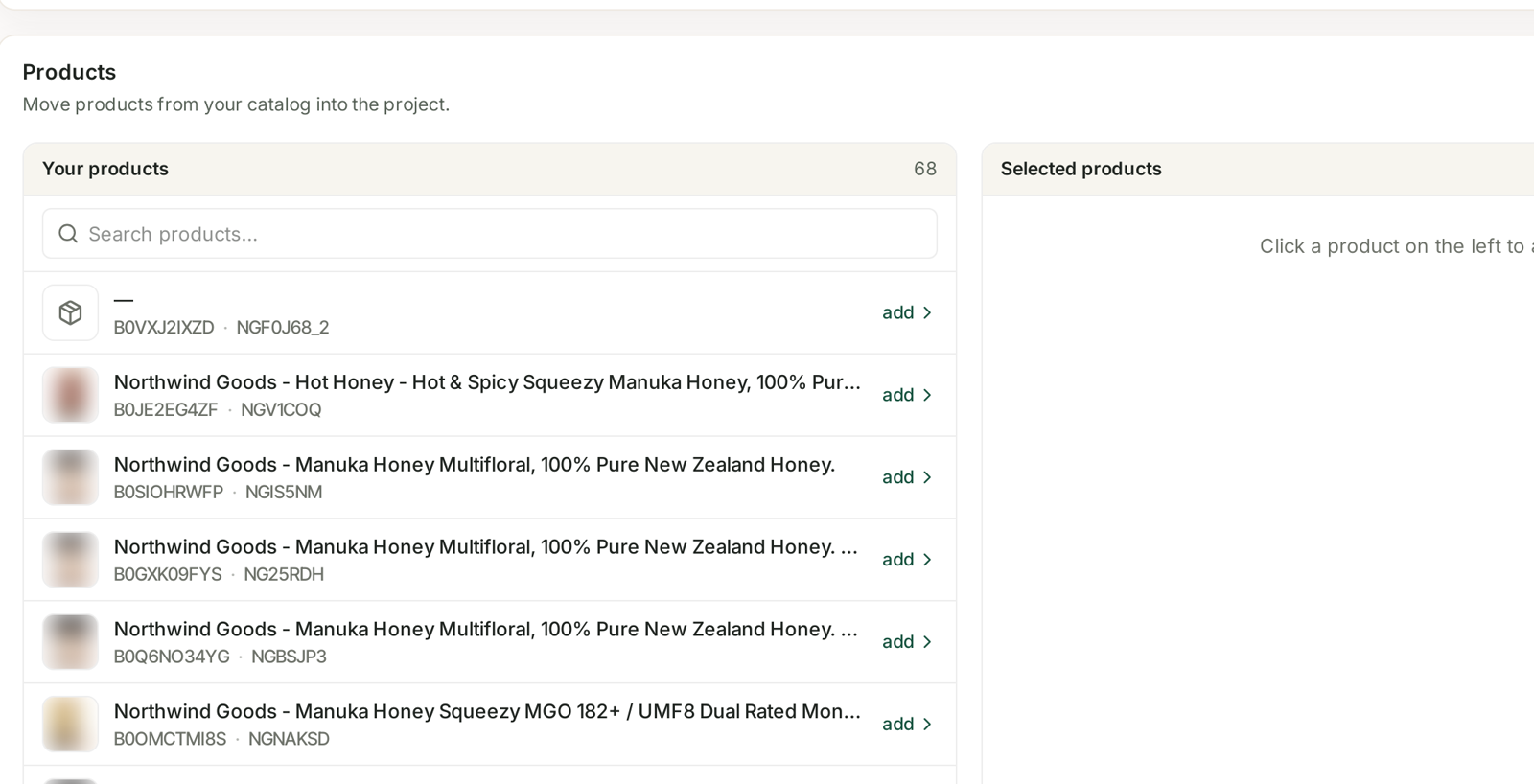
These are your live catalog listings, so each carries its ASIN and seller SKU — useful when you have several near-identical variants and need to be sure which one you are tracking.
Track other ASINs
Below the picker sits the panel that makes Rank Tracker more than a self-audit:
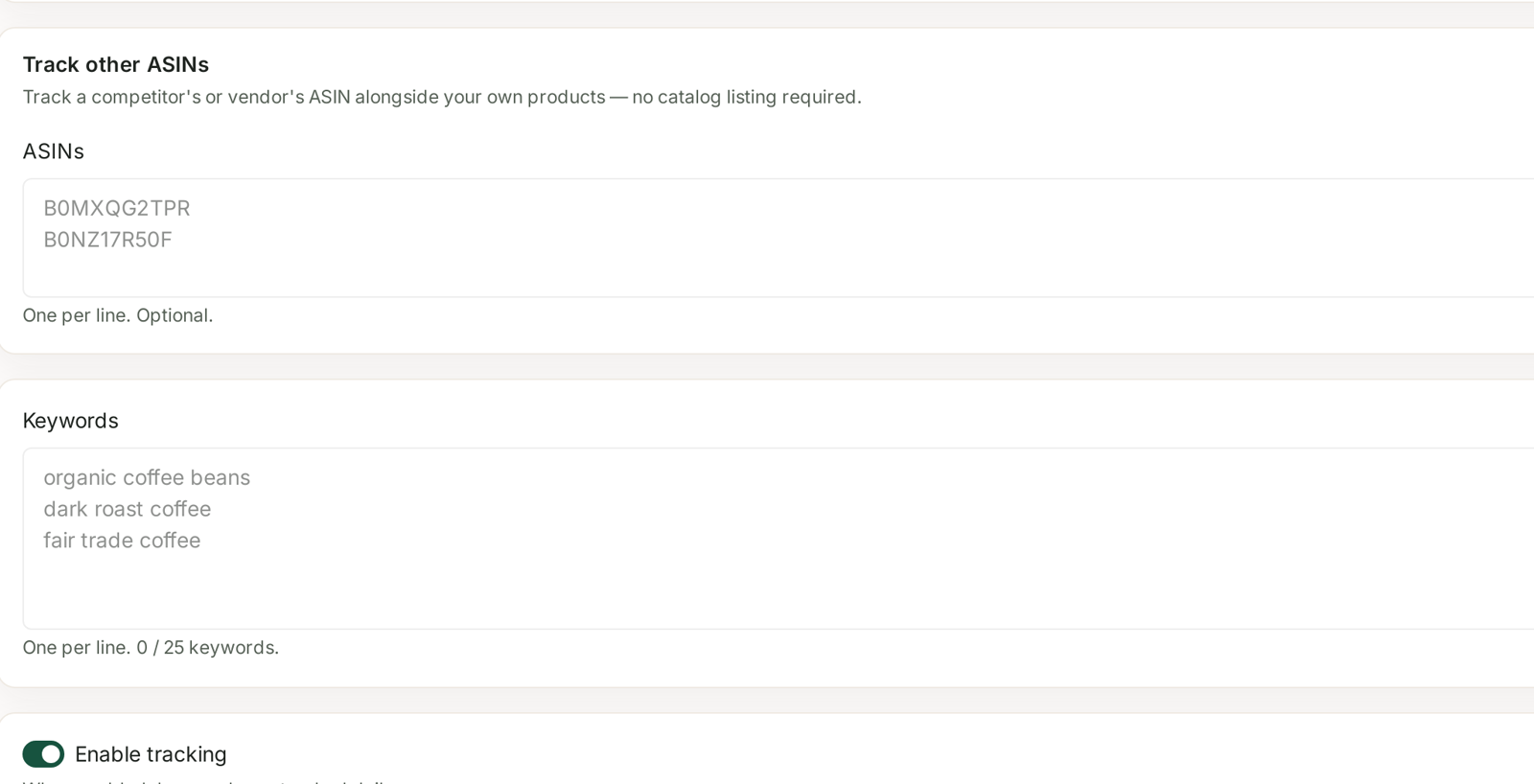
Track a competitor's or vendor's ASIN alongside your own products — no catalog listing required.
One ASIN per line, optional. Anything you paste here is tracked on the same keywords, on the same days, and appears as another column everywhere the project reports. See Tracking Competitor ASINs Alongside Your Own.
Keywords
One per line, with a live 0 / 25 counter.
Pick them the way you would pick a watchlist, not a wish list:
- Terms you already rank for, so you can see erosion before it costs you.
- Terms you are paying for, so you can tell whether the spend is buying position or replacing it.
- The one or two you are actively trying to win, and nothing else aspirational.
A project stuffed with twenty-five terms you rank #90 for produces a wall of amber and tells you nothing. See Reading Visibility, Average Position and Top 10.
Enable tracking
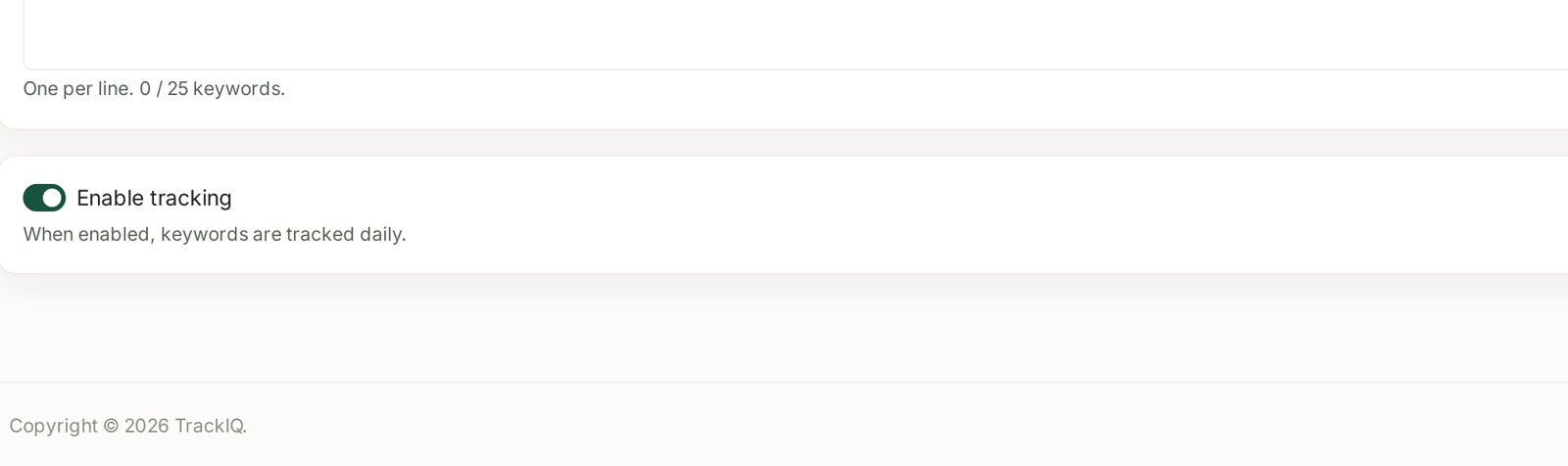
The toggle is on by default. Tracking runs daily once enabled, and history accumulates from that day forward — there is no backfill, so a project created today has a chart that starts today.
That is the practical argument for creating projects before you need them. The launch you want a rank history for in March is one you had to start tracking in January.
Turning the toggle off keeps the project and its history but stops collecting. It is the right move for a discontinued line you may revisit, and it frees a slot against the 50-project limit.
How to divide 50 projects
Each project is answering one question. The groupings that hold up:
| Grouping | The question it answers |
|---|---|
| Branded terms | are we defending our own name? |
| One product line | is this line visible for its category terms? |
| Competitor set | where do we sit against the ASINs we lose to? |
| A launch | is the new listing climbing? |
What does not hold up is one project per ASIN. You get 50 disconnected charts and no comparison — and comparison across products is exactly what the Compare tab exists for.
What you get back
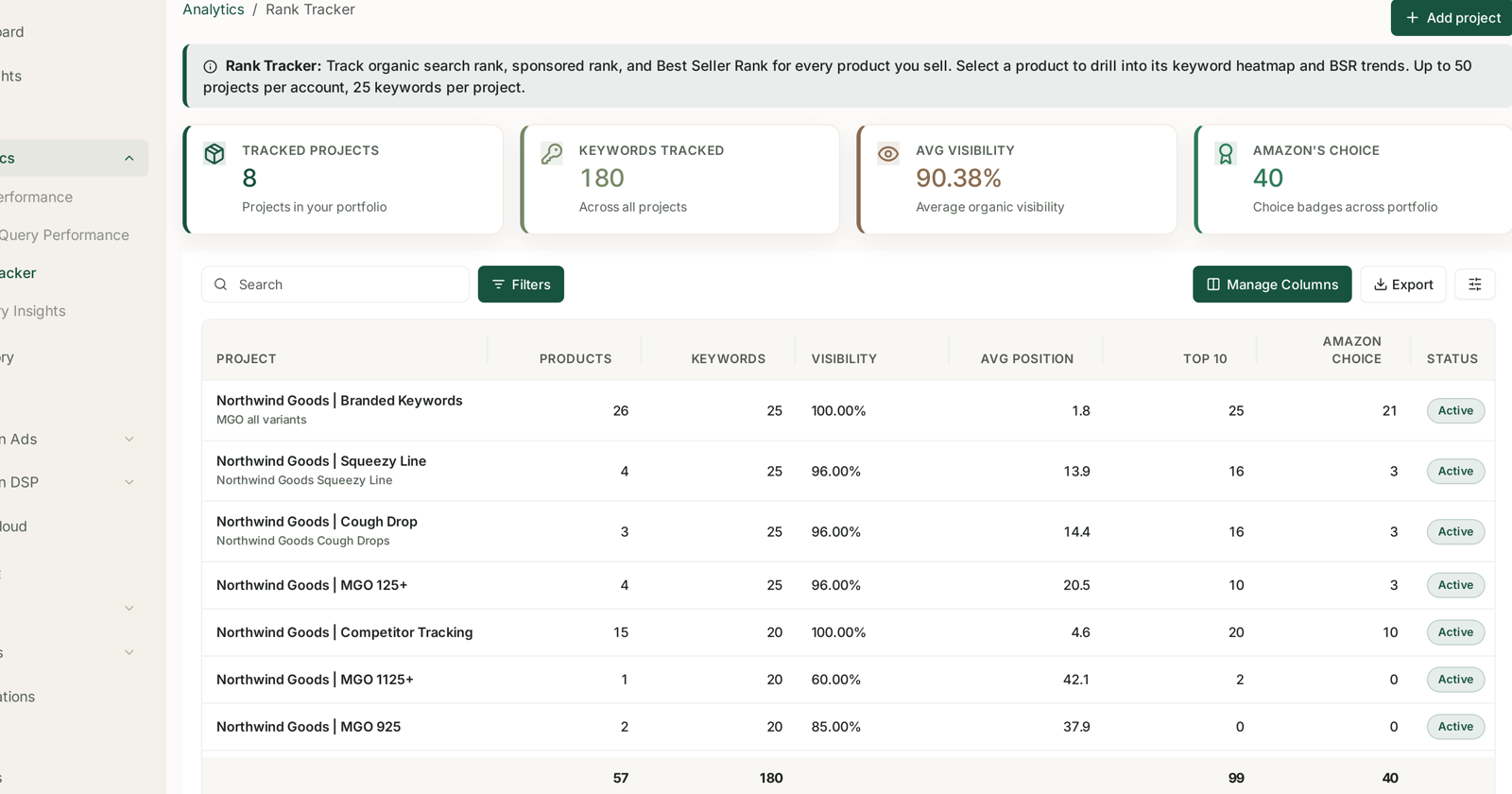
Saved projects land on the Rank Tracker portfolio with Products, Keywords, Visibility, Avg Position, Top 10, Amazon's Choice and Status, plus a totals row across everything you track.
From there, opening a project gives you the Products and Compare tabs, and opening a product gives you its Rank Heatmap, Keywords and BSR Tracker.
Related
- Reading Visibility, Average Position and Top 10 — what the columns mean.
- Tracking Competitor ASINs Alongside Your Own — the other half of the picker.
- Best Seller Rank Tracking — the third rank this screen records.
- Organic vs Sponsored Rank — why one keyword has two positions.