

Automated Onboarding sets up the parts of TrackIQ that depend on knowing your business: product categories, TACoS and ROAS goals, the search terms worth tracking, what counts as your brand, and your margins. You answer a few questions and review what TrackIQ proposes. Doing the same by hand takes an afternoon.
Prefer to watch? Under three minutes on all six steps, and what to check in each before you continue.
Where to find it

Seller accounts see a Set up Automated Onboarding banner at the top of the Dashboard. The button changes with where you are:
| Button | Means |
|---|---|
| Start Automated Onboarding | nothing answered yet |
| View progress | your categories are being built |
| Resume setup | you saved part way through; the banner shows how far |
| Review your categories | categories are built and waiting for you |
Remind me later hides the banner for now. Nothing is lost.
You do not have to finish in one sitting. Save & Exit is on every step, and Resume setup brings you back to the step you left.
1. Your business
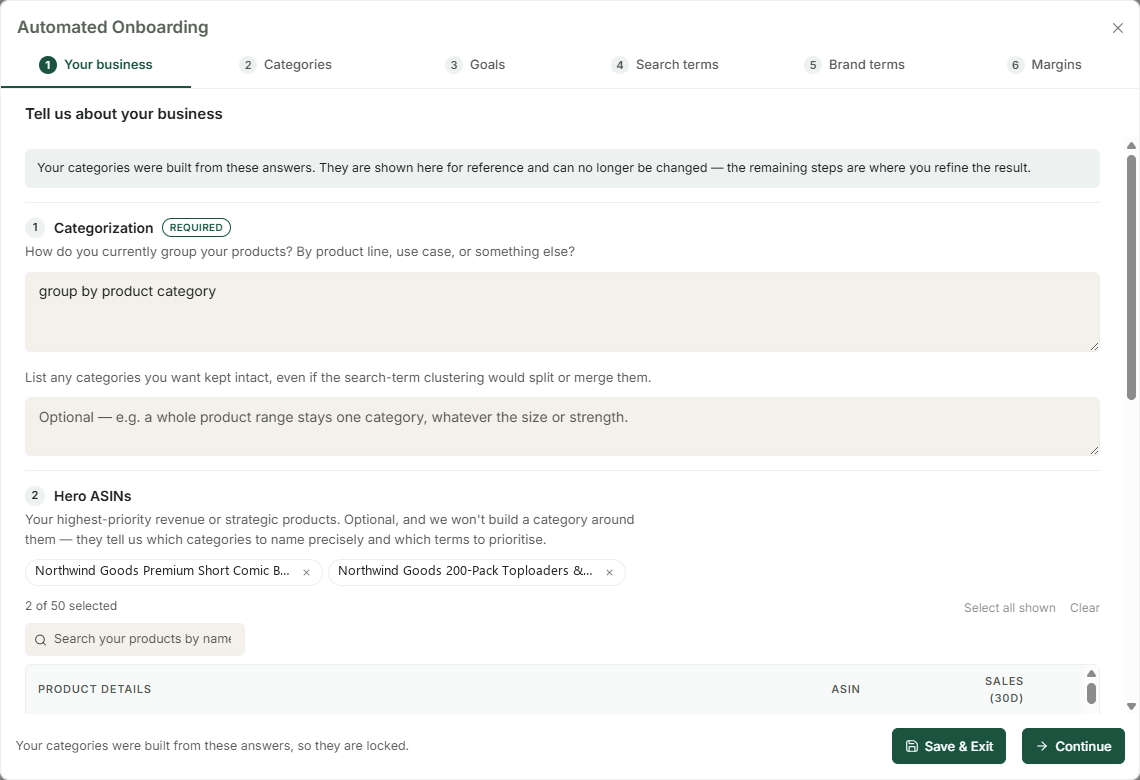
Five questions. Your answers go straight into the grouping. They decide how many categories you get and where the lines between them fall. Questions 1 and 3 are required; the rest only help if they apply to you.
1. Categorization (required). How you group your products today: by product line, by use case, by customer type. Be specific about what should not split a category. "Never split by pack size" is exactly the kind of rule it can use. The second box lists any categories you want kept intact, even where the search-term clustering would split or merge them.
2. Hero ASINs (optional). Your highest-priority revenue or strategic products, up to 50. The list is sorted by the last 30 days of sales, so your biggest sellers are at the top; search by name or ASIN for anything further down. TrackIQ does not build a category around a hero; it uses them to decide which categories to name precisely and which terms to prioritise.
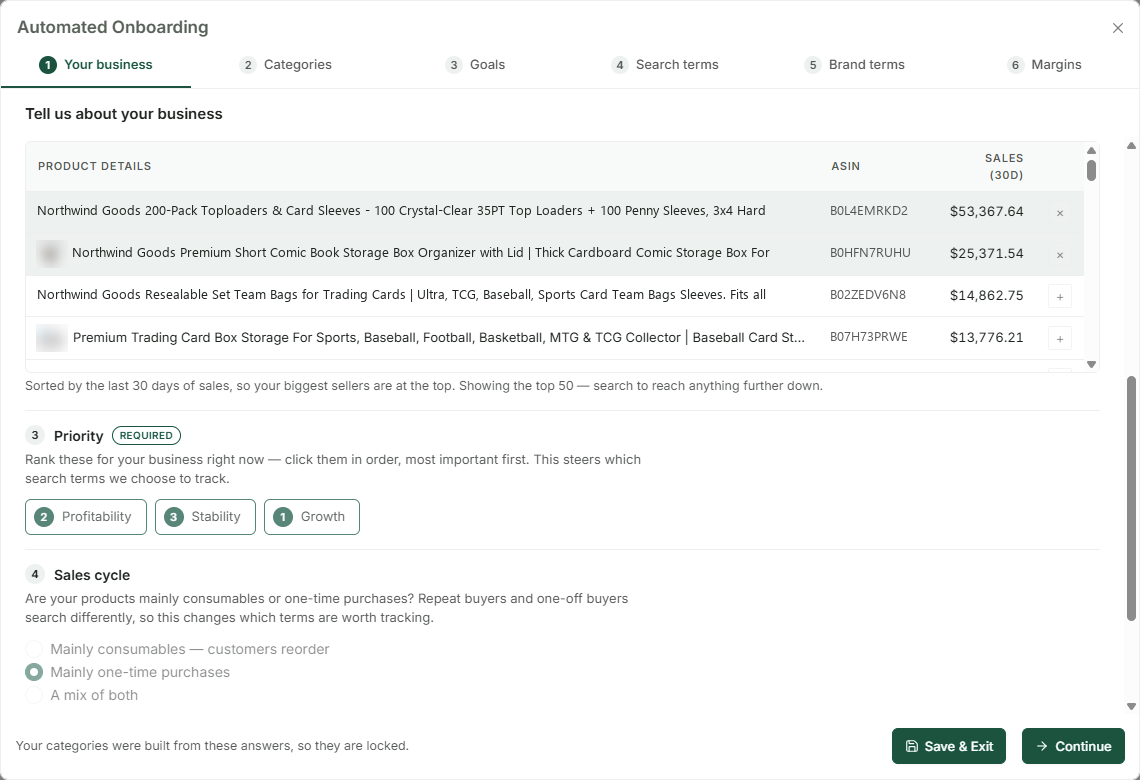
3. Priority (required). Click Profitability, Stability and Growth in order, most important first. This steers which search terms get chosen for tracking.
4. Sales cycle. Mainly consumables, mainly one-time purchases, or a mix. Repeat buyers and one-off buyers search differently, which changes which terms are worth tracking.
5. Seasonality. If you have a clear peak, switch it on and say when. Off-peak, your best terms look weaker than they are; this stops TrackIQ judging a term on the last few months alone.
Click Build my categories. It usually takes under a minute; larger catalogs take a couple of minutes. You can close the window while it runs. Your answers are saved.
Once your categories are built, these answers are locked. The step stays visible for reference, but the later steps are where you refine the result.
2. Categories
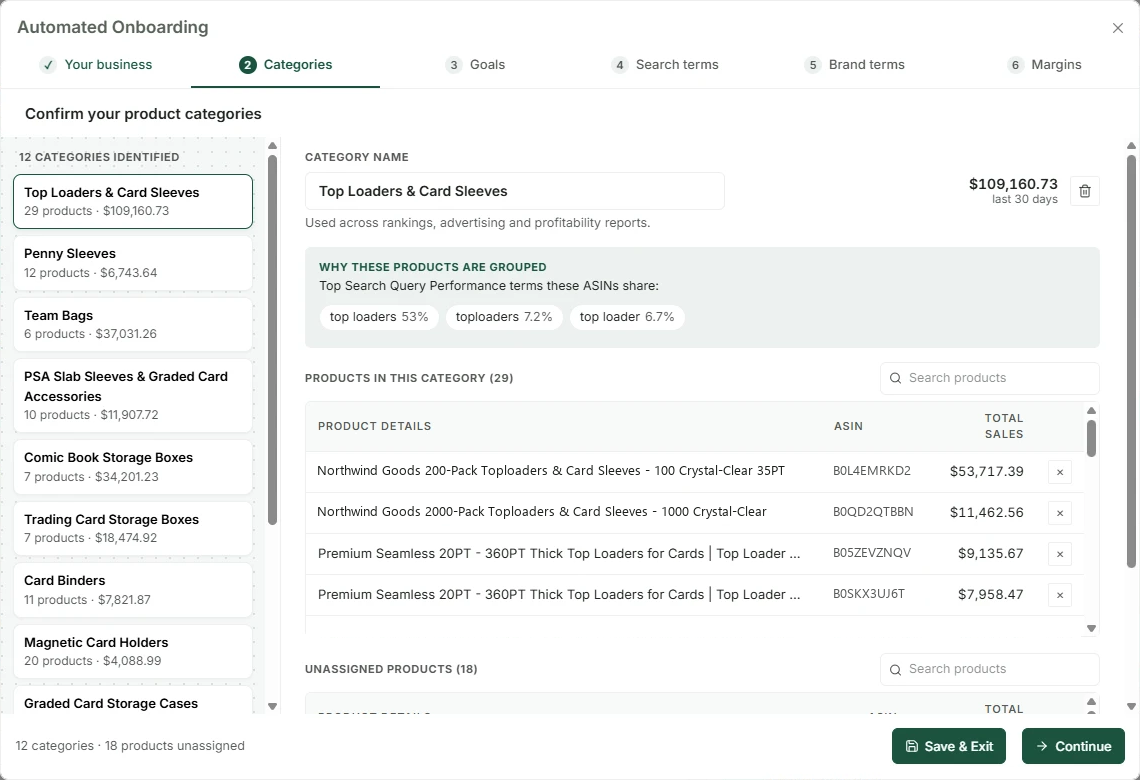
The left-hand list shows every category TrackIQ identified, with its product count and 30-day sales. Select one to review it.
Why these products are grouped. Each category shows the top Search Query Performance terms its products share, with each term's share. It is the evidence behind the grouping. If the terms do not describe one thing a shopper is looking for, the category is wrong.
Fix what is wrong:
- Rename a category in the name box. The name is used across rankings, advertising and profitability reports, so name it the way you would talk about it.
- Move a product out with ×. It goes to Unassigned products.
- Move a product in from the unassigned list with +. It joins the selected category.
- + New category adds an empty one; the bin icon deletes one and returns its products to unassigned.
The footer counts categories and unassigned products. Unassigned products are left out of every category report, so check that list before you continue.
3. Goals
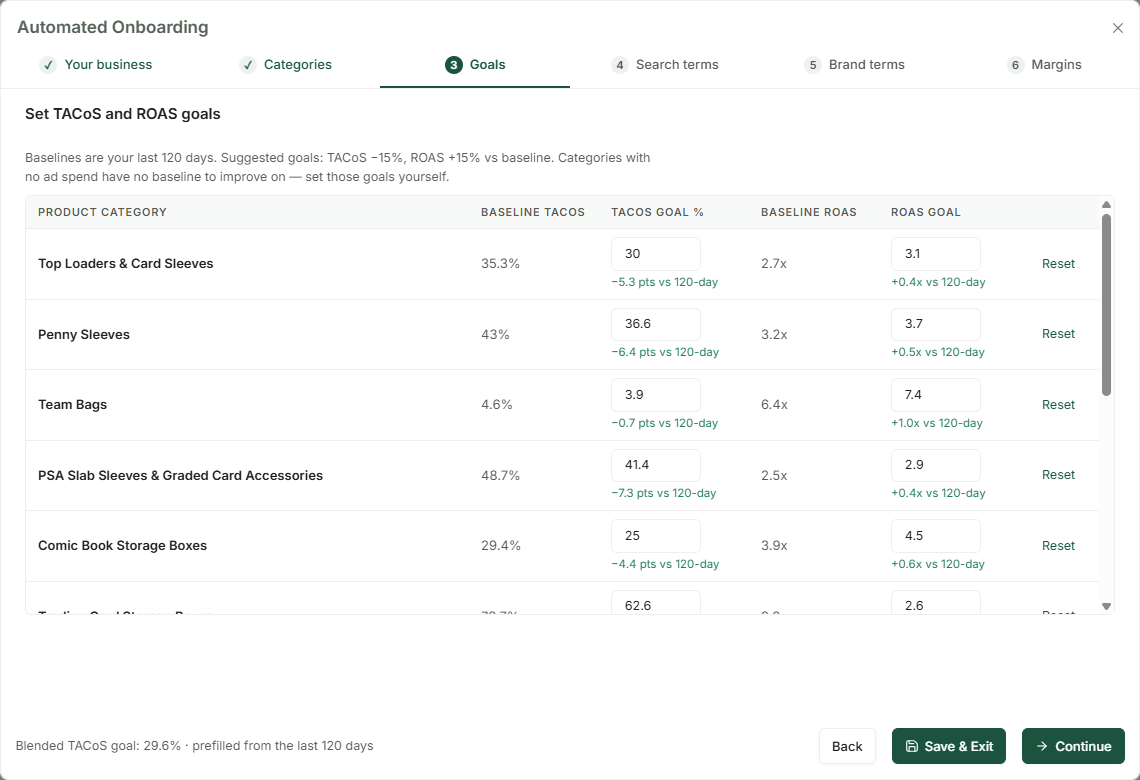
One row per category, with its baseline from the last 120 days and a suggested goal: TACoS 15% lower, ROAS 15% higher. Under each goal you can see how far it is from the baseline.
Edit any goal you disagree with. Reset puts back the suggestion. Categories with no ad spend have no baseline to improve on, so set those yourself.
The footer shows your blended TACoS goal, weighted by each category's sales. That is the number the whole account is now aiming at. See Glossary: ACoS, TACoS, ROAS, NTB and Every Other Column if TACoS and ROAS are new to you.
4. Search terms
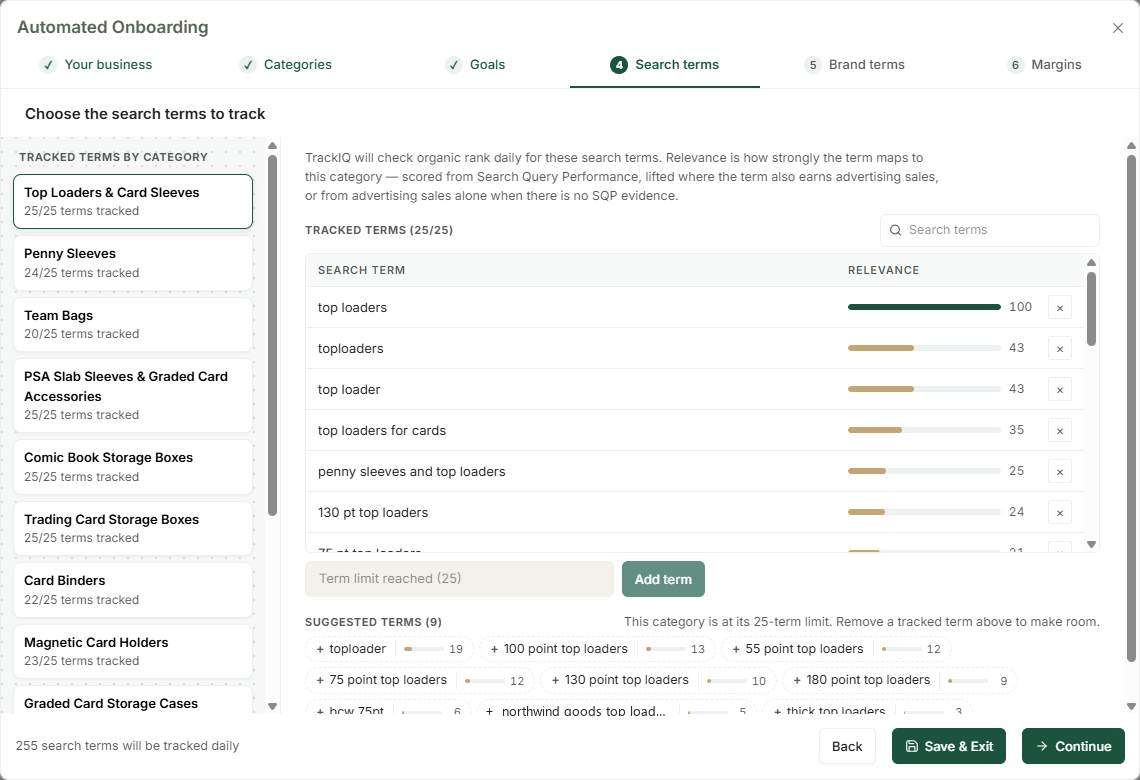
TrackIQ checks your organic rank daily for the terms tracked here, up to 25 per category.
Relevance (0 to 100) is how strongly a term maps to the category. It is scored from Search Query Performance, raised where the term also earns advertising sales, or taken from advertising sales alone where there is no Search Query Performance evidence.
- × stops tracking a term and moves it to the suggestions.
- Add term tracks one of your own.
- Suggested terms come from your search-query and advertising data. Click one to track it.
At 25, a category is full. Remove a weak term to make room for a better one. A category full of low-relevance terms tells you less than a short list of the right ones.
Daily tracking needs the Rank Tracker feature. Without it the terms are saved but not tracked.
5. Brand terms
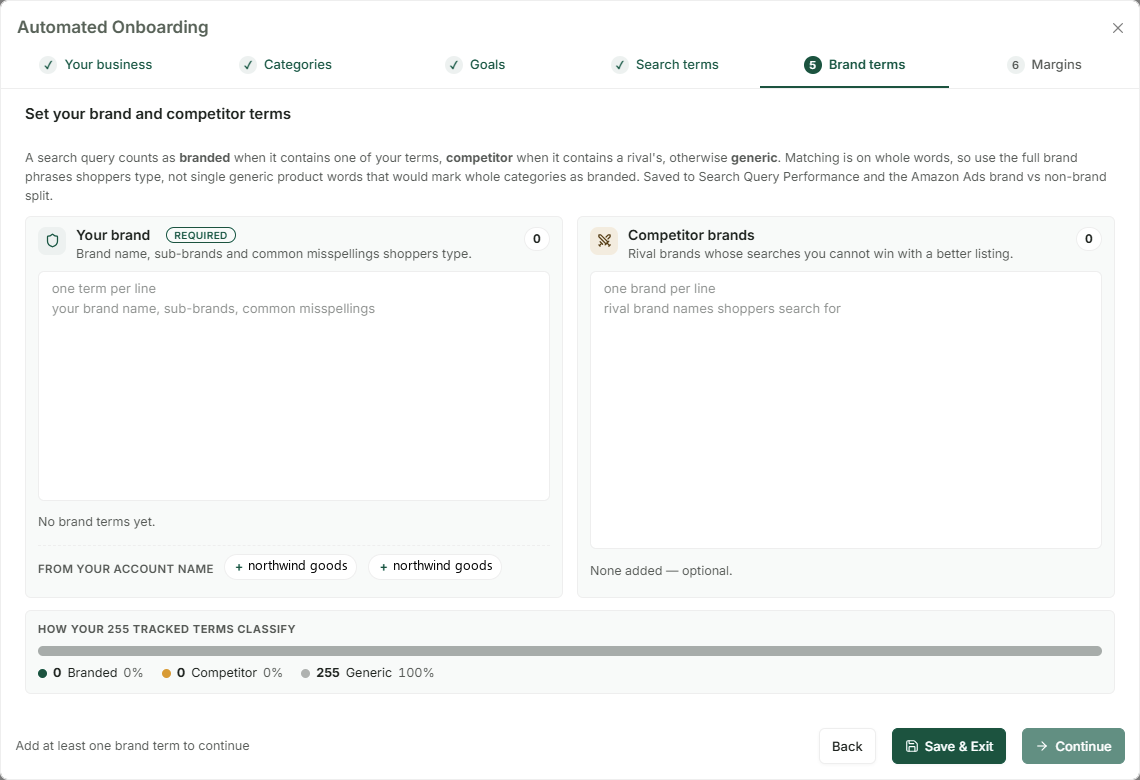
This decides how every search query is classified:
- Branded: contains one of your terms.
- Competitor: contains a rival's.
- Generic: everything else.
It is saved to Search Query Performance and to the Amazon Ads brand vs non-brand split. At least one brand term is required.
Your brand. Brand name, sub-brands and the misspellings shoppers actually type, one per line. TrackIQ suggests terms from your account name; click one to add it.
Competitor brands (optional). Rival brands whose searches you cannot win with a better listing.
Use full brand phrases, not product words. Matching is on whole words, so a generic word in the brand box marks entire categories as branded. The bar at the bottom shows how your tracked terms now classify. If it says a term is probably too broad, 30% or more of your tracked terms are counting as branded, and one of your brand terms is doing that.
If any tracked terms turn out to be competitor searches, the step names them. Go Back to Search terms and drop them: rank on a competitor's name is rarely worth tracking.
6. Margins
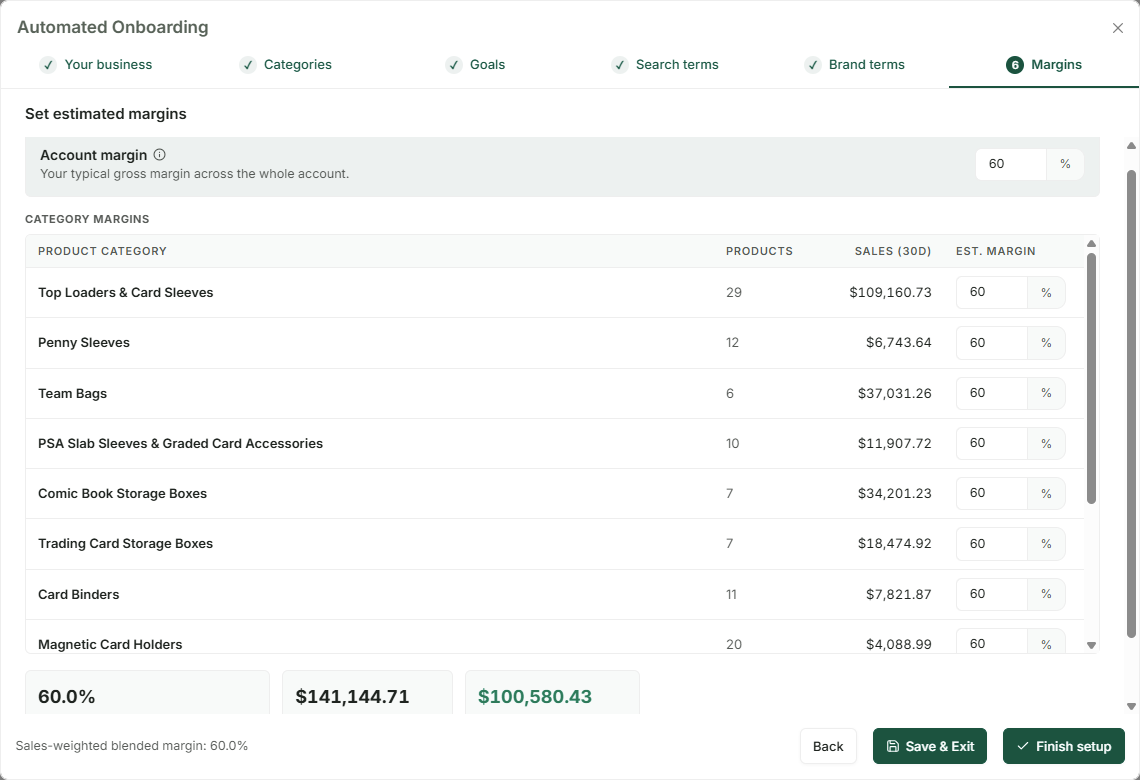
Account margin is your typical gross margin across the whole account, before advertising. Where a product has no cost of goods recorded, Profit & Loss estimates it from this figure: COGS = listing price × (1 − margin). Products with real COGS entered are not affected.
Category margins are set separately and start at 60%. Change the ones you know are different.
Below the table, three figures update as you type:
- Blended margin: weighted by each category's sales.
- Est. gross profit: over the last 30 days.
- Est. net after ad spend: gross profit less the ad spend on those same categories.
If the net figure is negative, look at it before you move on. It is the first honest look at whether your advertising is paying for itself.
Click Finish setup.
What you get
The summary shows the categories created, the terms now tracked and your blended margin. From there:
Your categories are under Products → Categories, and they feed every category view in rankings, advertising and profitability reports.
Your tracked terms are under Rank Tracker. The first organic rank snapshot lands within 24 hours.
Your brand terms now split Search Query Performance and Amazon Ads into branded, competitor and generic.
Your margins switch on profitability tracking in Profit & Loss.
If any terms or rank-tracking projects could not be set up, the summary lists them. The categories, goals and margins are still saved.