

Analytics is where you go with a question about the business rather than about a campaign. Five screens, each cutting the same underlying data a different way — so the only real skill is knowing which one answers which question.
Prefer to watch? A minute on which screen answers which question.
Pick the screen by the question
| Your question | Screen |
|---|---|
| Which products make the money? | Sales Performance |
| What are people searching for, and am I winning it? | Search Query Performance |
| Where do I rank for the keywords that matter? | Rank Tracker |
| Which categories are actually profitable? | Category Insights |
| Am I about to run out? | Inventory |
Sales Performance: by product

Per-ASIN performance, with Total Sales beside Ad Sales. The gap between those two columns is your organic business.
A product whose ad sales are nearly all of its total sales is renting its position. One with high total sales and modest ad spend has genuine demand and is worth protecting.
Category Insights: by category

The same logic one level up, and the screen that carries TACoS alongside ACoS.
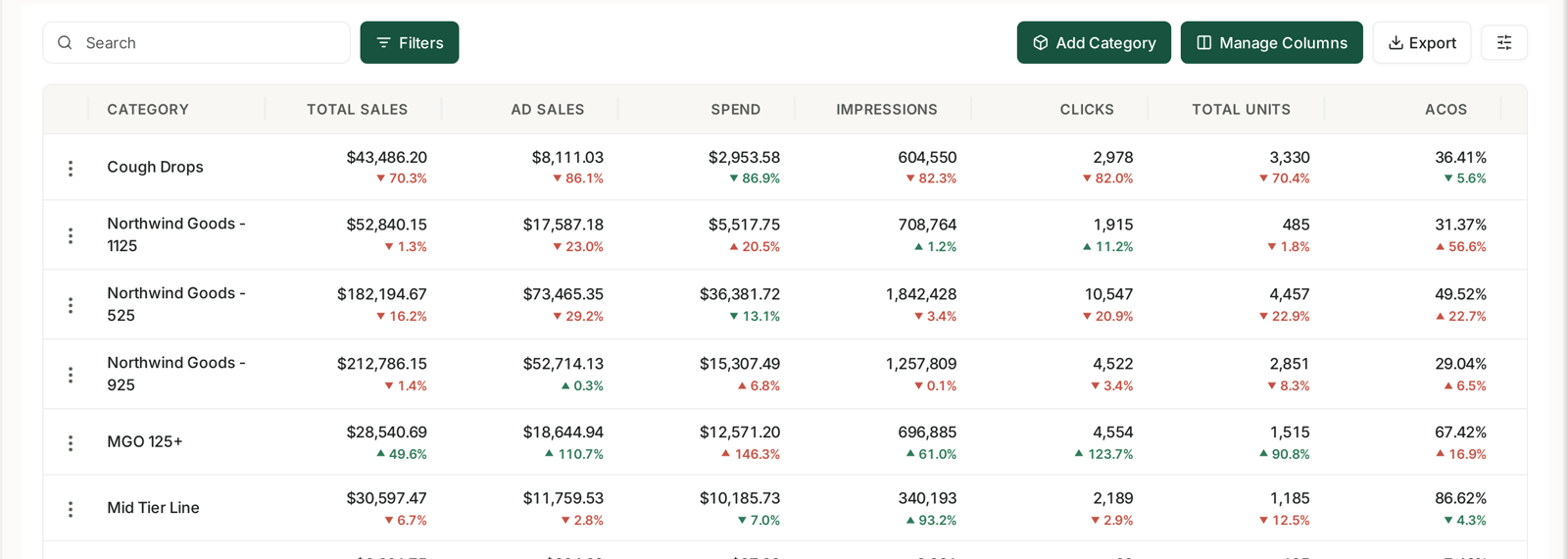
That pairing is the point. ACoS tells you how efficient the advertising was. TACoS tells you how dependent the category is on it. A category with a respectable ACoS and a climbing TACoS is quietly becoming more expensive to sell, and ACoS alone will never show you that.
Category Insights is available on PRO and above.
The other three
Search Query Performance — what shoppers typed, how the whole market performed on it, and how much you captured. Weekly rather than daily. Its Recommended actions section is the fastest route to value in the product.
Rank Tracker — where your products sit in search results for keywords you have chosen to track, day by day, and how that compares to competitors you add.
Inventory — stock converted into days of cover, banded by urgency.
The controls are the same everywhere
Every Analytics screen shares the layout: headline tiles, a trend chart, a table with Search, Filters, Manage Columns and Export.
Two habits pay off across all of them:
Use the % change toggle. It answers “what moved?” rather than “what is biggest?” — and what moved is almost always the more useful question.
Set the date range deliberately. Comparisons are always against the immediately preceding period of the same length, so an odd range produces an odd comparison.
A worked example
Suppose sales are down and you do not know why.
- Sales Performance — sort by % change. Is it everywhere, or one or two products?
- If it is concentrated: Inventory — did those products go out of stock?
- If stock is fine: Rank Tracker — did they lose position?
- If rank is fine: Search Query Performance — did demand for those searches fall, or did a competitor take your share?
Each step rules out a cause, and by step four you have either found it or learned that the market moved rather than your account.
Related
- Filters, Manage Columns and Exporting a Table — the controls every table shares.
- Date Ranges, Granularity and Comparing Against the Previous Period — ranges, granularity and comparison.
- Values vs % Change: The Comparison Toggle — reading change correctly.
- Exporting Data to CSV and Excel — getting it out.