

Every other screen in TrackIQ waits for you to go and look at it. AI Insights is the one that comes to you.
Prefer to watch? Fifty-four seconds on reading and prioritising alerts.
What it actually does
TrackIQ runs a set of checks across your account and surfaces only the things that crossed a threshold. Nothing on this screen is a general observation — every item is a specific rule that fired on specific data.
That matters because it makes the screen trustworthy. You are not reading suggestions; you are reading a list of conditions that are currently true.
The counts

Total Alerts, then a split into Critical, Warning and Informational.
Read Critical first. If it is zero, the rest of this screen can wait until you have finished what you were doing.
Where the noise is coming from
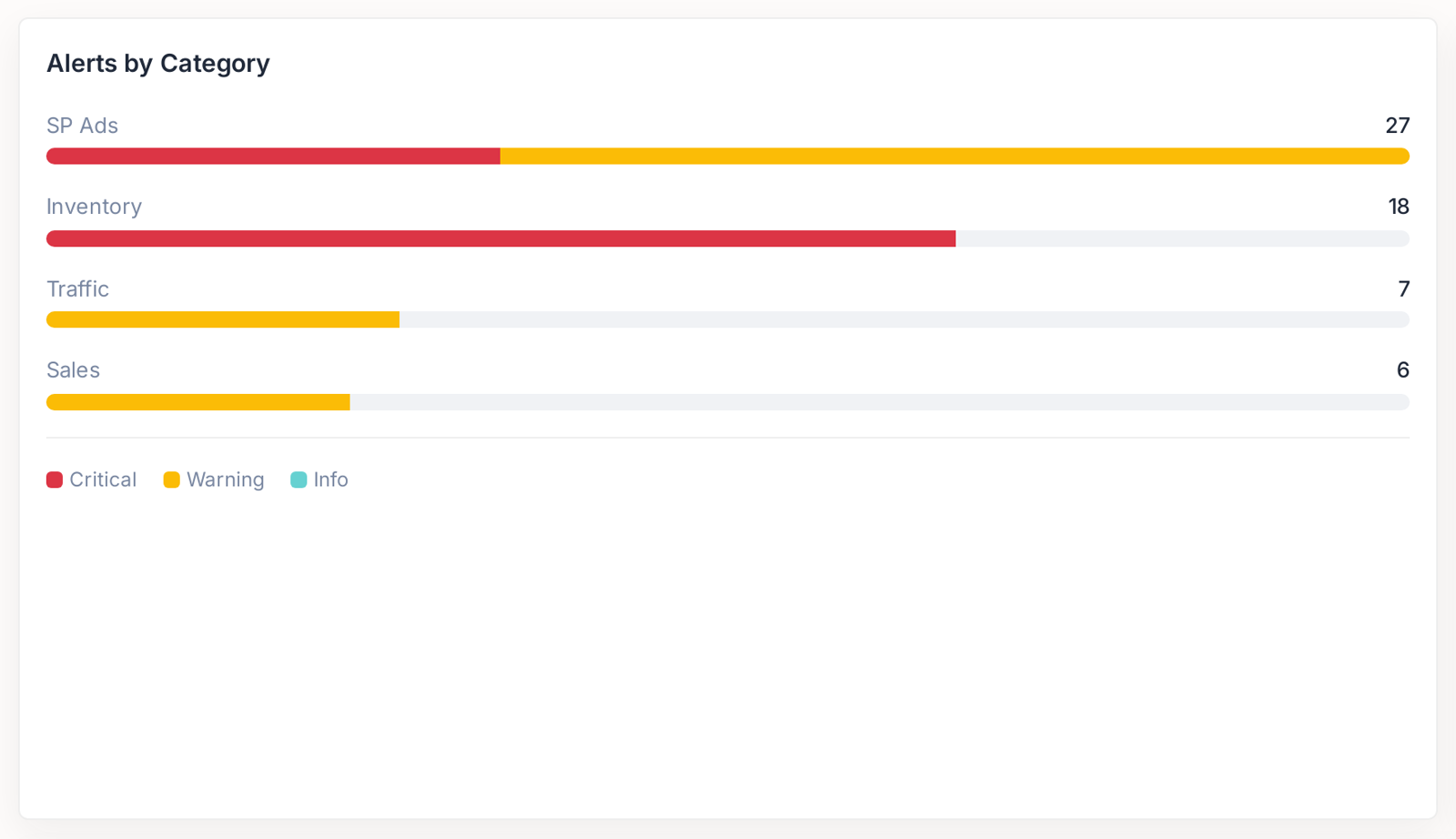
Four categories — SP Ads, Inventory, Traffic and Sales.
SP Ads is usually the largest, because advertising has the most moving parts. Inventory is usually the most urgent, regardless of how few there are.
Each alert states its own rule
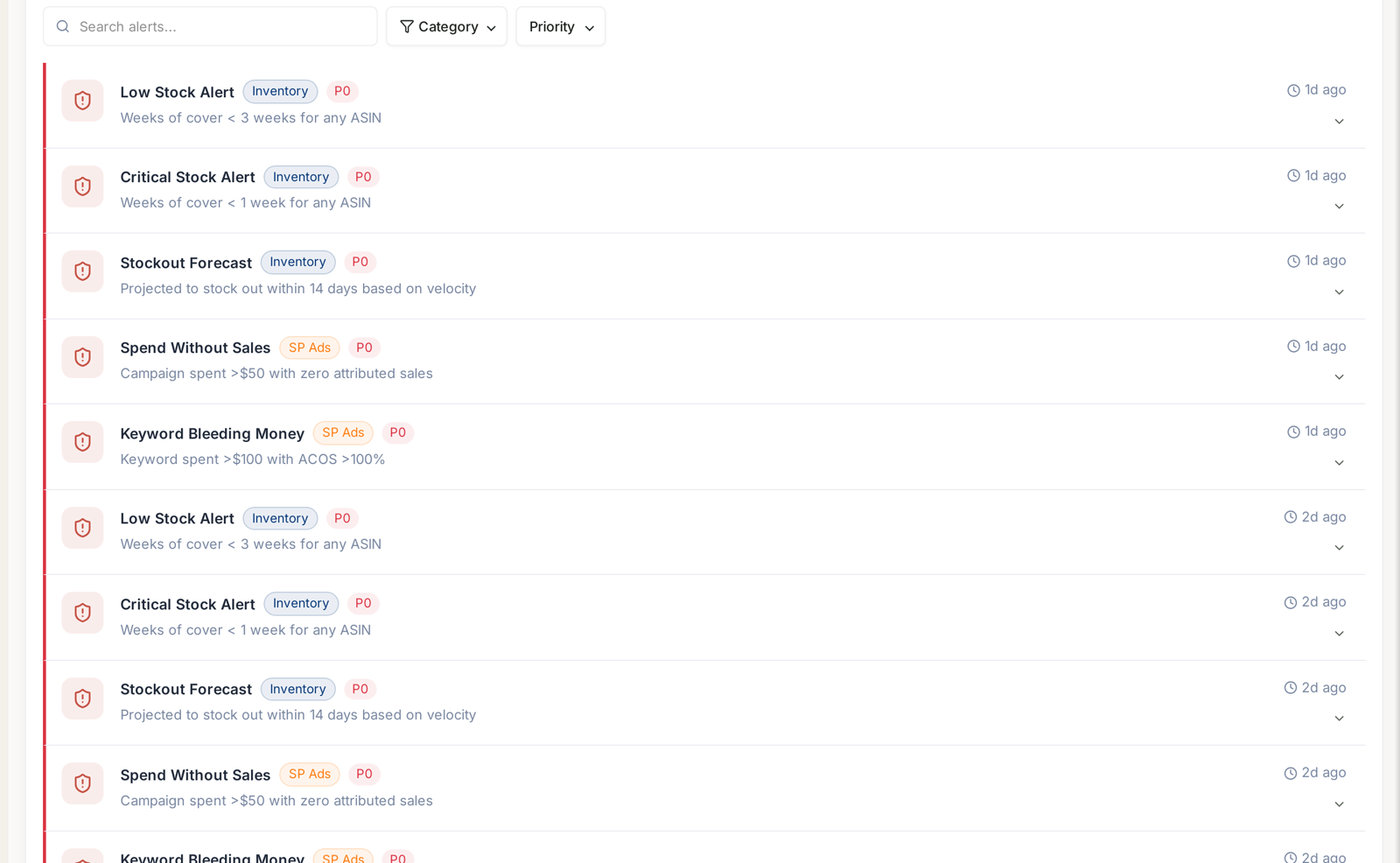
Every row carries the alert name, its category, its priority, and underneath, the exact condition that fired it:
| Alert | Fires when |
|---|---|
| Low Stock Alert | cover drops below 3 weeks |
| Critical Stock Alert | cover drops below 1 week |
| Stockout Forecast | projected to stock out within 14 days |
| Spend Without Sales | a campaign spent over $50 with zero attributed sales |
| Keyword Bleeding Money | a keyword spent over $100 at ACoS above 100% |
Because the rule is written on the alert, you can judge relevance instantly. Spend Without Sales on a campaign launched yesterday is expected. The same alert on a campaign that has run for a month is not.
The order to work it in
Inventory first. Advertising second.
That is not about volume — it is about what each one costs you. An advertising problem costs money, and money can be won back. A stockout costs money and rank, and rank has to be earned again over weeks.
So: filter to Inventory, deal with anything there, then come back for the advertising alerts.
Alert History
The second view holds everything that has fired before. Two uses:
Working out when something started. The history gives you a dated trail, which is usually faster than reconstructing it from charts.
Spotting structural problems. An alert that recurs for the same product every few weeks is not a bad week — it is a reorder cadence that does not match demand, or a campaign whose targeting was never right.
From alert to fix
An alert tells you a rule was met. It does not tell you why the number moved. The usual next step is to open the relevant screen on the same date range and switch the table to % change to see what moved alongside it.
For the alerts that recur, Rule-Based Optimization can act on the condition automatically — pausing a campaign that is spending without converting, for example — so it stops arriving as an alert at all.
And if you would rather these reached you outside the product, see Aria in Slack under Settings.
Related
- Setting Up Smart Alerts and Real-Time Notifications — turning them on.
- Alert Categories, Priorities and What Actually Triggers Them — all ten alerts and what actually triggers each.
- Alert History and Priority — reading the history and the severity split.
- Get Your Daily Number in Slack Without Opening TrackIQ — getting them where you already are.