

The Change log records every change automation has made on this account, newest first.
It is the feature that makes the rest of the rule engine safe to use, because it turns automation from something that happens to your account into something you can check.
Prefer to watch? Seventy-three seconds on reading a row, and the check to run the day after.
Finding it
Automations → Change log, top right of the Rules screen. Back to Rules returns.
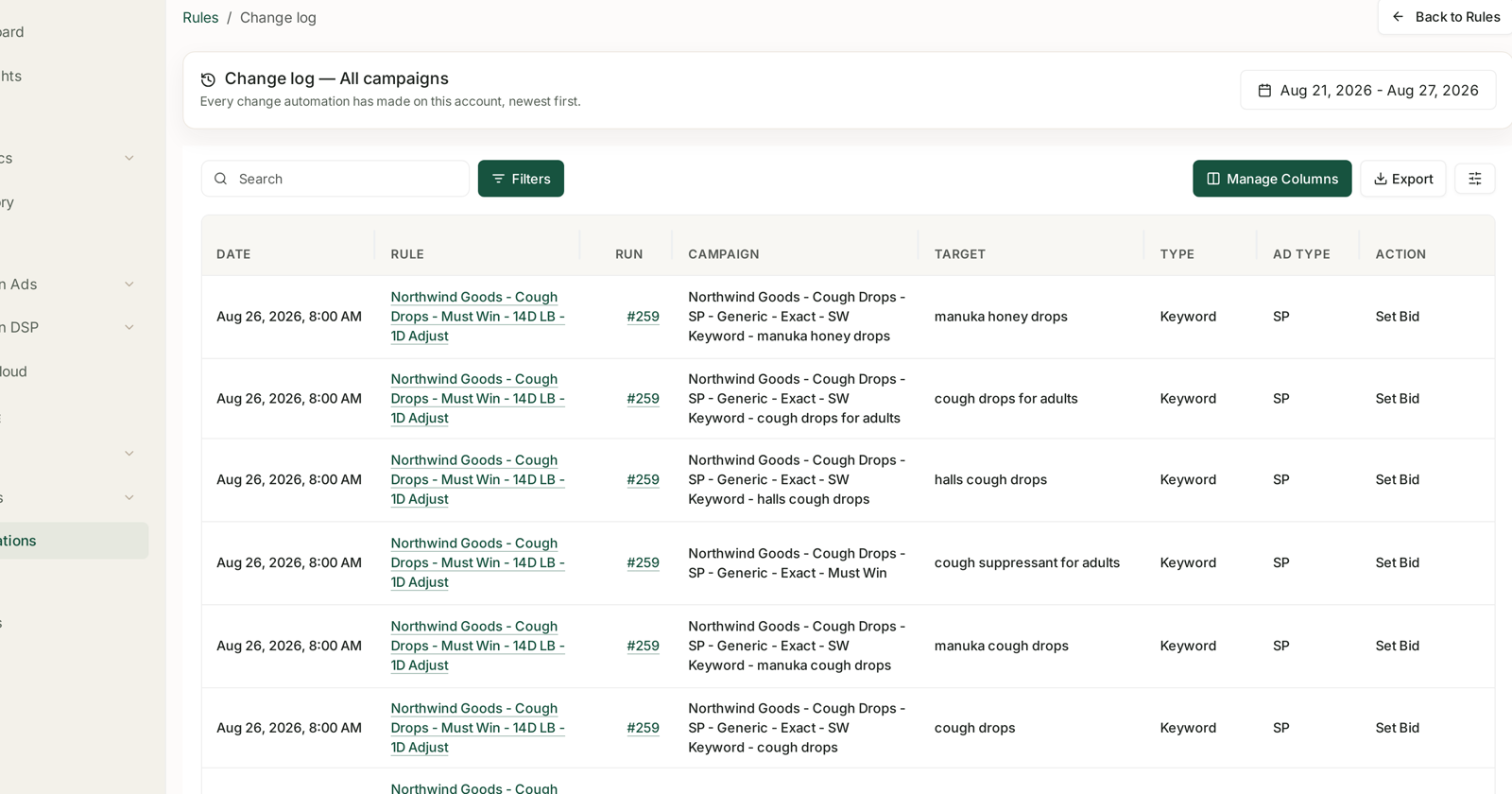
The header names its scope — Change log — All campaigns — with a date range control beside it. Default is the last week.
Reading a row
Each row is one change, to one thing, at one moment.
| Column | What it gives you |
|---|---|
| Date | when, to the minute |
| Rule | which rule did it — a link to the rule |
| Run | which execution — a link, e.g. #259 |
| Campaign | where it happened |
| Target | the keyword or product target affected |
| Type | Keyword, or product target |
| Ad type | SP, SB or SD |
| Action | what was done — Set Bid, a pause, a budget change |
The Run number is the column people miss. Every change from a single execution shares one run number, so clicking it shows you everything that rule did in that pass rather than one row of it. That is the difference between “this bid changed” and “this rule touched 40 keywords this morning, and here they are.”
The three questions it answers
“Why did this bid change?” Search the target. The row names the rule and the run.
“What did my rules do last night?” Set the range to yesterday. If the list is empty, nothing ran — which is itself worth knowing.
“Is this rule doing anything?” Filter to it. A rule that is ACTIVE with a recent Last run but no change-log rows is evaluating and deciding not to act. That is usually correct behaviour, not a fault — but it is also how a badly-scoped rule looks, so it is worth a glance at the conditions.
The check worth doing
The day after you switch on a new rule, open the Change log and read what it actually did.
That single habit is the whole safety story. Rules are easy to reason about wrongly — a threshold that seemed obviously safe turns out to catch forty targets you did not have in mind. You find that out in one minute here, or in a month on your spend chart.
Three things to look for:
Volume. Did it change five things or five hundred? A rule touching far more than you expected is scoped wider than you meant.
Direction. Are the changes going the way you intended? A “trim waste” rule raising bids means a condition is inverted.
Repetition. Is the same target changing every day? That usually means two rules are fighting over it, or the look-back window is too short and the rule is chasing noise. See Targeting Rules.
Exporting it
Export produces a file of the current view, respecting your filters and date range.
Two occasions where that is genuinely useful: explaining a spend change to somebody who does not use TrackIQ, and keeping a record before a big change so you can compare before and after.
What it does not cover
The Change log records what automation did. Changes you make by hand, or in Amazon's own console, are not rule actions and will not appear here.
So a bid that changed with no matching row was changed by a person or by Amazon — which is a useful answer in itself, because it tells you to stop looking at your rules.
Related
- The Automations Screen — where rules and groups live.
- Targeting Rules and Campaign Rules — what can appear in this log.
- Guardrails to Set Before You Automate Anything — how to need this log less.